White Horizontal Lines on Phone Screen: Causes and Fixes
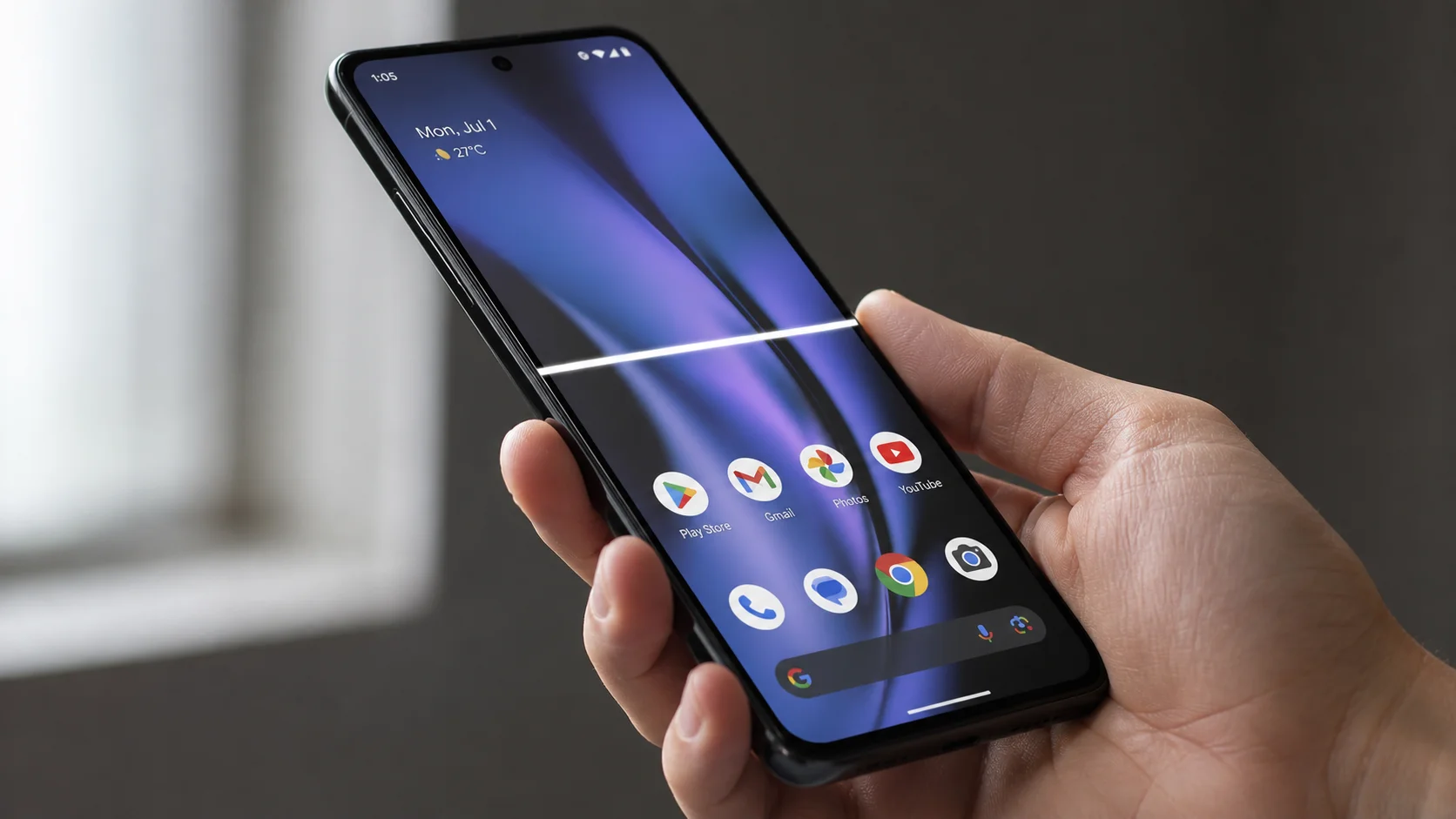
You picked up your phone and there it was — white horizontal lines on phone screen slicing straight across the display. No warning, no explanation, just that immediate gut-drop feeling. Whether it showed up after a drop or appeared for no obvious reason at all, I know exactly how stressful that moment is.
The good news: your phone is probably not done for. I have spent hours going through real repair videos, forum threads, and hands-on testing, and in a large number of cases white lines on a phone screen come from a software glitch not physical damage and can be resolved at home. Lines can appear white, green, pink, or black from software causes alone, so the color does not automatically mean hardware failure.
In this guide I walk you through the real causes, a quick test to identify software vs. hardware, every fix to try at home in the correct order, and when professional repair actually makes sense.
The good news: your phone is probably not done for. In many cases, white lines on a phone screen are caused by a software glitch not physical damage and can be fixed at home in minutes. Lines can appear white, green, pink, or black from software causes alone, so the color does not always point to hardware damage.
By the end of this guide you will know exactly what is causing your lines, how to test whether it is software or hardware, which fixes to try first and at what point professional repair is the right call.”
Wait — Is That “White Line” Actually Screen Damage?
Stop before you do anything else there is a ten-second check worth running first.
If the white line sits at the very bottom of your screen and does not move or flicker, it might not be damage at all. On most Android phones, that thin bar is the gesture navigation bar — a standard interface element. I have seen this exact thing confuse people into booking repair appointments they never needed.
Here is how to check on Android. Open Settings, scroll to Additional Settings, tap System Navigation, and find the option labeled Hide Gesture Guide Bar. Toggle it on. If the line vanishes immediately, your screen is completely fine.
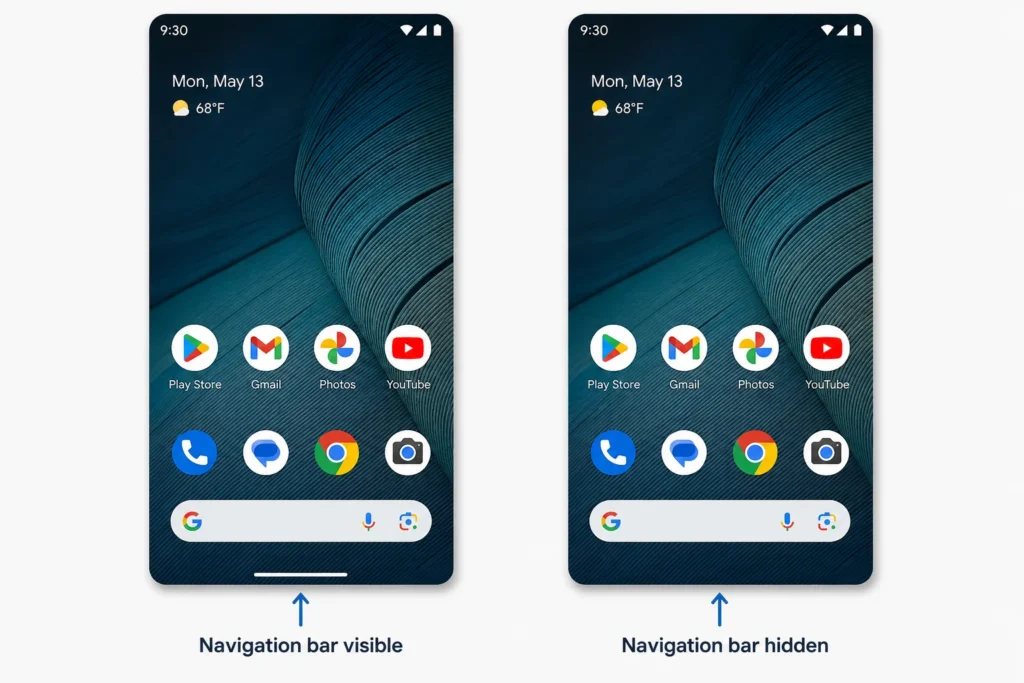
Note: This specific check applies to Android phones. iPhone users can skip ahead to the iPhone section below.
What Causes White Horizontal Lines on a Phone Screen?
White horizontal lines on a phone screen usually come from one of four places: physical damage to the display panel, water or moisture exposure, a loose internal flex cable connection, or a software glitch affecting how the screen renders. In my experience going through dozens of repair cases, software glitches are more common than people expect — which is good news, because those are free to fix. Here is what each cause actually looks like.
Physical Drop or Impact Damage
Dropping your phone can damage the internal display even when the outer glass looks completely uncracked. The force travels straight through the phone body and disrupts the pixel layer inside the LCD or OLED panel. One damaged row of pixels is often all it takes to produce a white horizontal line across the screen.
This is one of the most misunderstood types of phone damage — the phone looks normal on the outside, but the panel has been disrupted internally. If your lines appeared in the hours after a drop, this is the most likely explanation. (For similar display issues on laptops, check our guide on Lenovo laptop display issues.
This type of internal LCD screen damage is frustrating because there is no visible crack to explain it. The phone looks normal on the outside but the display panel has been disrupted at a deeper level. If your white lines appeared shortly after a drop, physical impact damage is the most likely cause.
Water or Moisture Damage
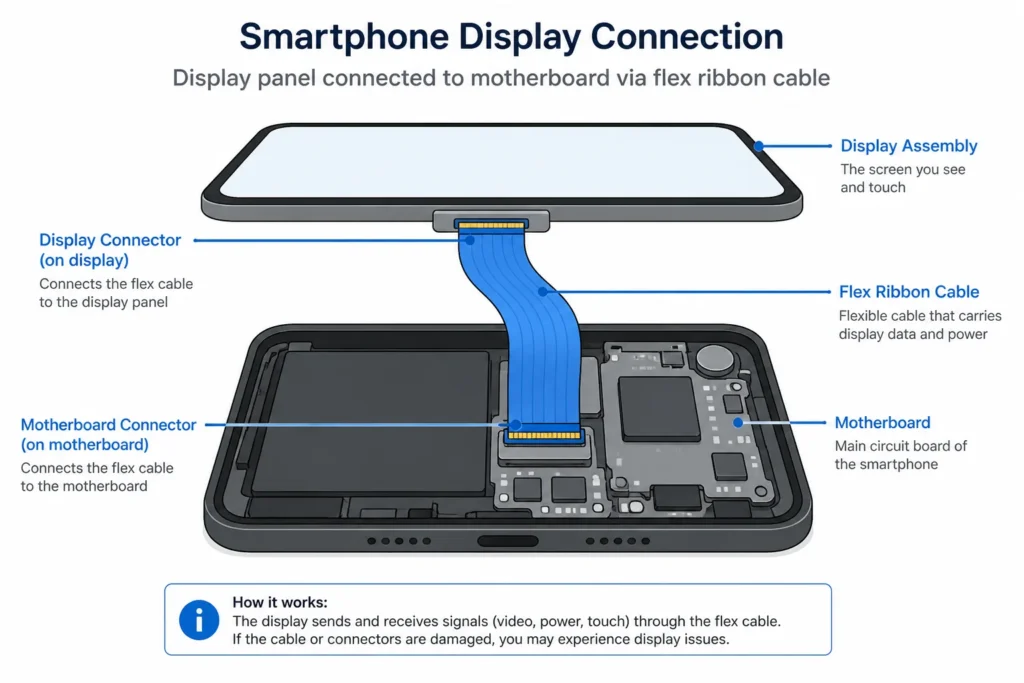
Liquid getting inside your phone is one of the more deceptive causes of white horizontal lines — it does not always show up immediately. When moisture reaches the flex cable components that connect your display to the motherboard, it causes corrosion and carbon buildup that disrupts the display signal.
What most people do not know is that moisture damage does not automatically mean you need a new screen. A technician can sometimes clean the corrosion from the flex cable using isopropyl alcohol and controlled heat, which restores the display completely without replacing the panel. If water damage is your situation, ask about this option specifically before agreeing to any repair.
Loose or Damaged Flex Cable
Inside your phone, a thin ribbon called the flex cable connects the display panel to the main circuit board and carries the video signal to your screen. If this cable partially disconnects — from a drop, from years of use, or even from pressure applied to the phone — the signal gets interrupted and horizontal lines appear.
This is worth knowing because a loose flex cable is sometimes fixable without opening the phone at all. The gentle pressure technique I cover in the iPhone section is built on exactly this principle — sometimes the cable just needs to be reseated.
Software Glitch or Corrupted System Files
Not every case of white lines means something is physically broken. A software glitch or corrupted system file can produce display artifacts that are visually identical to hardware damage — and this happens more often than most guides will tell you.
The most frequent software trigger I have come across is third-party APK apps — applications downloaded from outside the Google Play Store. These unverified apps can introduce system instabilities that force the display to render incorrectly, producing white or colored lines across the screen. Once the app is removed and the system settings are reset, the lines often disappear completely.
If your lines appeared without any drop or water contact, run the software fixes before assuming the worst.
How to Tell If It’s Software or Hardware (Do This Test First)
Most troubleshooting guides skip straight to fixes without addressing the most critical question first: is this a software problem or a hardware failure? The answer determines everything. Chasing software solutions on a hardware problem eats your time. Paying for a hardware repair on a software glitch eats your money. These three tests tell you which path you are actually on.
Here are three tests you can run right now, in order.
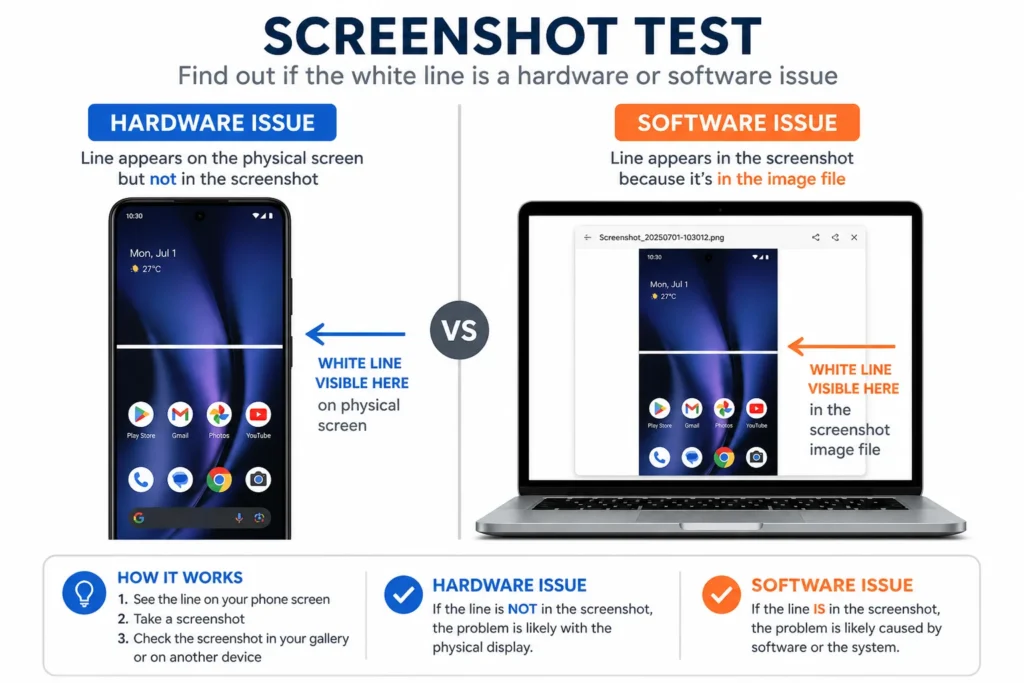
The Screenshot Test (30 Seconds)
Take a screenshot and either email it to yourself or open it on another device. Check whether the white lines appear in the image.
If the lines are NOT in the screenshot — the problem is in the physical display hardware. The screenshot captures what the software is producing, so a clean image with visible lines on the screen itself confirms hardware damage.
If the lines DO appear in the screenshot — the problem is in how the software is rendering the display. That is the better scenario, because software causes are fixable at home.
The Safe Mode Test
Safe Mode launches your phone using only its original factory apps — every app you installed is temporarily disabled. This isolates whether a downloaded app is causing your display problem.
On most Android phones: Press and hold the power button until the power menu appears. Press and hold Power Off until a Safe Mode prompt appears. Tap OK. The phone will restart into Safe Mode.
On Samsung Galaxy specifically: Hold Volume Down alongside Power Off when the prompt appears.
Once in Safe Mode, check your screen. If the white lines are gone, a downloaded app is the culprit. Exit Safe Mode by restarting normally, then uninstall recently added apps one at a time until the lines stop returning.
The Restart and Watch Test
Force restart your phone using your power button. On most Android phones, press and hold the power button and select Restart. On iPhones, use the Volume Up then Volume Down then Side Button sequence until the Apple logo appears.
Once the phone restarts, lock the screen immediately. Do not touch it. Leave it completely undisturbed for five to six minutes.
This rest period matters more than most people realize. In separate testing by multiple independent repair technicians, locking the screen after a restart and leaving the phone completely undisturbed for five to six minutes gave software-caused lines the best chance to clear — because the hardware and software need time to fully re-synchronize.
How to Fix White Horizontal Lines on Your Phone Screen (Software Fixes First)
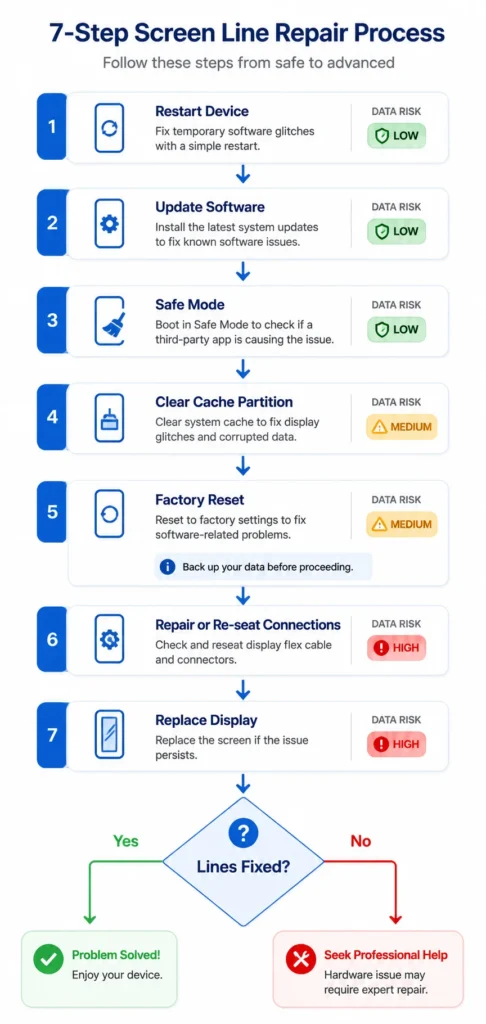
If your diagnostic tests suggest a software problem — or if you simply want to rule out software before spending money on repairs — work through these fixes in order. I have arranged them from the least disruptive to the most disruptive, so you protect your data at every step.
Each fix below includes a clear data risk label — None, Low, or High — so you know exactly what you are committing to before you start. Work through them in order. Do not skip ahead.
Fix 1 — Remove Suspicious Third-Party Apps
Data risk: None
The single most common software cause of white lines on phone screens is apps downloaded from outside the official app store.very phone repair channel I reviewed when researching this topic pointed to the same root cause: APK apps from outside the Play Store. That level of consistency across independent sources is worth paying attention to.
Go through your installed apps and flag anything downloaded as an APK file from a browser. Uninstall them. After removing the suspicious apps, restart your phone and apply the five-minute rest technique. Check whether the lines have cleared before moving to the next fix..
Fix 2 — Clear Settings Cache and Force Stop
Data risk: None
This step refreshes the core system configuration of your phone without touching any of your personal data. It is quick, safe, and often resolves display glitches immediately.
Here is the exact process: 1. Press and hold the Settings app icon on your home screen 2. Tap App Info (or the (i) icon) that appears 3. Tap Storage, then select Clear Cache 4. Go back one screen and tap Force Stop
This clears any corrupted temporary data the Settings app has accumulated. After completing these steps, restart your phone and leave the screen locked for five to six minutes before checking the result.
Fix 3 — The Developer Options Fix (Disable HW Overlays)
Data risk: None
Here is how to do it:
1. Go to Settings → About Device → Build Number
2. Tap Build Number seven times in a row until you see “You are now a developer”
3. Go back to Settings → Additional Settings → Developer Options (if you need detailed instructions for your specific Android version, check Google’s official Developer Options guide
4.Scroll to Hardware-Accelerated Rendering
5. Find Disable HW Overlays (or Always use GPU) and toggle it ON
6. Restart your phone
7. Lock the screen immediately and leave it undisturbed for five minutes
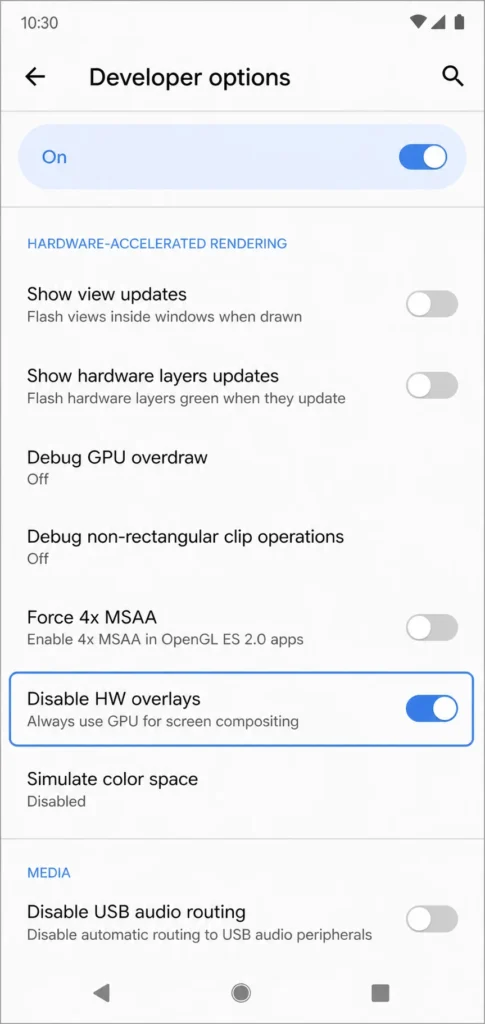
What this does: it forces your phone’s graphics processor to handle all screen compositing directly, bypassing the display rendering layer that may be causing the fault.
Fix 4 — Reset System Settings Only (Not Factory Reset)
Data risk: None — your photos, contacts, and apps are safe
This is the fix most people never discover, and it might be the most important one in this list — because it solves the same problems as a factory reset without touching a single piece of your personal data.
A full factory reset deletes everything on your phone. Reset System Settings Only restores your phone’s internal configurations to their defaults things like display settings, network preferences, and system behavior without touching a single photo, contact, or app.
To find this option, open Settings and type Reset into the search bar. Look for an option that says Reset System Settings or Reset All Settings (the exact wording varies by brand). Enter your lock screen PIN when prompted and confirm the reset.
Once the reset completes, restart your phone, lock the screen, and wait five to six minutes. This option resolves deep system configuration glitches that individual cache clearing cannot reach.
Fix 5 — Update Your Phone’s Software
Data risk: None
An outdated operating system can create communication breakdowns between the software and the display hardware and one common symptom of those breakdowns is horizontal lines appearing on screen. This fix takes two minutes and costs nothing.
Go to Settings, then About Device or About Phone, and look for Software Update. If an update is available, download and install it. After the update installs and your phone restarts, lock the screen and give it the five-minute rest before evaluating whether the lines have cleared.
Keeping your phone’s software current also prevents this type of display glitch from returning in the future.
Fix 6 — Wipe Cache Partition (Android and Samsung)
Data risk: None — personal data is not affected
This is a deeper version of cache clearing that goes beyond individual app caches. The cache partition stores temporary system files and when these files become corrupted, they can interfere with how your phone renders graphics on screen.
To access the cache partition on most Android phones, press and hold Volume Up and the Power button simultaneously until the Android recovery screen appears. Use the volume keys to navigate to Wipe Cache Partition and press the Power button to confirm. Restart the device once the process completes.
For Samsung phones specifically, the button combination may vary slightly by model.
Fix 7 — Factory Reset (Last Resort — Back Up First)
Data risk: High — this erases everything
Only use a factory reset if every fix above has failed and you still believe software is the root cause — for example, if the lines appeared shortly after installing a new app but removing it did not fully resolve the issue. This is the nuclear option for software problems: effective, but costly in terms of data.
Back up everything first: photos, contacts, important files. No exceptions.
To factory reset an Android phone, go to Settings, then General Management or System, then Reset, and select Factory Data Reset. Read the warning, tap Reset, and confirm by selecting Delete All.
After the reset and setup, check whether the white lines are gone. If they return after a fresh factory reset with no apps installed, the problem is confirmed as hardware and software fixes will not solve it.
The “Rest the Phone” Step — Do This After Every Fix
Apply this after every single restart-based fix above
This is one of the most practical insights I found across multiple phone repair demonstrations, and it appears in zero competitor articles.
After any fix that involves restarting your phone, lock the screen immediately once the phone boots up. Do not tap the screen, do not open apps, do not do anything. Leave the phone completely alone for five to six minutes.
Three independent creators confirmed this in their own testing: the hardware and software need time to re-synchronize after a restart. Lines that were present before the restart often fade and disappear completely during this rest window. Touching the screen during this period interrupts the process.
It sounds too simple to matter. But across multiple independent repair demonstrations, this rest step consistently produced results that skipping it did not.
iPhone Showing White Lines? Here’s What to Do
Most guides covering white lines on phone screens are written exclusively for Android users. If you have an iPhone, the troubleshooting steps are different — and so are some of the causes. Here is what to try before contacting Apple Support.
Force Restart Your iPhone
A force restart clears background processes and software glitches that a regular restart may miss. On iPhone 8 and all later models, the sequence is: 1. Press and quickly release Volume Up 2. Press and quickly release Volume Down 3. Press and hold the Side Button until the Apple logo appears, then release
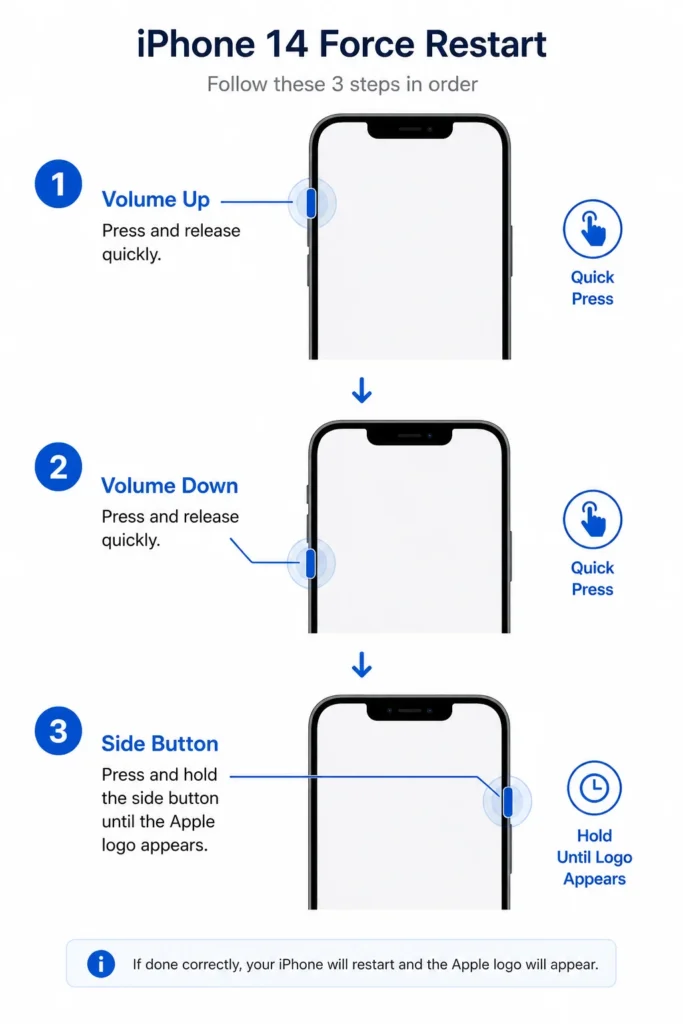
Once the phone restarts, lock the screen and leave it undisturbed for five minutes before checking the display.
Clean Under Your Screen Protector First
Before assuming there is actual display damage on your iPhone, remove your screen protector. Debris, dust, or trapped moisture between the protector and the glass can create a convincing optical illusion of horizontal lines — and it costs nothing to check.
Remove your screen protector completely and clean the screen with a soft lint-free cloth. Then check whether the lines are still visible. If they were caused by trapped debris, they will disappear immediately after cleaning.
Try the Gentle “Massage” Technique
This is a genuinely unusual fix, and it applies specifically when white lines appeared on your iPhone after dropping it.
When a phone is dropped, the internal LCD cable can partially disconnect from its connector on the logic board. The screen still works, but the signal is being interrupted at the join point. Applying gentle but firm pressure around the edges and top of the phone with your thumbs — while the phone is powered on — can sometimes reseat that connector without opening the device.
Work slowly around all four edges. This is not guaranteed to work, but it is free to try and carries no risk when done gently. If it is working, you will see the white lines reduce or disappear while the pressure is applied.
The Mistake That Makes White Lines Worse
Before you start experimenting with fixes, there are four mistakes that regularly make the situation worse — sometimes turning a free software fix into an expensive hardware repair. Knowing what not to do is just as important as knowing what to do.
Installing apps from outside the official app store
This is the single most avoidable cause of display lines on Android phones, and it comes up repeatedly in real repair situations. When you install an APK file from a browser instead of the Google Play Store, you are loading an unverified app that has not been screened for system compatibility. These apps can corrupt display rendering and produce white or colored lines across the screen. Uninstall any APK-sourced apps before trying any other fix, and do not reinstall them.”
Touching the screen immediately after restarting
After you restart your phone as part of any fix, the hardware and software need time to reconnect properly. Tapping the screen during this window interrupts that process. Multiple repair demonstrations confirmed that locking the screen and leaving the phone completely alone for five to six minutes after a restart gives the display the best chance to clear. It sounds like a small thing, but skipping this step is why many people conclude a fix did not work when it actually needed more time.
Jumping straight to factory reset
A factory reset erases every photo, contact, and app on your phone. Many people go straight to this step when they see phone screen lines getting worse, without realizing there are safer options available first. Wiping the cache partition and resetting system settings only are both less destructive alternatives that fix the same software-level problems in most cases. Always try these before committing to a full data wipe.
Using excessive heat during DIY hardware repair
If you are attempting any kind of physical repair at home, temperature control matters more than most people realize. During display separation, exceeding 77 to 78 degrees Celsius (170°F) can permanently damage the delicate layers inside the display panel. What begins as a repairable hardware issue can become irreversible with too much heat. If you are not experienced with phone hardware repair, leave this to a professional technician with the right tools.
Avoiding these four mistakes will not fix your screen on its own, but it will make sure you do not make a recoverable situation worse before you have had the chance to try the right solutions.
When Software Fixes Don’t Work — Your Hardware Repair Options
If you have worked through every software fix and the white lines are still there, the problem lives in the hardware. At this point the goal shifts from DIY troubleshooting to making smart decisions about professional phone display damage repair — and that means knowing what to ask, what to expect, and what options you actually have before handing your phone to anyone.
Check Your Warranty Before Paying
The first thing I always recommend is checking whether your phone is still under its manufacturer warranty. Most phones come with a one-year warranty from the date of purchase, and some carriers or retailers offer extended coverage that goes beyond that.
For Samsung Galaxy users specifically, there is an option that most people never think to use. Open the Samsung Members app, tap Support, and navigate to Error Reports. Describe your display issue in detail and submit the report. Samsung has acknowledged widespread display faults in the past and offered free repairs to affected users when enough reports come in for the same problem. It takes five minutes and costs nothing to try.
If you have an iPhone, visit support.apple.com and check your coverage status before booking anything. Apple’s warranty process is straightforward and authorized repairs through Apple use genuine parts. For Google Pixel owners, the Google Store support page handles warranty claims directly and connects you with authorized service options in your area.
Always check your warranty coverage before spending a single dollar on repairs. Paying out of pocket when you are still covered is one of the most common and easily avoided mistakes phone owners make.
What Does Phone Screen Repair Actually Cost?
Screen replacement costs vary more than most people expect, and getting a realistic number upfront helps you make a better decision.
As a general guide, professional phone screen repair at an independent repair shop typically costs somewhere between 20 and 30 percent of your phone’s current market value. A budget Android phone with a display panel replacement might cost relatively little, while a flagship Samsung Galaxy or iPhone screen replacement can be significantly more expensive because the parts themselves cost more.
Authorized service centers tend to charge more than independent technicians, but they use manufacturer-approved components and their work is usually covered by a service warranty. Independent shops can be more affordable, but the quality of parts varies, so always ask whether they are using OEM or third-party display panels.
Before agreeing to any screen replacement, ask the technician to assess whether the damage is limited to the display panel or whether other components like the motherboard are involved. A cracked or damaged motherboard changes the repair equation entirely. Getting that assessment first ensures you are not paying for a screen replacement that will not fully solve the problem.
Can Water Damage Lines Be Fixed Without Replacement?
Yes, and this is something most repair shops will not volunteer unless you ask directly.
When water damage causes white horizontal lines on a phone screen, the display panel itself is not always the source of the problem. In many cases, the liquid causes corrosion and carbon buildup on the flex cable — the thin ribbon connector that carries the display signal from the motherboard to the screen. If the panel is physically intact, a skilled phone repair technician can clean that corrosion using isopropyl alcohol solution and a soft brush, then use controlled gentle heat to evaporate any remaining moisture from the components.
When this cleaning process works, the display signal is restored and the white lines disappear without any screen replacement at all. The repair cost for flex cable cleaning is considerably lower than a full display panel replacement.
When you take your phone in for water damage assessment, ask the technician specifically whether the lines could be coming from the flex cable connection rather than the panel itself. A technician who checks this before recommending a full screen replacement is one worth trusting. If the panel is confirmed damaged, screen replacement is the right call but it is worth ruling out the simpler fix first.
How to Stop This From Happening Again
Whether this was a software glitch you fixed in ten minutes or a repair that cost you money, the steps below will significantly reduce the chance of it happening again.
Use a proper phone case. A case that covers the corners and edges of your phone absorbs most of the impact from drops before the force reaches the internal display components. Many screen failures happen from drops that leave the glass completely uncracked but still damage the panel underneath. (If you are dealing with laptop display damage from drops, our guide on Lenovo laptop display issues has similar prevention tips.
Keep your screen protector clean and fitted. Debris and moisture that collect under a lifting screen protector cause display distortion over time. Replace your protector when the edges start peeling away from the glass, and check under it occasionally to make sure nothing has worked its way underneath.
Only install apps from the official app store. Third-party APK files downloaded from browser links are a leading preventable cause of Android screen glitches that show up as display lines. If an app is not available on Google Play or the Apple App Store, that alone is a reason to be cautious.
Keep your phone’s software updated. Manufacturers release regular updates that fix bugs affecting hardware and software communication, including display rendering. Staying current closes the gaps that can develop into phone screen display problems over time.
Keep your phone away from moisture. Even phones with water resistance ratings have limits, and repeated exposure degrades the internal seals gradually. Keeping your phone away from sinks, humid environments, and rain reduces the risk of the kind of water damage that causes corrosion on internal components.
Quick Recap — What to Do Right Now
If you are seeing white horizontal lines on your phone screen and you want to know exactly where to start, here is the short version.
First, check whether the line is actually the gesture navigation bar by going into your System Navigation settings. If it disappears when you hide the gesture guide bar, your screen was never damaged.
If the line is real, take a screenshot and view it on another device. A clean screenshot with visible lines on the physical screen confirms hardware damage. Lines that appear in the screenshot point to software.
Work through the software fixes in order: remove unverified apps, clear your Settings cache, try the Developer Options fix, reset system settings only, update your software, and wipe the cache partition if needed. After every restart, lock your screen and leave the phone alone for five to six minutes.
If you have an iPhone, try the force restart, clean under your screen protector, and apply gentle pressure around the screen edges to attempt reseating the internal cable.
If all software fixes fail, check your warranty before paying for anything. Ask any repair technician whether the damage is in the display panel or the flex cable before agreeing to a full screen replacement.
Phone screen lines getting worse over time is a sign that hardware damage is progressing. The sooner you act, the more options you have available.
Frequently Asked questions
Will white horizontal lines on my phone screen go away on their own?
Software-caused lines can clear after a restart followed by a five to six minute rest with the screen locked. Hardware-caused lines from a drop or water damage do not heal on their own and typically spread over time if left unaddressed.
Is the white line at the bottom of my screen actually damage?
It may not be damage at all — it could be the gesture navigation bar, which is a built-in interface element on many Android phones. Go to Settings, then Additional Settings, then System Navigation, and toggle on Hide Gesture Guide Bar to check instantly.
Can I fix white lines on my phone screen without losing my data?
Yes — most software fixes including clearing the Settings cache, using the Developer Options fix, and choosing Reset System Settings Only preserve all your photos, contacts, and apps completely. Only a full factory reset erases your data, so work through every other option before reaching that step.
My phone screen has white lines but I never dropped it — why?
Third-party APK apps downloaded from outside the official app store can introduce system glitches that cause display lines looking identical to hardware damage. Try the software fixes first because the lines may clear completely without any repair needed.
Does seeing white lines on a phone screen mean the phone needs to be replaced?
Not at all — software-caused lines are fully fixable at home, and even hardware lines from water damage sometimes only need flex cable cleaning rather than a full screen replacement. A display panel replacement restores most phones completely, so replacing the entire device is rarely necessary.