“This Content Isn’t Available Right Now” on Facebook: What It Means & How to Fix It
Quick Answer
If you’re seeing “this content isn’t available right now” on Facebook, I can tell you from experience that it usually means one of two things: either the person blocked you, or they deleted the post (or their entire account). Before you panic about being blocked, here’s a quick test I always recommend. Copy the link to the post or profile that’s giving you the error, paste it into your phone’s web browser like Chrome or Safari, log into Facebook there, and see if it loads. If the content shows up fine in the browser but not in your Facebook app, it’s just a technical glitch on your end and you can fix it by clearing your app’s cache. But if it doesn’t load in the browser either, that confirms the content really is unavailable, which usually points to a block or deletion. I’ll walk you through exactly how to tell which one it is and what you can actually do about it below.
What Does “This Content Isn’t Available Right Now Facebook Status” Actually Mean?
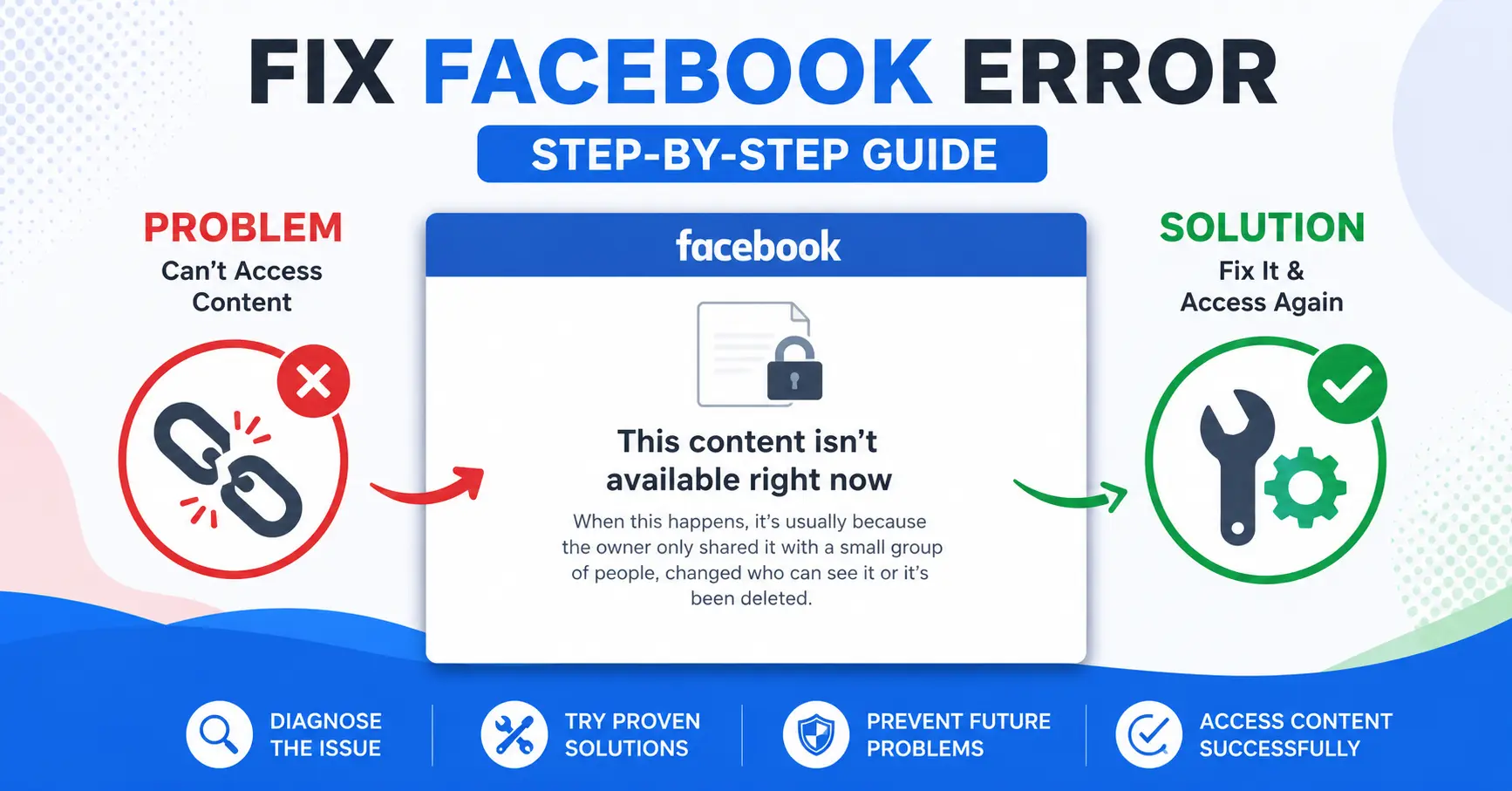
This Facebook error message is the platform’s way of telling you that you don’t have permission to view whatever you’re trying to access. I’ve seen this situation pop up in all kinds of scenarios, and it always signals the same basic thing: Facebook is blocking your access to something, either because of privacy settings the other person controls or because the content itself no longer exists.
You’ll usually run into this Facebook error message when you’re trying to open someone’s profile, view a specific post they shared, click a link someone sent you, or watch a video on their timeline. The message appears in place of the content you expected to see, and it’s frustratingly vague about why.
Here’s the thing I’ve learned from dealing with Facebook not loading content issues over the years. This error doesn’t automatically mean you did anything wrong. Sometimes it’s about what the other person changed on their end, and sometimes it’s just Facebook’s way of saying the content got removed or deleted entirely.
The tricky part is that Facebook uses this exact same error message for completely different situations. You might see this unavailable message because someone blocked you, or you might see it simply because they deleted a post five minutes ago. The error looks identical in both cases, which is why so many people immediately assume the worst when they see this message.
Wait — There Are Actually Two Different Errors Here
Most people don’t realize this, but Facebook actually uses two slightly different versions of this error message, and each one points to a completely different problem. I discovered this the hard way after spending way too much time troubleshooting what I thought was the same issue, only to find out I was dealing with two separate Facebook error message situations.
The first version says “this content isn’t available right now” and shows up when you’re trying to view someone’s profile, a post, or a video. This error means you’re hitting something that’s restricted, deleted, or otherwise blocked from your view. The problem here is about access to specific content on the platform.
The second version says “sorry, this content isn’t available at the moment” and appears when you’re actually trying to log into your Facebook account. This one is a security lockout that Facebook triggers when the platform detects what looks like suspicious browser activity on your desktop browser issue. The login version of this Facebook glitch has nothing to do with blocked profiles or deleted posts.
I’ve seen people waste hours trying to figure out why they can’t view a friend’s post when their real problem is that Facebook locked them out at the login screen. These are two entirely different situations with different solutions, so knowing which error you’re dealing with saves you a lot of frustration.
The profile and post version usually means something changed on the content owner’s side or Facebook removed the content. The login security version means Facebook flagged your browser session as potentially unsafe. Facebook uses the same general wording for both errors, which creates a ton of confusion.
If You’re Trying to Log In, Not View a Post
If you’re stuck at the login screen seeing this error, the fix is completely different from the usual troubleshooting steps. Facebook is blocking your login attempt because of stored browser data that looks suspicious to the platform’s security system. Clearing your browser cache and cookies almost always resolves this facebook desktop browser issue within minutes.
Here’s exactly how I clear browser cache when this happens. Open your browser settings by clicking the three dots in the top right corner of Chrome, Edge, or whatever browser you’re using. Scroll down and click on Settings, then look for the Privacy and Security section in the left sidebar.
Click on Clear Browsing Data once you’re in the privacy section. You’ll see a dropdown menu asking you to choose a time range. I usually select “Last hour” since this login block typically happens recently, but you can choose “All time” if the problem keeps coming back.
Make absolutely sure you check the boxes next to “Cookies and other site data” and “Cached images and files” before you click the Clear Data button. Both of these need to be cleared to remove the security flag Facebook placed on your browser session and lift the temporary account restriction.
Once the browser finishes clearing this data, close the browser completely and reopen it. Go back to Facebook’s login page and try signing in again. The security lockout should be gone, and you should be able to access your account normally without seeing the error message anymore.
The 5-Minute Test That Tells You What’s Really Going On
Before you start clearing cache or reinstalling apps, I always recommend doing this simple test first because it saves you from wasting time on fixes you don’t actually need. This quick check tells you whether the problem is with your Facebook app or whether the content really is unavailable for everyone.
Here’s exactly what I do when I hit this error. Go to the post or profile that’s showing you the unavailable message, tap the three dots in the corner, and select “Copy link” from the menu. This grabs the direct URL to whatever content is giving you trouble.
Now open your phone’s web browser like Chrome or Safari. Don’t use the Facebook app for this part. Paste that link into the browser’s address bar at the top and hit enter. Facebook will ask you to log in through the browser, so go ahead and enter your credentials.
This is where the test gets useful. If the content loads perfectly fine in your mobile browser but showed an error in the Facebook app, you’re dealing with an app glitch on your device. The content itself is fine and accessible, which means you just need to fix your app’s local data.
But if the message appears in both the app and the browser, that confirms the content genuinely isn’t available. This result means the issue isn’t on your end at all. The person either deleted the post, changed their privacy settings, blocked you, or Facebook removed the content entirely.
I use this browser test as my go to method to check if you were blocked on Facebook without making things awkward. If mutual friends can see the profile in their browsers but you can’t see the profile in either your app or your browser, that’s a pretty strong signal that you’re blocked.
The beauty of this test is that it takes less than five minutes and immediately tells you whether you should spend time troubleshooting your device or whether you need to accept that the content is restricted. I’ve saved myself hours of unnecessary app reinstalls by running this simple check first.
If the content loaded in your browser, skip down to the app fixing section below. If the content didn’t load anywhere, keep reading to understand why Facebook restricts access and what your actual options are in that situation.
6 Real Reasons You’re Seeing This
The error shows up for six main reasons, and understanding which one applies to your situation changes what you can actually do about it. I’ve run into all of these scenarios myself, and the first step is always figuring out which category your problem falls into.
You’ve Been Blocked on Facebook
This is the most common reason, and honestly the one most people assume first. When someone blocks you on Facebook, you can’t see their profile, their posts, or anything they’ve shared. The unavailable message appears because Facebook is actively preventing your account from viewing their content. If you’ve been blocked, there’s no technical fix here. The only real solution is reaching out through a different platform and asking them to unblock you.
The Person Deleted Their Account or Deactivated It
Sometimes the profile or post disappears because the person temporarily deactivated their Facebook account or permanently deleted it. When someone deactivates, their content goes invisible to everyone for the duration. If they delete their account completely, all their posts vanish forever. You’ll see the same unavailable message in both situations. This is similar to how device troubleshooting works when you have display issues on Windows—sometimes a simple restart solves everything, but other times the problem is permanent. Check out our guide on how to rotate screen on Windows to understand more about Windows device troubleshooting basics.
The Specific Post Was Deleted
Someone might have shared something and then changed their mind later. When they delete a post, anyone who tries to view it through an old link or message sees this error. This happens constantly on Facebook. The deleted facebook post is then gone from the platform entirely, and the person removed it.
Privacy Settings Were Changed or Limited Audience Set
Here’s the situation that surprises most people. You don’t have to be blocked to see this error. Someone might have posted something and set it to “Friends only” or shared it with a custom group that doesn’t include you. Even if you follow them or used to be close, if they restricted the audience on that specific post and you’re not in the included group, you’ll get the unavailable message. This is one of the most overlooked causes of this error.
You’re on Their Restricted List
Facebook has a feature where people can put specific users on a restricted list. When someone does this, they’re still technically your friend, but you can only see their public posts. Private content stays hidden from you. The restricted list lets people stay friends while limiting what you can actually view.
Age or Location Restrictions Apply
Some content on Facebook has built-in restrictions based on age, location, or other factors. If you’re viewing from a location where the content isn’t allowed, or if your age profile doesn’t match what the content allows, you’ll see the unavailable message. Additionally, Facebook itself sometimes removes content that violates its community standards or content policy. When Meta removes something for policy violations, everyone sees the unavailable message, not just specific people.
The Overlooked Cause: Your Phone’s Date and Time Settings
Most people never think about their phone’s clock when Facebook stops loading content, but I’ve discovered this is actually one of the most overlooked reasons the unavailable message shows up. Your device’s date and time settings affect how Facebook communicates with its servers, and when those settings are wrong, Facebook stops trusting your connection.
Here’s why this matters. Facebook uses your phone’s internal clock to verify that your login session is legitimate. When your device’s date and time don’t match Facebook’s servers, the platform sees a mismatch and treats it like a security problem. Your phone might be showing 3 PM when the actual time is 3:15 PM, and that small difference is enough to trigger the unavailable error. Facebook’s security system gets confused and blocks the content to protect your account.
I realized this was happening to me after noticing the Facebook glitch appeared right after I traveled across time zones. My phone hadn’t automatically updated to the new timezone, and suddenly I started seeing Facebook not loading content properly. Once I fixed the time settings, everything worked fine again.
The fix is simple and takes about thirty seconds. Go into your phone’s settings and search for “Date and Time.” Open that section and look for two options: “Set time automatically” and “Set time zone automatically.” Make sure both of these toggles are turned on. When these are enabled, your phone syncs with internet time servers and stays perfectly aligned with Facebook’s servers.
Once you turn on automatic time and timezone updates, close the settings app completely and go back to Facebook. Try viewing the content that was giving you the unavailable message. In most cases, it loads without any problems now because Facebook recognizes your device as legitimate again.
This fix sounds simple because it is, but I’ve seen it solve the Facebook not loading content issue for people who spent hours clearing cache and reinstalling apps. If your phone’s clock was drifting even slightly, that was your real problem the whole time. Similar issues happen with laptops too—wrong system settings can cause unexpected display problems. If you’re experiencing screen issues on your laptop, check out our troubleshooting guide on how to fix laptop green screen, which covers similar system-level fixes that often get overlooked.
How to Fix It on Android and iPhone (Step by Step)
If the browser test confirmed this is an app glitch and not a real content restriction, these steps will get your facebook mobile app error fixed. I always start with clearing the cache first because it’s the safest option and solves most glitches without logging you out. Only move to clearing data if cache alone doesn’t work, and make sure you know your password before you do.
For Android Users
Step 1: Clear Your App Cache
“Long press the Facebook app icon on your home screen or in your app drawer. Tap the information icon (usually a small “i” in a circle) to open the app info screen. Scroll down until you find “Storage” or “Storage and Cache” and tap it.
You’ll see two buttons: “Clear Cache” and “Clear Data.” Tap “Clear Cache” only at this stage. Clearing cache removes temporary files that might be corrupted without logging you out of your account. This process for facebook cache clear steps usually takes less than a minute. If you need to fully uninstall and reinstall the app instead, check out our guide on how to remove apps from Android for detailed step-by-step instructions.”
Step 2: Force Stop the App
Go back to the main app info screen and scroll down to find the “Force Stop” button at the bottom. Tap it and confirm when Facebook asks if you’re sure. Force stopping closes all background processes the app was running and gives it a completely fresh start.
Step 3: Check Your App Permissions
Go back to the app info screen and look for “Permissions.” Tap it and go through your permission list. Make sure these are all set to “Allow”: Camera, Contacts, Location, Files and Media, Microphone, and Phone. Missing permissions can silently prevent content from loading properly. For more detailed guidance on managing app permissions and access, see our complete guide on how to lock apps on Android, which covers app restrictions and permission settings in depth.
Step 4: Update Facebook
Open the Google Play Store and search for “Facebook.” If you see an “Update” button next to the app, tap it to install the latest version. Keeping your Facebook app updated prevents many technical glitches from happening in the first place.
Step 5: Restart Your Phone
Press and hold your power button until the restart menu appears. Tap “Restart” and let your phone reboot completely. This clears temporary system memory and gives Facebook a fresh environment to run in.
Step 6: Test the App
Once your phone restarts, open Facebook and try viewing the content that was giving you the unavailable message. In most cases, this full sequence resolves the issue completely.
Alternative Method: The Network Reset Trick
If clearing cache didn’t work, I have one more technique before clearing data. Go back to app info and look for “Data Usage.” Tap it, then toggle off both “Mobile Data” and “Wi-Fi” for about one minute. Wait without opening the app during this time. After a minute, turn both toggles back on. This forces your mobile app to re-establish its connection to Facebook’s servers in a fresh way.
For iPhone Users
Step 1: Use the Offload App Method
iPhone users have a better option than clearing data. Go to Settings and search for “iPhone Storage.” Scroll down and find Facebook in the app list. Tap on it and select “Offload App.” This removes the app temporarily but keeps your login information and documents intact.
Step 2: Reinstall Without Losing Your Session
After offloading, you’ll see an option to “Reinstall App.” Tap it and let the App Store download Facebook fresh. When you open it, you’ll still be logged in because your account data was preserved.
Step 3: Check Permissions and Update
Make sure Facebook has permission to access your photos, camera, location, and contacts. Open the App Store and verify you’re on the latest version of Facebook.
Step 4: Restart Your iPhone
Press and hold the power button until “Slide to Power Off” appears. Slide to turn off your phone, wait five seconds, then press the power button again to turn it back on.
This offload method is gentler than clearing data on Android because you don’t lose your login, and it’s surprisingly effective at fixing this error on mobile devices.
When It’s Not a Glitch — And a Bug Report Won’t Help
I need to be honest with you here: in most cases, this error isn’t actually a Facebook bug that you can report your way out of. I’ve seen people spend hours trying to report a technical problem to Facebook when the real issue was that they got blocked or the person deleted their account. Understanding this difference saves you a lot of wasted time and frustration.
The truth is that genuine technical glitches do happen on Facebook, but they’re actually pretty rare compared to all the other reasons you see this error. When you’ve cleared your cache, updated your app, checked your permissions, and restarted your phone, and the error still shows up in both your app and your browser, you’re almost certainly dealing with a real access restriction, not a bug.
If you genuinely believe you’ve found a real technical problem with Facebook itself, there is a way to report this content issue to the platform directly. Open your Facebook app and tap the menu icon at the top. Scroll down and tap “Help and Support,” then select “Report a Problem.” Write a clear description of what’s happening and include a screenshot if possible. Facebook will review your report, though you shouldn’t expect a response or a guarantee that they’ll fix anything.
If you want to maximize the chance your report gets attention, use this message: “This content isn’t available right now problem in Facebook. Please fix this as soon as possible. Thanks.” Include a screenshot showing the error message and explain exactly what you were trying to do when it appeared.
But here’s what I’ve learned: most of the time when people get this error and they’ve ruled out app glitches, the actual solution isn’t reporting a bug. If someone blocked you, the only real fix is reaching out through a different platform like text message, email, or another app and politely asking them to unblock you. If they deleted their account or the post, there’s nothing to fix because the content genuinely no longer exists. A bug report won’t change that reality.
Don’t waste mental energy hoping Facebook will respond to your report when the real issue is something completely outside of their control to fix. Accept what the error actually means and move forward from there.
When Facebook Reels or Videos Show This Error
Facebook Reels and videos are their own special category because they have some unique causes that regular posts don’t deal with. I’ve seen people get frustrated thinking their whole account has an issue when really it’s just a specific video that’s refusing to load properly or when a facebook video not available message appears.
When you’re trying to watch a Reel and you see the error message, the most common reason is that the person who created the Reel deleted it. Maybe they posted it and then changed their mind five minutes later, or they took it down because it was getting negative feedback. Either way, once a Reel is deleted, nobody can view it anymore, and everyone sees the unavailable message.
Sometimes the issue is that your Facebook app version is outdated and the Reels player isn’t working properly with the current Facebook infrastructure. An old version of the app can struggle to load newer video formats. Updating your Facebook app through the Google Play Store or App Store usually fixes this immediately.
A slow or unstable internet connection can also trigger this error when you’re trying to watch videos specifically. Reels require constant data streaming, so they’re more sensitive to connection problems than regular posts. If your Wi-Fi is spotty or your mobile data is running slow, Reels will fail to load even if the video exists and you have permission to watch it.
Here’s a trick I’ve used when video content won’t load: turn on Airplane Mode for about ten seconds, then turn it off. This forces your phone to reconnect to the network fresh. Open Facebook and try the Reel again. This airplane mode network reset often works when the video player got stuck trying to connect.
Also check if your device’s date and time are set correctly, since that issue affects video loading just like it affects regular posts. Videos have stricter security requirements than text posts, so a mismatched clock can cause Reels to fail when other content loads fine.
If a specific Reel won’t load but other videos do, and your app is updated and your connection is strong, then the Reel was probably deleted by the creator. There’s nothing you can do in that situation except find something else to watch.
If You Manage a Facebook Page, Here’s What This Means for You
If you run a Facebook Page for your business or brand, seeing this error message takes on a different meaning than it does for regular users. When your followers or customers try to view your Page and get the unavailable error, it signals something specific about your Page’s status or reach that you need to understand.
The most common reason a Facebook page admin encounters this issue is that Facebook’s automated systems flagged some of your content. When content violates Facebook community standards, the platform doesn’t always delete the entire post immediately. Sometimes Facebook restricts visibility on that specific post or limits your Page’s reach temporarily while they review it. Your followers might see the unavailable message when trying to access restricted content.
Another possibility is that your Page itself has been temporarily restricted due to repeated violations or community standards issues. If Facebook believes your Page is consistently breaking their rules, they’ll limit who can see your Page content. This is different from your Page being disabled, which would happen if the violations were severe enough.
Check your Page’s administrative settings by clicking the three dots next to your Page name. Look for any notifications or alerts from Facebook about content restrictions or policy violations. Facebook usually sends messages to Page admins when they take action against content or reduce Page reach.
If you find a specific post causing the error, review that post’s content against Facebook’s community standards. Sometimes what seems innocent to you might trigger their automated systems. You can also appeal content decisions if you believe Facebook made a mistake.
The good news is that temporary restrictions typically lift within a few days to a week if you stop posting content that violates their policies. Keep your Page focused on maintaining community standards compliance going forward.
When It’s Genuinely Out of Your Control
Sometimes you’ve done everything right on your end and the error still won’t go away. In these situations, the problem isn’t with your device, your app, or even your account. Facebook itself is having issues on their end, and there’s nothing you can actually do except wait.
Facebook server down events do happen, though they’re rare. When Meta experiences a major outage with facebook down status affecting millions of users, everyone suddenly can’t access their content. You might see this error across multiple profiles and posts simultaneously. The unavailable message in these cases means the Facebook infrastructure is temporarily offline or experiencing problems.
You can check if Facebook is having a widespread outage by visiting a website like DownDetector or Facebook’s official system status page. If thousands of people are reporting the same error at the same time, you know the issue is on Facebook’s side, not yours. In this case, just wait. These outages usually resolve within an hour or two.
Another situation outside your control is content moderation reviews. When Facebook’s automated systems or human reviewers flag content for potential policy violations, Facebook sometimes makes it temporarily unavailable while they investigate. The person who posted the content might not even know it’s restricted yet. These reviews can take anywhere from a few minutes to several days depending on how serious the flag is.
If a post you’re trying to view has been removed for violating Facebook’s content policy, you’ll see the unavailable message and there’s nothing you can do to view it. The content genuinely isn’t available anymore because Facebook determined it violated their community standards.
The key to managing your expectations is knowing the difference between problems you can fix and problems you can’t. If your troubleshooting steps didn’t work and the content also fails in your browser, accept that this falls into the out of your control category. Stop troubleshooting and move on with your day.
Conclusion
The next time you see “this content isn’t available right now” on Facebook, remember to start with the browser test first. Copy that link, paste it into your mobile browser, log in, and see if the content loads there. That single five minute check tells you whether you’re dealing with an app glitch you can fix or a real access restriction you can’t.
Keep in mind that Facebook actually uses two different error messages for two completely different problems. The profile and post version points to blocked access or deleted content. The login version signals a security lockout that needs browser cache clearing. Knowing which one you’re dealing with saves you from wasting time on the wrong fixes.
Most importantly, accept that in the vast majority of cases, this error means you’ve been blocked or the content genuinely no longer exists. It’s not usually a technical bug. It’s not something a bug report will fix. Once you’ve ruled out app glitches and you’ve confirmed the content doesn’t load anywhere, you’re dealing with a real access restriction. At that point, the only real solution is reaching out through another channel if you need to resolve it with the person.
I’ve found that people feel much better once they stop troubleshooting and accept what the error actually means. You tried the technical fixes. You did everything you could on your end. Sometimes the answer just is what it is, and that’s okay.
Does “this content isn’t available right now” always mean I’ve been blocked?
No. You could see this error simply because someone shared a post with a limited “Friends only” audience that doesn’t include you, even if you’re not blocked. Being blocked is the most common reason, but it’s not the only one.
How can I actually check if someone blocked me?
Copy the link to their profile or post, paste it into your mobile browser, log in, and see if it loads there. This facebook block check is your fastest way to get answers. If it works in the browser but not in your app, it’s a glitch. If it fails in both places, you’re likely blocked.
Why does this happen when I’m just trying to log in?
That’s a different error message version that means Facebook’s security system flagged your browser as suspicious. Clear your browser’s cookies and cache to fix the login-security lockout.
Will clearing my Facebook app’s data log me out?
Yes, clearing data (not cache) will log you out and you’ll need your password to sign back in. Always try clearing cache first, and only clear data if cache doesn’t work.
Can a Facebook glitch really cause this, or is it always something serious?
Real glitches do happen when your app is outdated, your device’s date and time are wrong, or your connection is unstable. These are uncommon though, so glitches account for maybe 10 to 15 percent of cases.