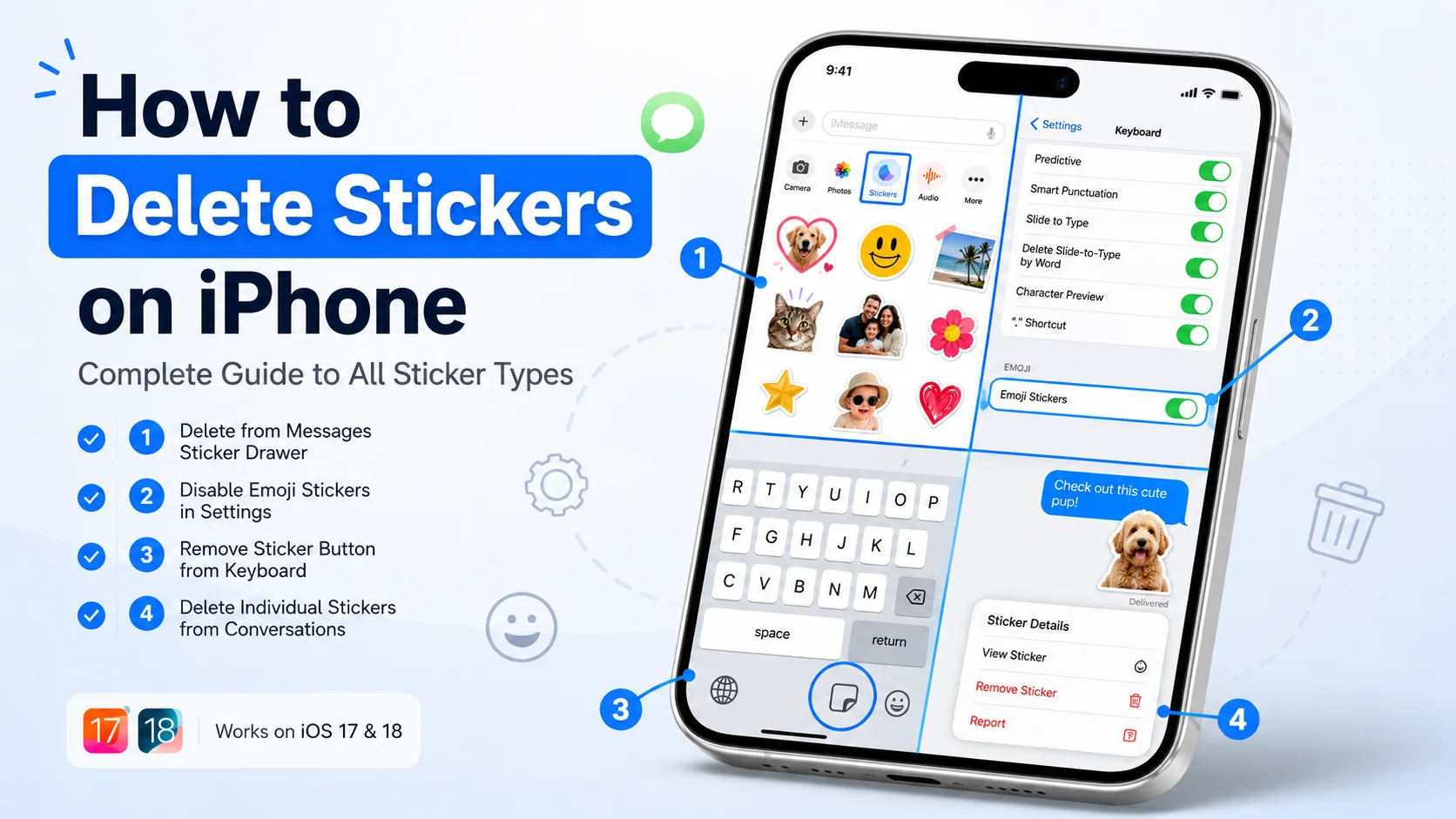
How to Delete Stickers on iPhone (Every Type, Every Method)
Which Type of Sticker Are You Trying to Delete?
Before I show you how to remove stickers from your iPhone, let me help you figure out exactly what kind of sticker you’re dealing with. iPhone sticker management works differently depending on the type of sticker you want to delete.
I’ve learned that there are two fundamentally different approaches you can take. You can either disable all stickers at once using a Settings toggle, or you can delete specific ones individually. The method you choose depends on whether you want everything gone or just certain stickers removed.
Here’s what makes this tricky. Stickers placed directly on chat bubbles in iMessage are handled completely differently from stickers sitting in your collection. If you tap a sticker on a message bubble looking for a delete button, you won’t find one using the normal method.
Let me break down the five main sticker types on iPhone and where to find the deletion steps for each:
- Custom photo stickers and Live Stickers – Jump to the next section
- Keyboard sticker packs – Skip to the keyboard section below
- Emoji stickers and Memoji – Go to the emoji stickers section
- Stickers stuck on message bubbles – Check the message bubble section
- Recently used or saved stickers – See the recently used section
Pick the one that matches your situation and I’ll walk you through exactly how to delete it.
How to Delete Custom Stickers on iPhone (Photo Stickers and Live Stickers)
Custom stickers created from your photos are the most common type of sticker people want to delete on iPhone. The good news is that deleting these custom sticker iPhone photos is straightforward once you know where to look.
I’m going to show you two different ways to access and delete these photo stickers. Both methods work equally well, so use whichever one feels easier to you.
Deleting Custom Stickers via the Messages App (Plus Button Method)
This is the route most iPhone users already know. I use this method when I’m already in the Messages app and want to clean up my sticker collection quickly.
Open the Messages app and tap on any conversation. Look for the plus icon next to the text field and tap it. You’ll see a menu pop up with several options.
Tap on “Stickers” from that menu. This opens your entire sticker collection in one view.
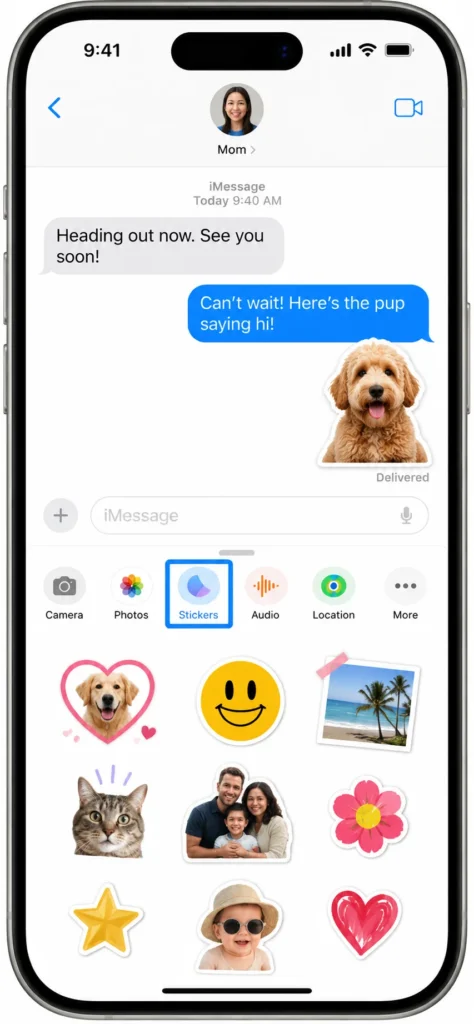
Now here’s the important part. Find the custom sticker you want to delete and tap and hold on it. Don’t just tap once – you need to press and hold for about a second.
A small menu will appear. Depending on your iOS version, the button might say “Delete” or it might say “Remove.” Both options do exactly the same thing, so don’t get confused if you see one instead of the other.
Tap Delete or Remove. You’ll see a small poof of smoke animation, and the sticker disappears immediately from your collection.
I want you to know that this deletion is permanent. Once you delete a custom sticker this way from the Messages app, it won’t come back unless you recreate it from the Photos app again.
Deleting Custom Stickers via the Keyboard Sticker Icon
Here’s the alternative method that works from any app, not just Messages. I discovered this sticker keyboard iPhone route works great when I’m typing in Notes, WhatsApp, or basically anywhere with a keyboard.
Open any app that brings up your iPhone keyboard. Tap in a text field so the keyboard appears.
Look at the bottom row of your keyboard. The sticker icon is the second button from the right side of the keyboard menu. It looks like a small square with a folded corner.
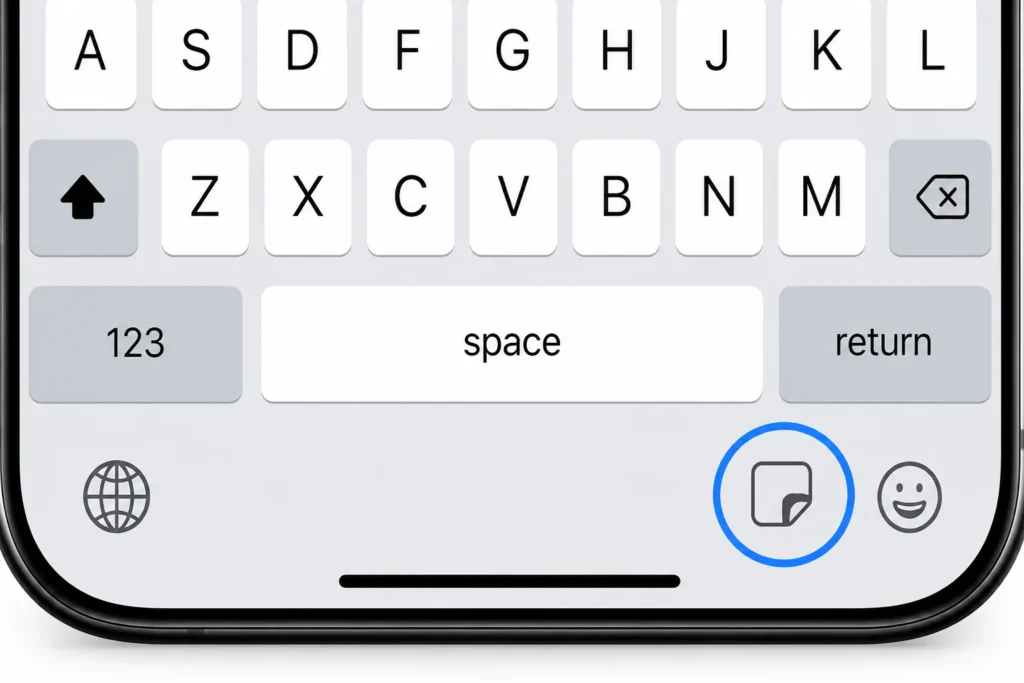
Tap that sticker icon. Your sticker collection opens right there in the keyboard.
Find the photo sticker you want to delete. Tap and hold on it until the menu appears.
Tap Delete or Remove from the menu. The sticker is gone instantly.
What I love about this method is that it works everywhere. You don’t need to open Messages. You can delete photo stickers while typing in Safari, Notes, or any other app.
What About Genmojis (AI Stickers)?
“If you’re on iOS 18 or later, you might have created Genmojis. These are AI-generated emoji stickers that Apple’s new features let you make from text descriptions.
Genmojis delete exactly the same way as regular custom stickers using iOS 18 sticker delete methods. Just long press and tap Delete or Remove.
The process is identical whether you’re deleting a photo cutout sticker or a Genmoji. Apple built the iOS sticker deletion system to handle both types consistently across all custom sticker types.
How to Delete Stickers on Your iPhone Keyboard (Sticker Packs)
Keyboard sticker management is different from deleting individual custom stickers. If you downloaded sticker packs from the App Store or added third-party stickers to your keyboard, you need a different iPhone sticker management approach to delete sticker pack iPhone collections properly.
Let me show you the easiest way to keep your sticker pack organized and remove the ones you don’t want anymore.
Removing a Single Sticker from Your Keyboard
Sometimes you don’t want to delete an entire pack. Maybe there’s just one annoying sticker in a pack you otherwise like.
Bring up your keyboard in any app. Tap the sticker icon (second button from the right on the keyboard menu).
Browse to the sticker you want to remove. Tap and hold on that specific sticker.
The familiar menu appears. Tap Delete or Remove.
That single sticker is now gone from your keyboard, but the rest of the pack stays intact.
Deleting an Entire Sticker Pack from Your iPhone
When you want to remove a whole sticker pack you downloaded, the process is a bit different. You’re not just deleting one sticker – you’re removing the entire collection.
Open the Messages app and tap the plus icon in any conversation. Tap on Stickers.
Scroll through your sticker packs until you find the one you want to delete. Tap and hold on any sticker from that pack.
Look for an option that says “Manage” or shows the app icon for that sticker pack. Tap it.
This takes you to the sticker pack’s settings. You’ll see an option to delete or remove the entire pack from your keyboard. Tap that option and confirm.
The whole pack disappears from your keyboard customization. If you downloaded the pack from the App Store, you might also want to delete the app itself to fully remove it from your iPhone.
Turn Off All Keyboard Stickers at Once (Settings Toggle)
Here’s the fastest option if you want a completely clean keyboard with no stickers at all. I use this method when I want everything gone instantly without deleting stickers one by one.
Open Settings on your iPhone. Scroll down and tap General.
Tap Keyboard. Scroll all the way to the bottom of this screen.
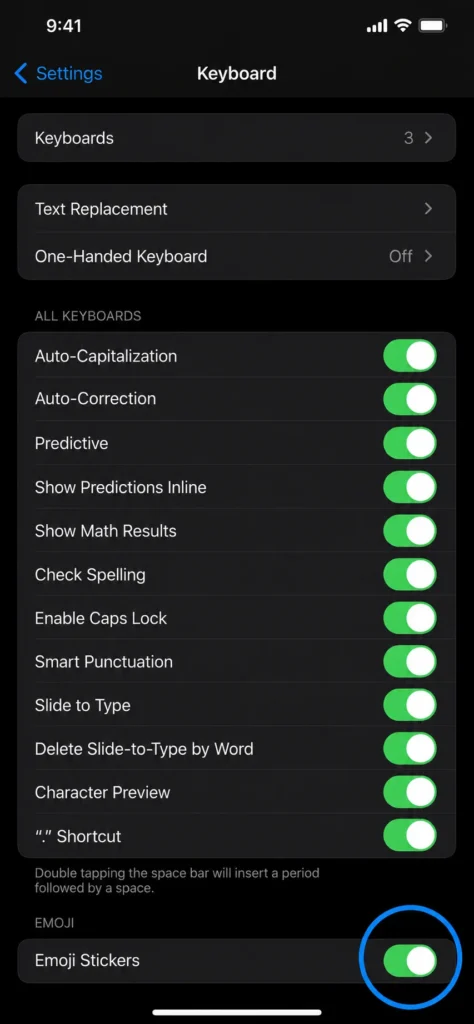
You’ll see a toggle labeled “Emoji Stickers.” This toggle controls whether stickers appear in your keyboard at all.
Turn that toggle off. Every sticker in your keyboard disappears instantly.
The beauty of this method is that it’s not permanent. If you change your mind later, just flip the toggle back on and all your stickers return. Toggling this off will prevent the keyboard from showing stickers entirely, but the stickers themselves stay saved on your iPhone.
How to Delete Emoji Stickers on iPhone (Including Memoji)
Emoji stickers are a specific category that includes both custom emoji stickers you created and the Memoji stickers that come with your personalized Memoji characters. Learning how to delete emoji stickers on iPhone requires understanding these need their own deletion approach.
Delete Emoji Stickers You Created (iOS 18 and Later)
You must have iOS 18 or later for this iOS 18 sticker delete method to work. If you’re on an older iOS version, this specific emoji sticker deletion path won’t appear.
Open any app that brings up your keyboard. I usually use Notes for this. Tap in a text field so the keyboard appears.
Tap the emoji icon on your keyboard. This is different from the sticker icon – it’s the smiling face button.
Once the emoji keyboard opens, look at the bottom row. You’ll see tabs for different emoji categories. Tap the “Stickers” tab on the far right.
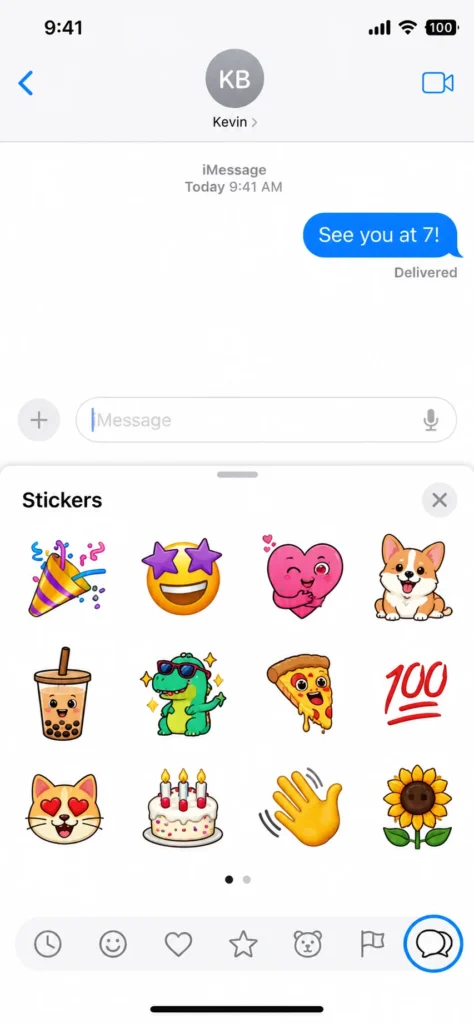
This shows all your custom emoji stickers in one place. Find the emoji sticker you want to delete.
Long press on that sticker. The menu appears with the Delete or Remove option.
Tap it and the emoji sticker is gone immediately.
This method works from any app keyboard, not just Messages. Whether you’re typing in Safari, Mail, or other apps, the steps are identical.
How to Remove Memoji Stickers from Your Keyboard
Memoji stickers are tied to your Memoji characters. If you want to remove all Memoji stickers delete operations at once without deleting them individually, there’s a Settings toggle for that.
Open Settings and tap General. Tap Keyboard.
Scroll down until you see “Memoji Stickers.” You’ll find this toggle below the main keyboard options.
Turn that toggle off. Every Memoji sticker disappears from your keyboard instantly.
This doesn’t delete your actual Memoji characters. It just removes the Memoji stickers from appearing in your keyboard. Your Memoji avatars stay safe in the Memoji editor if you want to use them again later.
I find this toggle incredibly useful when I want a cleaner keyboard without permanently losing my Memoji creations.
That Sticker Is Stuck on a Message Bubble – Here Is How to Remove It
This is the trickiest sticker situation on iPhone, and honestly, most people have no idea how to fix it. When you place a sticker directly on top of a message bubble in iMessage, that sticker behaves completely differently from regular stickers in your collection.
By default, there is no obvious delete button on the sticker itself. If you tap the sticker looking for a way to remove it, nothing useful happens. I’ve seen so many people get frustrated trying to delete these stuck stickers because iMessage sticker deletion using the normal long press method doesn’t work here.
Let me show you the hidden method that actually works.
Open the Messages app and find the conversation with the sticker you want to remove. Look at the message bubble that has the sticker stuck on it.
Here’s the key part that nobody knows. You need to tap and hold on the message bubble itself, not on the sticker. Press and hold the actual message text or bubble background.
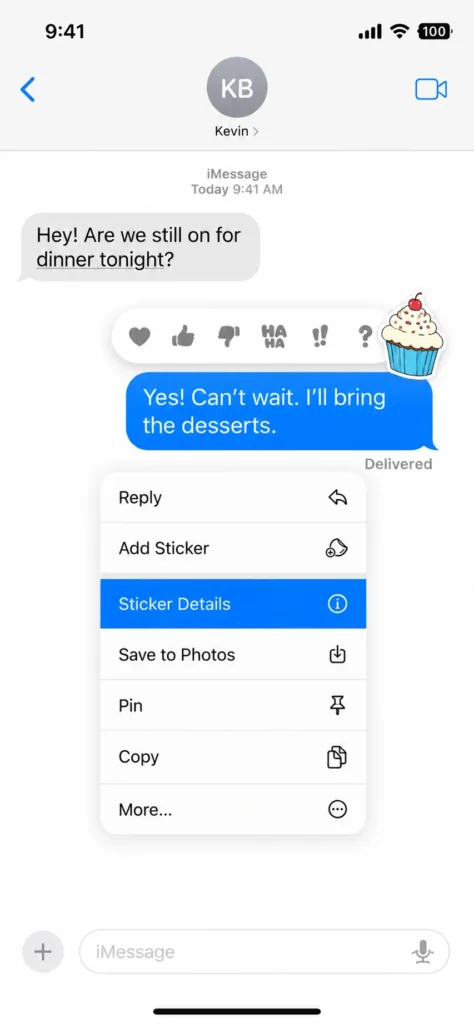
A menu pops up with several options. Look for one that says “Sticker Details.” Tap it.
A list of stickers appears showing every sticker placed on that message. Now swipe left on the sticker you want to remove.
A red trash can icon appears. Tap it.
The selected sticker will be removed from the chat bubble while leaving the original message intact. The message stays exactly as it was – you’ve only removed the sticker decoration.
This feature works on iOS 17 and later. If you’re on an older iOS version, you won’t see the Sticker Details option in the Messages app menu.
I use this method all the time when I accidentally place a sticker on the wrong message or when someone else decorates my messages with stickers I don’t want there anymore.
How to Clear Your Recently Used and Saved Stickers on iPhone
The recently used stickers row at the top of your sticker drawer can get cluttered with old stickers you don’t use anymore. Clearing this frequently used stickers section on iPhone when learning how to delete recently used stickers requires a different approach than deleting individual stickers from your collection.
I’m going to show you three methods to reset this section. One takes forever, one works instantly, and one sits somewhere in between. I’ll tell you exactly which one I recommend based on what I’ve tested.
Method 1: Natural Replacement (Not Recommended)
One way is to simply use other emojis and stickers multiple times until the old ones are pushed out of the recently used row. The more you use new stickers, the further down the old ones get pushed until they eventually disappear.
Here’s the problem. This takes a very long time. You’d need to use dozens of other stickers repeatedly just to clear out a few old ones from your frequently used section.
I tried this method once and gave up after two days of deliberately using different stickers. The old ones were still hanging around. It’s technically possible but incredibly inefficient.
Method 2: Reset Keyboard Dictionary (Recommended)
This is the fastest way to clear recently used stickers on iPhone. Resetting your keyboard dictionary wipes the entire frequently used section instantly and resets it back to default factory settings.
Open the Settings app on your iPhone. Scroll down and tap General.
Tap “Transfer or Reset iPhone” near the bottom of the screen. Then tap Reset.
You’ll see several reset options. Tap “Reset Keyboard Dictionary.”
Your iPhone will ask you to confirm. Enter your passcode if prompted, then confirm the reset.
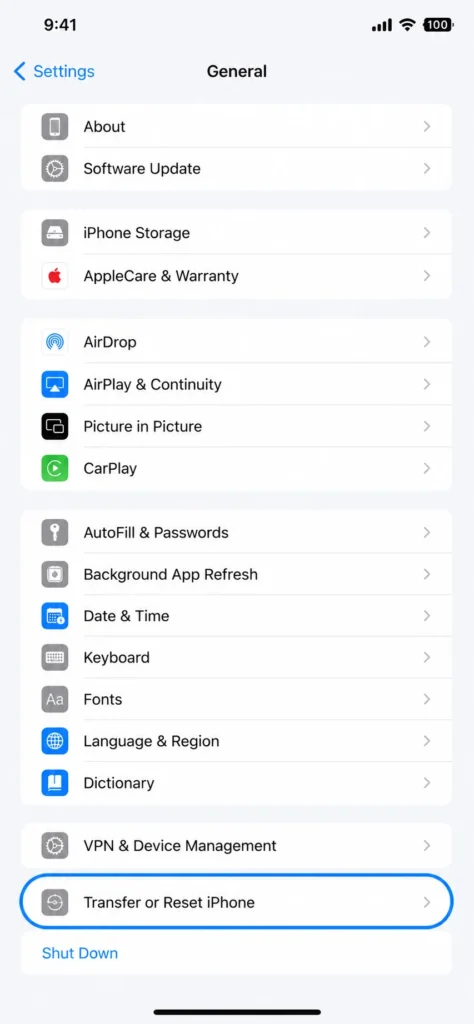
After following these steps, the frequently used section will be reset to default factory emojis and stickers. Everything in your recently used row disappears and starts fresh.
I use this method whenever my keyboard gets too cluttered with stickers I don’t want anymore. It takes less than 30 seconds and works perfectly every time.
One thing to know: this reset also clears any custom words you’ve taught your keyboard autocorrect. If you’ve added specific names or terms to your keyboard dictionary, you’ll need to teach them again.
Method 3: Remove and Re-Add Emoji Keyboard (Alternative)
If you don’t want to reset your entire keyboard dictionary, there’s a middle ground option. You can remove your emoji keyboard and add it back, which clears the frequently used stickers without affecting your autocorrect dictionary.
Open Settings and tap General. Tap Keyboard, then tap Keyboards.
You’ll see a list of all keyboards installed on your iPhone. Find “Emoji” in the list.
Swipe left on Emoji. A red Delete button appears. Tap it to remove the emoji keyboard.
Now tap “Add New Keyboard” at the bottom. Scroll down and select Emoji to add it back.
Your recently used stickers section resets to default, but your custom autocorrect words stay intact.
I recommend this method if you’ve spent time teaching your keyboard specific words and don’t want to lose that progress. It’s slightly more steps than the keyboard dictionary reset, but it preserves your other keyboard customizations.
Deleting Stickers in Third-Party Apps (WhatsApp, Snapchat, and Others)
Third-party sticker apps iPhone like WhatsApp and Snapchat have their own sticker systems that are completely separate from iPhone’s native sticker library. Deleting stickers in these apps requires using each app’s own sticker management and app management tools.
Let me walk you through the two most common third-party apps where people want to delete stickers.
How to Delete WhatsApp Stickers on iPhone
WhatsApp handles stickers differently than iPhone does. You can delete entire sticker packs or remove individual stickers from your recently used section – these are two separate actions for WhatsApp sticker remove iPhone operations. These are two separate actions.
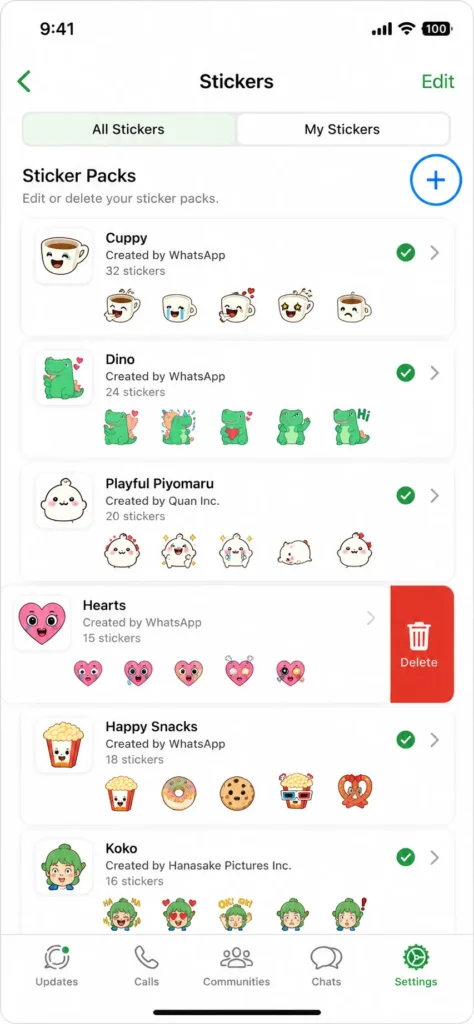
Deleting a WhatsApp Sticker Pack:
Open WhatsApp and start any chat. Tap the emoji icon to bring up your keyboard, then tap the sticker icon.
You’ll see your installed sticker packs. Tap the plus icon to open your sticker pack library.
Find the sticker pack you want to remove. Tap and hold on that pack until a menu appears.
Tap “Delete” or the trash icon. The entire sticker pack removes from WhatsApp immediately.
This deletes the pack only from WhatsApp. If you downloaded the sticker pack as a separate app, you might also want to delete that app from your iPhone to fully remove it.
Removing Stickers from WhatsApp Recents:
In any WhatsApp chat, tap the sticker icon. Your recently used stickers appear at the top.
Tap and hold on any sticker in the recents row. A menu pops up with “Remove from Recents.”
Tap that option. The sticker disappears from your recently used section but stays in its original pack.
I use this feature all the time when I accidentally send the wrong sticker and don’t want it cluttering my recents anymore.
How to Delete Snapchat Stickers on iPhone
Snapchat stickers work independently from your iPhone sticker collection. Managing Snapchat sticker delete iPhone operations happens entirely within the Snapchat app.
Open Snapchat and swipe to the camera screen. Tap on the sticker icon while creating a snap.
Your recently used Snapchat stickers appear at the top of the sticker tray. These are separate from your iPhone stickers and only appear in Snapchat.
To remove a sticker from your Snapchat recents, tap and hold on that sticker. Look for an option to remove it from recently used.
Tap that option and the sticker clears from your Snapchat recents section.
Keep in mind that Snapchat stickers are part of Snapchat’s system, not iOS. Deleting stickers in Snapchat doesn’t affect your iPhone stickers, and deleting iPhone stickers doesn’t affect Snapchat
Other Apps Like Telegram and Messenger:
Apps like Telegram and Facebook Messenger follow similar patterns. Each app has its own sticker management system, usually accessed through the sticker icon in the chat interface.
Look for a settings or manage option within the sticker tray. Most apps let you remove sticker packs or clear recently used stickers through their own menus.
The key thing to remember is that third-party app stickers live inside those apps. Managing them requires using each app’s own tools, not iOS settings.
Sticker Still Not Deleting? Try These Fixes
Sometimes the standard deletion methods don’t work and you’re left staring at a sticker won’t delete iPhone situation. I’ve run into this frustrating scenario myself, and I’ve figured out what actually fixes it.
The “Remove” vs “Delete” Confusion:
First, check what button you’re actually seeing. Depending on your iOS version, the deletion button might say “Remove” instead of “Delete.” Both options do exactly the same thing.
If you see “Remove” when you long press a sticker, tap it confidently. That button deletes the sticker just like “Delete” would. Apple changed the button label in some iOS updates, but the function stayed identical.
Check Your iOS Version:
If the delete option is missing entirely when you try to remove emoji stickers, check that you are on iOS 18 or later. The iOS 18 sticker delete method through the Emoji keyboard requires iOS 18 as a minimum.
Open Settings and tap General, then tap About. Look at the iOS version listed there.
If you’re on iOS 17 or earlier, you won’t see the deletion option for emoji stickers in the Emoji keyboard tab. You’ll need to update to iOS 18 or later, or use a different deletion method.
Try Deleting from a Different App:
Sometimes the Messages app gets glitchy and the long press menu doesn’t appear properly. When this happens, try the deletion from a different app instead.
Open Notes or any other app that brings up your keyboard. Access your stickers through the keyboard sticker icon.
Try the long press and delete method from there. I’ve found that when the Messages app won’t cooperate, the same deletion works perfectly fine from alternative apps.
Force Close Messages and Try Again:
If you’re still stuck, force close the Messages app completely and reopen it.
Swipe up from the bottom of your screen and pause in the middle (or double click the home button on older iPhones). Find the Messages app preview.
Swipe up on Messages to close it completely. Then open Messages fresh from your home screen.
Try the deletion again. This clears any temporary bugs that might be blocking the delete menu from appearing.
Restart Your iPhone:
When all else fails, restart your iPhone. This fixes more problems than people realize.
Press and hold the power button (and volume button on newer iPhones) until the power off slider appears. Slide to power off.
Wait 30 seconds, then press and hold the power button again to turn your iPhone back on.
After the restart, try deleting the sticker again using whichever method matches your sticker type.
If none of these fixes work, make sure you’re using the correct deletion method for your specific sticker type. A sticker placed on a message bubble needs the Sticker Details method, not the regular long press method. Go back and check which type of sticker you’re actually trying to delete.
Quick Summary: Which Method Is Right for You?
Let me make this simple. Here’s exactly which deletion method you need based on what kind of sticker you’re trying to remove from your iPhone.
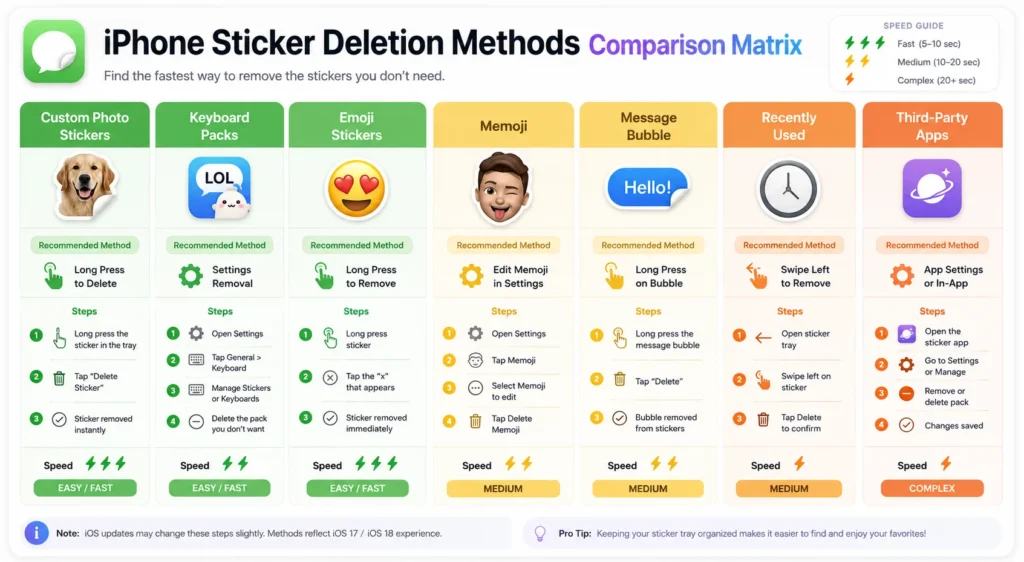
For custom photo stickers or Live Stickers you created:
Long press the sticker in Messages (Plus button > Stickers) or through your keyboard sticker icon, then tap Delete or Remove.
For keyboard sticker packs:
Remove individual stickers by long pressing them, delete entire packs through Messages sticker management, or toggle off all keyboard stickers at once in Settings > General > Keyboard > Emoji Stickers.
For emoji stickers you created:
Open any keyboard, tap the emoji icon, go to the Stickers tab, long press the emoji sticker, and tap Delete. This requires iOS 18 or later.
For Memoji stickers:
Turn off all Memoji stickers instantly by going to Settings > General > Keyboard and toggling Memoji Stickers off.
For stickers stuck on message bubbles:
Tap and hold the message bubble itself (not the sticker), select Sticker Details, swipe left on the sticker, and tap the red trash icon.
For recently used or saved stickers:
Reset Keyboard Dictionary in Settings > General > Transfer or Reset iPhone > Reset, or remove and re-add your Emoji keyboard.
For WhatsApp or Snapchat stickers:
Use each app’s own sticker management tools. These stickers are separate from iPhone stickers.
The two fundamental choices for iPhone sticker management are simple. You can delete specific stickers one by one using the methods above, or you can disable all stickers at once using the Settings toggles.
If you want everything gone instantly, use the Settings > General > Keyboard toggles. If you want to keep some stickers and only remove certain ones, use the individual deletion methods I showed you.
That covers everything you need to know about how to delete stickers on iPhone. Pick the method that matches your situation and your stickers will be gone in seconds. For more iPhone tips and tricks, visit Apple’s official iPhone support page.
Frequently Asked Questions About Deleting iPhone Stickers
Does deleting a sticker on iPhone permanently remove it?
Yes, once you delete a sticker using the long press method, that sticker is permanently removed from your collection and will not reappear. If you want the sticker back later, you’ll need to recreate it from the Photos app.
Why don’t I see a Delete option when I long press a sticker?
You might be on an older iOS version since emoji sticker deletion requires iOS 18 or later, or the button might say “Remove” instead of “Delete” which does the same thing. Try accessing the sticker from a different app like Notes if Messages isn’t showing the option.
Can I delete all my iPhone stickers at once without going one by one?
Yes, go to Settings > General > Keyboard and toggle off “Emoji Stickers” to hide all stickers from your keyboard instantly. For Memoji specifically, toggle off “Memoji Stickers” in the same menu.
How do I remove a sticker that someone placed on a message bubble?
Tap and hold the message bubble the sticker is on (not the sticker itself), select “Sticker Details,” swipe left on the sticker, then tap the red trash icon. This feature works on iOS 17 and later.
How do I delete stickers on iPhone iOS 17 or iOS 18?
The basic long press and Delete method works on both iOS versions. The emoji sticker deletion via Emoji keyboard requires iOS 18 or later, while the Sticker Details method for placed stickers works on iOS 17 and later.