What Does 1 Tick on WhatsApp Mean? (Causes, Fixes and a Privacy Trick Nobody Tells You)
The Short Answer (Read This First)
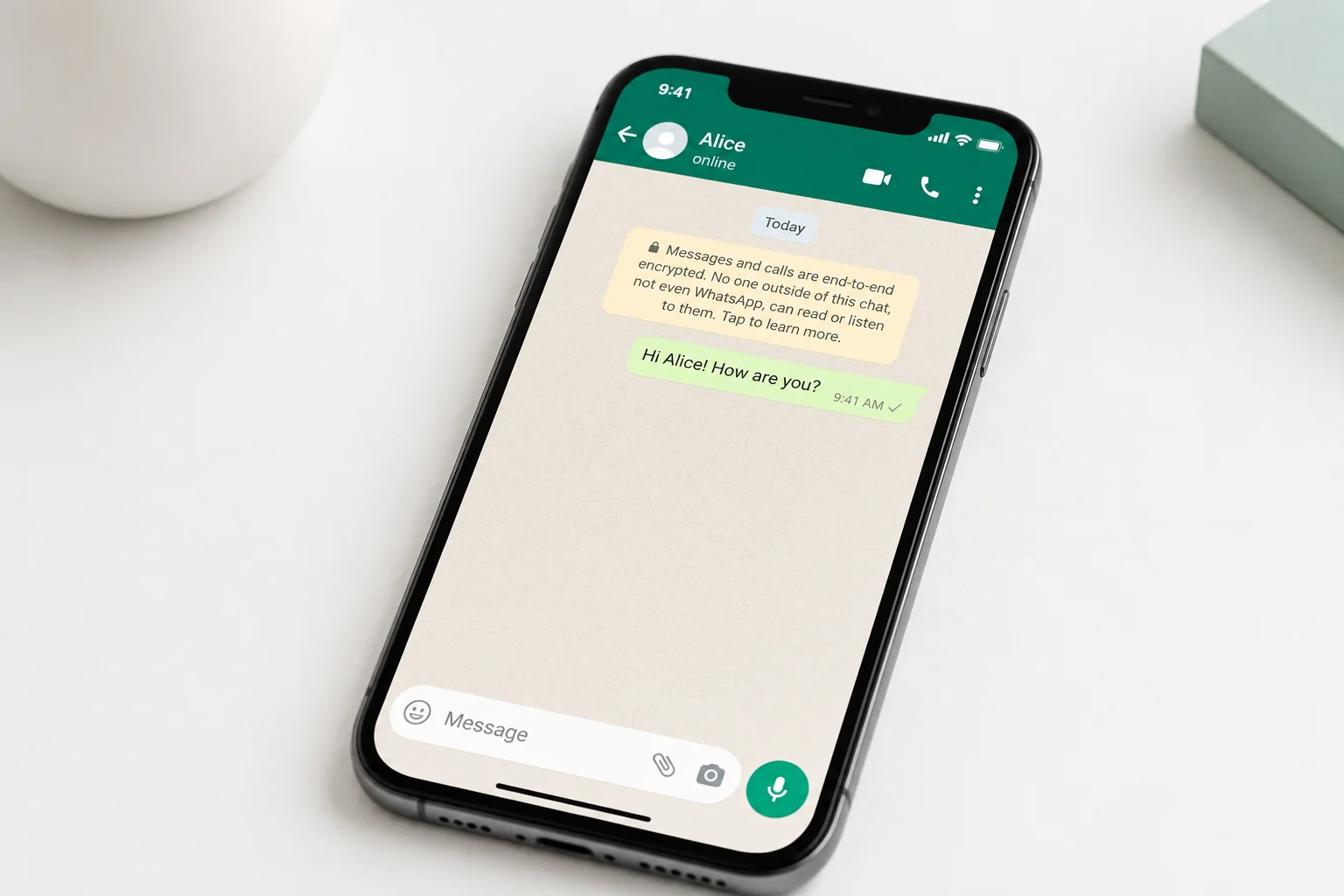
If you just sent a WhatsApp message and you are staring at a single grey tick, here is what it means: your message left your phone and reached WhatsApp’s servers successfully, but it has not been delivered to the recipient’s device yet. So what does 1 tick on WhatsApp mean in plain terms? It means your side of the conversation worked perfectly. The problem, if there is one, is on the other end.
Think of that single tick as WhatsApp holding up a hand and saying, got your message, just waiting for the right moment to pass it along. The most common reason is that the recipient’s phone is switched off or they have no internet connection at the moment.
If your own internet connection seems unstable, you can also check whether your WiFi settings are causing the issue by reading our guide on how to secure a home WiFi network.
Here is something I find really interesting about the WhatsApp message status system: the single tick phase is often so brief that most people never actually notice it under normal conditions. Under a normal working connection, the message jumps straight from a single tick to a double tick on WhatsApp almost instantly. The only time most people pay attention to that single grey tick is when something has gone wrong and it stays there longer than expected. Which is almost certainly why you searched for this.
WhatsApp Tick Symbols Explained — What Each One Actually Means
Before getting into why your message is stuck, it helps to understand what the full WhatsApp check mark system is actually telling you. WhatsApp uses a three-stage delivery confirmation system, and each stage gives you a clear picture of where your message is in its journey. I think of it like sending a letter through a very fast postal service.
You hand the letter to the post office (one tick), the post office delivers it to the recipient’s mailbox (two grey ticks), and then the recipient opens and reads the letter (two blue ticks). Once you see the pattern, it becomes surprisingly intuitive.
What Does 1 Grey Tick Mean on WhatsApp?
A single grey tick means your message has been successfully sent from your device and received by WhatsApp’s servers. Your internet connection is working fine and the WhatsApp app on your phone is functioning normally. WhatsApp, like most modern check mark messaging apps, uses this message status symbol to confirm the message is in transit and sitting on the server waiting to be forwarded to the recipient’s device.
The key thing to understand is that the problem is not on your side. The single tick on WhatsApp is essentially a receipt from the server saying ‘we have your message and we are holding it until we can pass it along.
What Do 2 Grey Ticks Mean?
Two grey ticks mean the message has been successfully delivered to the recipient’s phone. WhatsApp’s servers passed the message along to their device and the message delivered status is now confirmed on WhatsApp’s end. However, two grey ticks do not mean the person has seen or read the message. Two grey ticks simply confirm the message arrived on their phone, whether they looked at it or not.
What Do 2 Blue Ticks Mean?
Two blue ticks are the final stage. This WhatsApp check mark meaning is straightforward: the recipient has opened your chat and read your message. The blue colour is WhatsApp’s way of visually separating a read confirmation from a delivered confirmation, and it acts as a two-way communication confirmation between sender and receiver.
One important note: if someone has turned off their read receipts in their WhatsApp privacy settings, you will notice WhatsApp ticks not turning blue even after they have read your message. The ticks stay grey permanently for those contacts. I cover exactly how to control this in the read receipts section further down.
Here is a quick reference for all three states:
1 Grey Tick: Sent and received by WhatsApp servers. Not yet delivered to recipient’s phone.
2 Grey Ticks: Delivered to recipient’s device. Not yet opened.
2 Blue Ticks: Opened and read by the recipient.
Why Is WhatsApp Showing Only 1 Tick? (5 Real Reasons)
Now that you know what a single tick means, the next question is obvious: why is it stuck there? A WhatsApp message not delivered to the recipient can have several causes, and most of them have nothing to do with you being blocked. Let me walk you through each one so you can figure out exactly what is happening in your situation.
Their Phone Is Off or Has No Internet
This is by far the most common reason and the one most people overlook when they start worrying. If the recipient’s phone is switched off or their mobile data and Wi-Fi are both turned off, WhatsApp simply cannot deliver the message. The WhatsApp message stays pending on the server, queued and waiting patiently for the moment their phone comes back online.
The recipient offline situation is completely normal and happens to everyone multiple times a day. Once they turn their phone back on or reconnect to the internet, your message will deliver instantly and the tick will jump to two grey ticks on its own. You do not need to resend anything.
Your Internet Connection Has a Problem
Less commonly, the issue can be on your side. If your own internet connection dropped or became unstable right after you hit send, the message may not have fully reached WhatsApp’s servers yet. In this case, the WhatsApp internet connection issue will usually resolve itself once your connection stabilises.
A quick way to check is to send a message in a different WhatsApp chat and see if it shows the same single tick. If all your messages across multiple chats are stuck at one grey tick simultaneously, your own connection is worth investigating first.
If your smart devices frequently disconnect from WiFi, reconnecting Google Home correctly can also help stabilise your network and improve connection reliability for apps like WhatsApp.
You’ve Been Blocked
If someone has blocked your number on WhatsApp, any message you send them will stay permanently on one grey tick. If you are wondering whether someone is blocking you on WhatsApp, the honest answer is that a single tick alone cannot tell you for certain. The WhatsApp blocked indicator of a persistent single tick is real, but it looks identical to all the other causes on this list. One tick alone never confirms a block.
I want to be clear about this because I see a lot of people jump straight to “I must be blocked” the moment they see one tick. The reality is that a blocked message and an undelivered message look identical from your side. There is no special icon or alert. I have a dedicated section below that walks through the specific combination of signals that actually points to a block, so keep reading before you draw any conclusions.
The Recipient’s Phone Storage Is Full
This one surprises a lot of people, but it is a real cause that almost no other guide mentions. If the recipient’s device storage is completely full, WhatsApp can sometimes fail to deliver messages, particularly media files like photos and videos. In rare cases, even text messages are affected when a full storage situation prevents WhatsApp from functioning properly.
If you know the person you are messaging tends to run a very full phone, a WhatsApp storage failure could genuinely be contributing to the single tick you are seeing. It is less common than the other causes, but it is real and worth ruling out.
WhatsApp Server Issues
This is the rarest cause of all, but it does happen occasionally. WhatsApp’s servers experience outages and technical problems from time to time, and when they do, messages from everyone get stuck at the WhatsApp server problem stage. During a server outage, WhatsApp notifications are not delivered to any recipient and the single tick can affect your entire contact list simultaneously.
The clearest sign that a server issue is your problem rather than something contact-specific is that all of your WhatsApp messages across every chat are stuck on one tick at the same time.
If you suspect a WhatsApp outage, check Downdetector’s WhatsApp status page to see real-time outage reports. If thousands of people are reporting the same problem at once, you simply have to wait for WhatsApp’s technical team to resolve it. The problem typically clears within an hour or two.
Does 1 Tick Mean You’ve Been Blocked? Here’s How to Actually Tell
Let me be honest with you about this because I know it is the question that brought a lot of people to this article. A single grey tick on WhatsApp does not confirm that you have been blocked. If you are trying to figure out how to know if someone blocked you on WhatsApp, the answer requires looking at more than just one grey tick. A blocked message and an undelivered message look completely identical from the sender’s side.
Let me be honest with you about this because I know it is the question that brought a lot of people to this article. A single grey tick on WhatsApp does not confirm that you have been blocked. It looks exactly the same whether someone blocked you, their phone is off, or they simply have no internet connection at that moment.
I understand the anxiety. When a message sits on one tick for hours and the person is not responding, your mind goes to the worst possible explanation. But in most cases, the real reason is far more ordinary than being blocked.
Here is how to actually figure out what is going on.
Signs That Point to Being Blocked (Not Just 1 Tick)
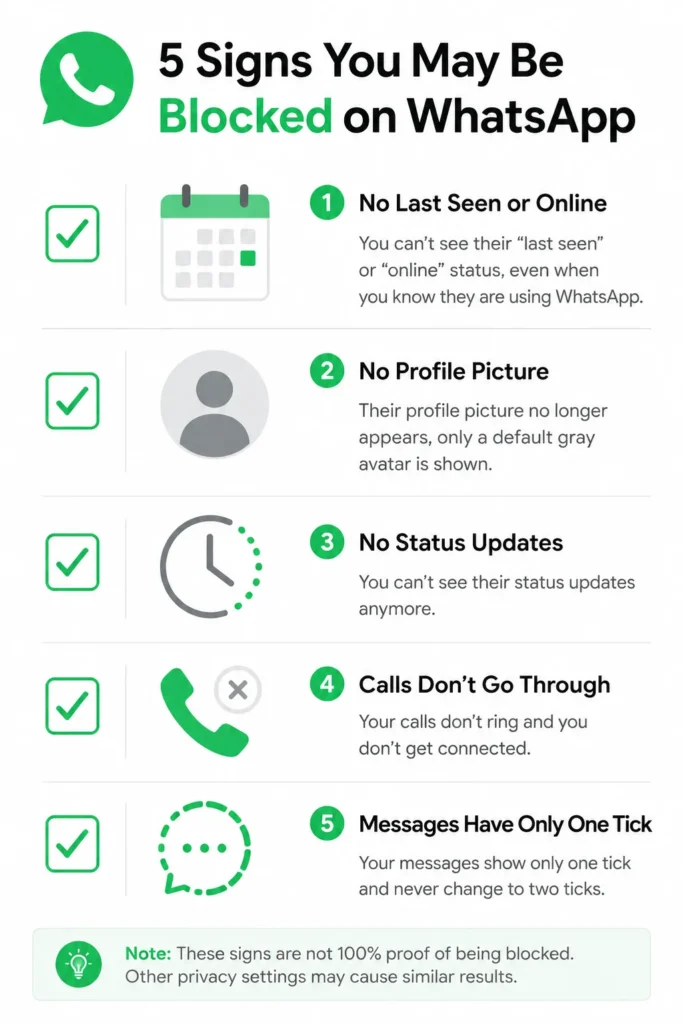
No single sign confirms a WhatsApp block on its own. What you are looking for is a combination of signals that all point in the same direction at the same time. If you notice several of these together, a block becomes more likely.
1. The message stays on 1 tick for several days
If your WhatsApp message has not been delivered for multiple days and the person was previously active and responsive, that extended single tick is worth paying attention to. A phone being off or a person being offline rarely lasts more than a day or two without some other explanation.
2. Their profile picture stopped updating
When someone blocks your number on WhatsApp, you lose the ability to see any new changes to their profile picture. If you remember seeing a recent photo and now you see an old one or no picture at all, that is one signal worth noting. However, keep in mind that some people simply remove their profile picture or restrict who can see it through their privacy settings.
3. Their last seen status is no longer visible
This is a tricky one because many people hide their last seen status for privacy reasons regardless of blocking anyone. A hidden WhatsApp last seen alone means very little on its own. But if you previously could see their last seen timestamp and now you suddenly cannot, combined with other signals on this list, that pattern becomes much more meaningful.
4. WhatsApp calls do not connect properly
If you try to call the person through WhatsApp and the call never rings properly or connects in an unusual way, that can be another indicator. Blocked calls on WhatsApp typically show one ring and then disconnect rather than ringing normally.
5. Their status updates are no longer visible to you
If you used to see their WhatsApp status updates and now their status tab appears empty even when you know they are active, that is another signal that your access to their account has been restricted.
When several of these happen at the same time alongside the persistent single tick, the whatsapp blocked indicator pattern is genuinely worth taking seriously. No single signal is proof, but the full picture tells a clearer story.
Signs That Are Probably NOT a Block
If you are seeing one tick for just a few hours and none of the other signals are present, the most likely explanation is simply that the recipient is offline or their phone is off. This is far and away the most common reason for a WhatsApp message not reaching someone.
A few things reassure me personally when I see a single tick. If I check the person’s online status on WhatsApp and can still see their recent activity, or if their current profile picture is visible and up to date, those are good signs that the contact has not blocked me. A blocked contact typically shows a frozen or missing profile rather than an active one.
The honest truth is that most single ticks resolve on their own within a few hours, and when the message jumps to two grey ticks, the blocking concern disappears entirely.
What Does 1 Tick Mean in WhatsApp Group Chats?
Group chats on WhatsApp follow the same tick system, but with one important difference in how WhatsApp counts delivery and read status.
In a one-on-one conversation, the tick system tracks a single recipient. But the WhatsApp group message tick works differently — Meta’s messaging platform tracks every member of the group individually before updating the status, which means the rules change depending on your group’s size and activity.
Here is what each tick state means specifically in a group chat context:
1 grey tick in a group means the message has not been delivered to any member of the group yet. Not a single person’s phone has received the message. This typically happens when your own internet connection had a brief issue at the moment of sending.
2 grey ticks in a group means the message has been delivered to every member’s phone. All participants have the message on their devices, even if nobody has opened the chat yet.
2 blue ticks in a group means every member of the group has opened and read the message. The ticks only turn blue once the last person in the group opens the chat. If you send a message to a group of ten people and nine of them read it immediately but one person has not opened it yet, you will still see grey ticks until that final person reads the message.
This is worth knowing because it explains why group chat ticks can sometimes stay grey for longer than you would expect, especially in large groups where some members are less active.
One thing that does not change in groups is what a single grey tick means in a WhatsApp group chat. It points to a delivery issue at the moment of sending, not a problem with any particular group member.
If you also use WhatsApp Business for professional messaging, the tick system follows the same core principles. Business accounts do have some additional delivery tracking nuances, which I cover in a dedicated section further down.
How to Fix a WhatsApp Message Stuck on 1 Tick
If your message has been sitting on one grey tick for longer than you are comfortable with and you want to take action, here are the steps I personally work through. I have put these in order from the simplest and quickest to the slightly more involved.
Step 1 — Check Your Own Internet Connection First
Before assuming anything is wrong on the recipient’s end, check your own connection. Open your phone’s browser and load any website. If the page loads normally, your internet is fine and the issue is on the other side.
One thing I always check specifically is whether both my mobile data and my Wi-Fi are working correctly. Sometimes one drops without the other, and WhatsApp may not switch between them smoothly. Toggle your Wi-Fi off and back on, or switch briefly to mobile data and see if the tick updates.
Sometimes router congestion or incorrect channel settings can also affect messaging apps like WhatsApp. If your connection feels slow, you can try changing your router’s wireless channel.
Step 2 — Wait and Check Back (It’s Usually Temporary)
This is the step most people skip because waiting feels passive. But the reality is that the majority of single tick situations resolve on their own without any intervention needed.
When the recipient comes back online, the WhatsApp message that was queued on the servers delivers automatically and instantly. You will see the tick jump to two grey ticks on its own.
There is no need to resend the message or take any other action. Resending creates duplicate messages and causes unnecessary confusion when the person eventually comes back online.
Step 3 — Restart WhatsApp or Your Phone
If you have confirmed your own internet is working but the tick is still stuck, a simple restart often clears minor app glitches that can sometimes delay message delivery.
On Android, close WhatsApp completely from your recent apps and reopen it. On iPhone, swipe up from the bottom of the screen to close WhatsApp, then tap the icon to reopen it. If that does not help, restarting your phone entirely takes about 30 seconds and resolves a surprising number of small connectivity issues.
Step 4 — Clear WhatsApp Cache (Android Only)
This step applies to Android users only. A built-up cache can occasionally cause WhatsApp to behave sluggishly or fail to sync properly.
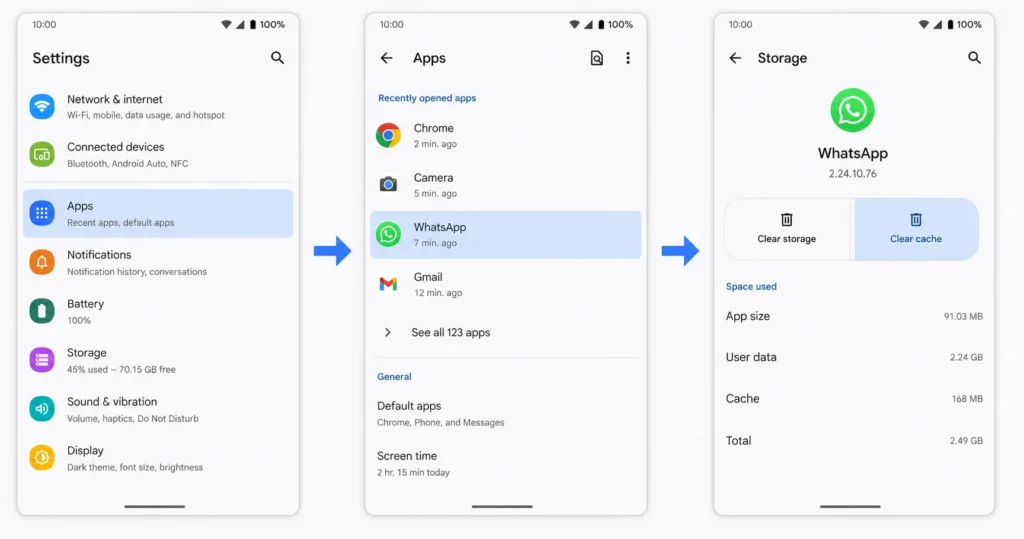
To clear the cache on Android: go to Settings, tap Apps, find WhatsApp in the list, tap Storage, and then tap Clear Cache. This does not delete any of your messages or media. It only clears the temporary files WhatsApp has stored in the background. After clearing the cache, reopen WhatsApp and check whether the message delivery has updated.
You can also remove unnecessary Android apps to free up storage and improve overall phone performance.
Clearing the cache is one of the more effective fixes for WhatsApp not sending messages on Android, and it is completely safe — no messages or media are deleted in the process.
Step 5 — Update WhatsApp to the Latest Version
An outdated version of WhatsApp can sometimes cause delivery problems, particularly after Meta pushes a significant update to their servers that older app versions are not fully compatible with.
On Android, open the Google Play Store, search for WhatsApp, and tap Update if one is available. On iPhone, open the App Store, tap your profile at the top right, scroll to WhatsApp, and tap Update if the option appears.
After updating, restart the app and give it a minute to reconnect and sync. In many cases where a whatsapp message has not been received for an unusual reason, an app update sorts the problem quickly.
How to Turn Off WhatsApp Read Receipts (And What You’re Trading Away)
A lot of people turn off WhatsApp read receipts without fully understanding what that decision costs them. I want to make sure you go into this with the complete picture, because most guides skip the most important part.
Turning off read receipts in WhatsApp privacy settings stops other people from seeing when you have read their messages. No more blue ticks showing up on your side of the conversation. Sounds great, right? But here is the part almost nobody mentions: the moment you turn this setting off, you also lose your own ability to see blue ticks on messages you send to other people. The setting works both ways, and WhatsApp does not warn you about this during the process.
If knowing whether your messages have been read matters to you, think carefully before making this change.
How to Turn Off Read Receipts on Android
The steps are straightforward and take less than a minute.
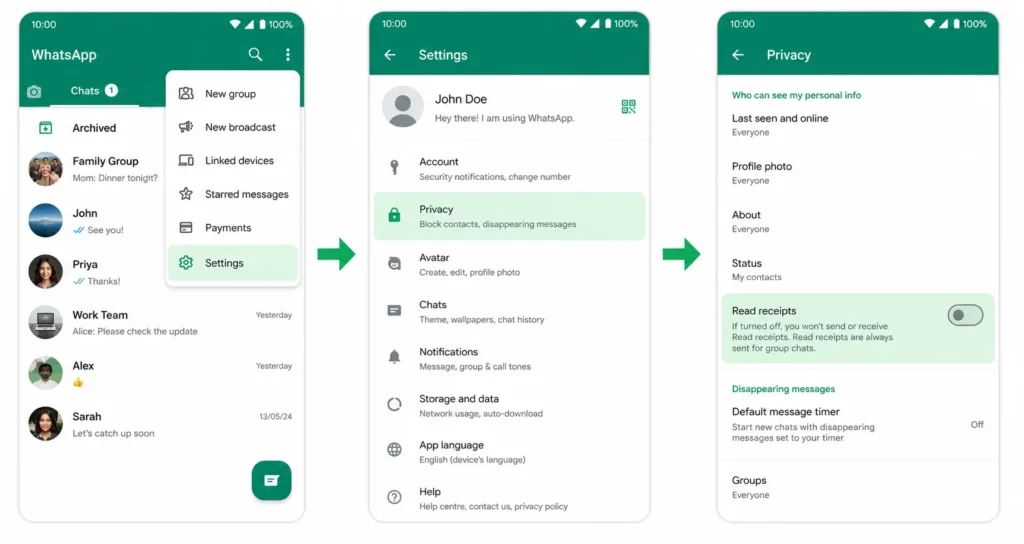
Open WhatsApp on your Android phone. Tap the three vertical dots in the top right corner of the screen. Select Settings from the menu that appears. Tap Privacy. Scroll down until you see the Read Receipts toggle. If the toggle is green, read receipts are currently on. Tap the toggle to turn it grey and disable the feature.
Once you do this, other WhatsApp users will no longer see blue ticks when you read their messages. And as I mentioned above, you will no longer see blue ticks on messages you send to them either.
How to Turn Off Read Receipts on iPhone
The process on iPhone follows the same menu path, just with a slightly different interface layout.
Open WhatsApp on your iPhone. Tap Settings in the bottom right corner of the screen. Tap Privacy. Find the Read Receipts toggle and tap it to switch the feature off.
The same mutual trade-off applies on iOS. Disabling WhatsApp read receipts on iPhone removes blue tick visibility for everyone in your conversations, not just selectively for certain contacts.
One important note worth knowing: the read receipts setting in WhatsApp does not apply to group chats. In group conversations, blue ticks will still appear regardless of your individual privacy setting. WhatsApp does not currently give users the option to disable read receipts in group chats.
The Trade-Off You Need to Know Before You Do This
This trade-off genuinely surprises most people the first time they hear it, so I want to spell it out clearly. Turning off the WhatsApp read receipt setting is a mutual arrangement with no exceptions. When you disable the feature, you opt out of the entire read receipt system in both directions at once.
You will not see blue ticks on your sent messages. The people you message will not see blue ticks when you read theirs. There is no way to hide your own read status while still being able to see other people’s read status. WhatsApp does not allow a one-sided version of this setting.
If your goal is simply to read messages privately without the sender knowing, there are other approaches worth exploring, which I cover in the next section. But if you genuinely do not want the pressure of blue ticks in your conversations and are comfortable giving up the visibility on your end too, turning off read receipts is a clean and simple solution.
The Privacy Trick — How to Make WhatsApp Show 1 Tick While You Stay Online
This is the section that none of the other articles about WhatsApp ticks cover, and I find it genuinely useful to know about. There is a way to make WhatsApp show a single grey tick to anyone who messages you, giving them the impression your phone is off or disconnected, while your internet connection continues working normally for every other app on your phone.
If you also want extra privacy on your phone, you can protect sensitive apps with an app lock feature on Android.
I have seen people use this when they are deep in work or studying and do not want WhatsApp interruptions, but also do not want to turn their internet off entirely. The sender sees one tick and assumes you are offline. You carry on with whatever you are doing, undisturbed.
Below I have laid out three different approaches depending on what your phone allows, starting with the one that works on the majority of Android devices.
Method 1 — Native Android Settings (Recommended)
This is the cleanest approach and works on most modern Android phones without needing to download anything extra.
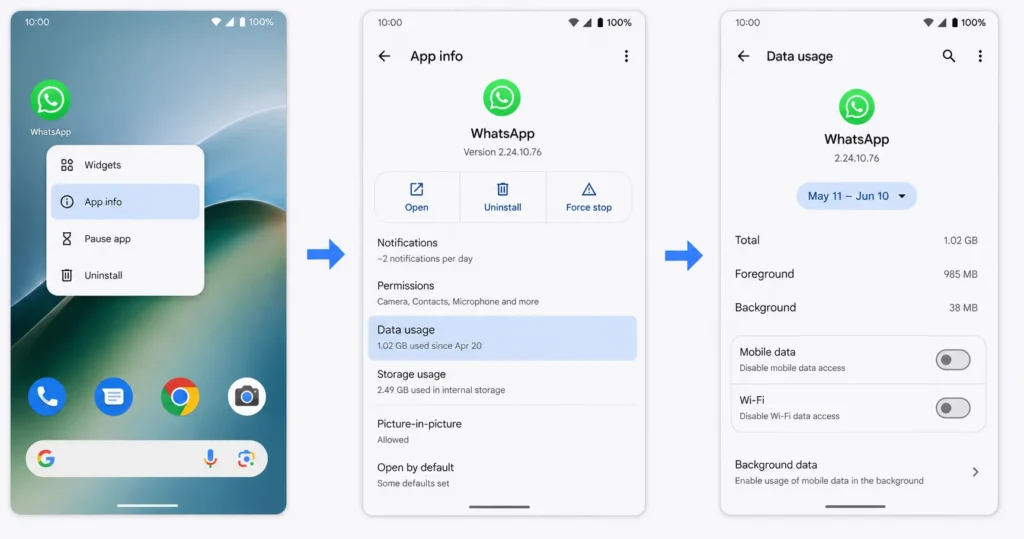
Go to your home screen or app drawer and find the WhatsApp icon. Press and hold the WhatsApp icon until a small menu appears. Tap the App Info option, which is usually shown as a small circle with the letter “i” inside it. This shortcut gets you directly into WhatsApp’s system settings without navigating through your main Settings app.
Inside the App Info screen, tap Data Usage. You will see two separate toggles: one for Mobile Data and one for Wi-Fi. Turn both of these off.
Once both toggles are disabled, WhatsApp loses its internet access completely while every other app on your phone continues working normally. Anyone who sends you a WhatsApp message will see a single grey tick on their end.
For the most reliable result, go back to the main App Info screen and tap Force Stop to make sure WhatsApp is fully closed. Then open your recent apps view and swipe WhatsApp away to clear it completely from the background. This prevents the app from waking itself up through background processes on some devices.
Method 2 — Battery Restriction Mode (Alternative for Some Phones)
On certain Android phones, the data blocking method behaves differently or the specific toggles described above are not available in the same location. If that is the case for your device, the battery restriction approach achieves the same result through a different system setting.
Press and hold the WhatsApp icon and tap App Info. Instead of going into Data Usage, scroll down and tap Battery. You will see options like Optimized, Unrestricted, and Restricted. Select Restricted. Then go back to the main App Info screen, tap Force Stop, and clear WhatsApp from your recent apps.
The Restricted battery mode prevents WhatsApp from running any background processes, which effectively keeps the single grey tick status active for anyone trying to reach you while this setting is in place.
Method 3 — NetGuard App (If Native Settings Are Not Available)
If your phone model does not have the native per-app data blocking option at all, a free Android app called NetGuard from the Google Play Store solves this problem without requiring any special phone permissions
Download and open NetGuard. Accept the permissions the app requests to manage your network connections. Enable the main switch at the top of the NetGuard interface. Scroll through the list of apps until you find WhatsApp. Tap the mobile data and Wi-Fi icons next to WhatsApp to turn both off. NetGuard will then block WhatsApp from accessing the internet while leaving all your other apps completely unaffected.
What Actually Happens While This Is Active
When any of these methods are running, the experience works like this from both sides.
Anyone who sends you a WhatsApp message will see a single grey tick. Their message sits in a queue on WhatsApp’s servers, waiting to be delivered. From their perspective, your phone appears to be switched off or offline.
On your side, your phone’s operating system will still display a system push notification telling you that someone has attempted to message you on WhatsApp. However, no message content or preview will be visible in that notification. You will know someone messaged you, but you will not see what they said until you re-enable WhatsApp’s data access.
This applies to every type of WhatsApp message: text, photos, videos, voice notes, and documents. All of them queue up on WhatsApp’s servers while the block is active.
When you are ready to receive everything, simply go back into App Info, re-enable both Mobile Data and Wi-Fi toggles, and open WhatsApp. Every message that was queued and waiting will download to your phone instantly and simultaneously. The sender will see the tick update in real time from one grey tick to two grey ticks and then two blue ticks as you open each chat.
Every single message that was waiting comes through, and nothing is missed
It is also worth knowing that WhatsApp’s end-to-end encryption still applies to all messages sitting in the queue during this period, so the content remains private and secure even while it waits to be delivered.
One Mistake That Breaks the Block
There is one thing to watch out for once this method is active. If you tap the WhatsApp icon and open the app while the data block is still running, WhatsApp may show a pop-up prompt asking for permission to access the internet.
If you tap Allow on that prompt, WhatsApp immediately regains internet connectivity and all your queued messages deliver at once. The single tick block is broken. To preserve the block, tap Cancel on that prompt and close WhatsApp again without fully opening it.
What Does 1 Tick Mean on WhatsApp Business?
This section is specifically for WhatsApp Business users. If you use the regular WhatsApp app for personal messaging, the standard causes and fixes covered above already apply to you.
If you use WhatsApp Business for professional communication, the single grey tick carries the same core meaning as it does in the regular WhatsApp app. A single tick on WhatsApp Business means your message reached Meta’s servers but has not been delivered to the recipient’s device yet.
The WhatsApp message delivery status system works on the same three-stage tick model for business accounts. One grey tick is sent but not delivered. Two grey ticks confirm delivery to the device. Two blue ticks confirm the message has been opened and read.
However, WhatsApp Business users encounter a few additional reasons why a message might stay on one tick that regular users typically do not face.
The first is that the recipient’s number may not be registered on WhatsApp at all. If you send a message to a contact who does not have a WhatsApp account, the WhatsApp delivery receipt will never progress beyond a single tick because there is no WhatsApp app on the other end to receive it.
The second is related to Meta’s messaging frequency limits. WhatsApp Business has rules around how many marketing or template messages a business can send to individual users within a given period. If your message hits a frequency cap, the WhatsApp message not received status can persist and show as a single tick. This is specific to business template messaging and does not affect personal conversations.
If you are managing a business account and seeing persistent single ticks across multiple contacts at the same time, it is worth checking your WhatsApp Business Manager dashboard for any delivery error flags or account alerts.
Quick Summary — What to Do When You See 1 Tick
If you have read through this article, you now have everything you need to understand your situation clearly. But I know some people scroll straight to the bottom looking for a fast answer, so here is a simple decision guide based on everything covered above.
The tick resolved itself and jumped to two grey ticks. The recipient simply came back online. Their phone was off or they had no internet connection for a period. The WhatsApp message status updated automatically the moment they reconnected. Nothing to worry about and nothing to do.
The tick has been stuck for a few hours but there are no other unusual signals. The most likely explanation is still that the recipient is offline or their phone is off. Wait a little longer. The single tick on WhatsApp in this situation almost always resolves on its own without any action needed.
The tick has been stuck for more than 24 hours and you are noticing other signals like a hidden last seen or a profile picture that stopped updating. Revisit the blocked signals section of this article and look at the full combination of indicators before drawing a conclusion. One tick alone is never enough to confirm a block.
You want to fix the issue from your side. Work through the five fix steps in Section 6: check your own internet, restart WhatsApp, clear the cache on Android, and update the app if a new version is available.
You want to intentionally make your own WhatsApp show a single grey tick to others. The privacy method in Section 8 covers three different approaches depending on your phone type. Your messages will queue safely on WhatsApp’s servers and deliver instantly the moment you re-enable the app’s internet access.
The single tick is almost always temporary. WhatsApp’s message delivery system holds messages safely on the server until the recipient’s device is ready. When that connection happens, the message delivery status updates instantly and automatically. The single tick is almost always temporary.
What does 1 grey tick mean on WhatsApp?
A single grey tick on WhatsApp means your message reached WhatsApp’s servers but has not been delivered to the recipient’s phone yet. Their device is most likely switched off or has no active internet connection at that moment.
Does 1 tick on WhatsApp always mean I have been blocked?
No, a single tick does not always mean you have been blocked. A phone being off or no internet connection are far more common causes, and you need to look for a combination of signals like hidden last seen, no profile picture updates, and failed calls before considering a block.
Why is my WhatsApp message stuck on 1 tick for days?
A message stuck on one tick for several days usually means the recipient has had no internet for an extended period, their phone storage is full, or they have blocked your number. Check the full list of block signals covered earlier in this article to figure out which situation applies.
Can you read WhatsApp messages without the sender seeing blue ticks?
Yes, you can turn off Read Receipts in WhatsApp Privacy settings to stop senders from seeing when you read their messages. Keep in mind this setting works both ways, so you will also lose the ability to see blue ticks on messages you send to others.
What happens to the 1 tick when the person comes back online?
The moment the recipient reconnects to the internet, WhatsApp delivers the message instantly and the single tick updates to two grey ticks automatically. No action is needed on your end and nothing gets lost during the wait.