How to Unhide Hidden Apps on iPhone: Every Method for iOS 18
If you just spent ten minutes searching your iPhone for an app you know you downloaded, I completely understand that frustration. Your app is almost certainly still there. I’ve helped dozens of people find missing apps on iPhone, and in nearly every case, the app wasn’t deleted—it just got hidden through one of several different iPhone features.
Once you know which feature hid your app, you can unhide hidden apps on iPhone in under a minute. I’ll show you every method to find hidden apps on iPhone, including the iOS 18 Hidden folder feature that most guides ignore completely. If you’re interested in other iPhone privacy features, you might also want to explore how to hide your phone number when calling for additional privacy control.
Your App Isn’t Gone — Here’s Why It’s Hiding (And Which Fix You Need)
Before you start trying random fixes, let me explain why the app disappeared in the first place. There are four main reasons iPhone apps go missing from your home screen, and each one needs a different fix.
The four most common causes:
- The app was removed from the home screen but is still in your App Library
- The app was hidden using iOS 18’s “Hide and Require Face ID” privacy feature
- Screen Time or parental controls are blocking the app
- An entire home screen page got hidden
The most common cause is the first one. When you accidentally tap “Remove from Home Screen,” the app doesn’t get deleted. It just moves to your App Library. I see a lot of people assume their app disappeared from iPhone completely and redownload it from the App Store, when it was sitting in the App Library the whole time.
If your app completely vanishes even from Spotlight search results, that’s almost always because it was hidden using the iOS 18 privacy feature. These two situations look identical from the outside but need totally different fixes. Identify which one matches your situation and jump straight to that method.ion.
How to Unhide Hidden Apps on iPhone Using the App Library
This is the fix for the most common situation — the app is installed on your iPhone but not showing on your home screen.
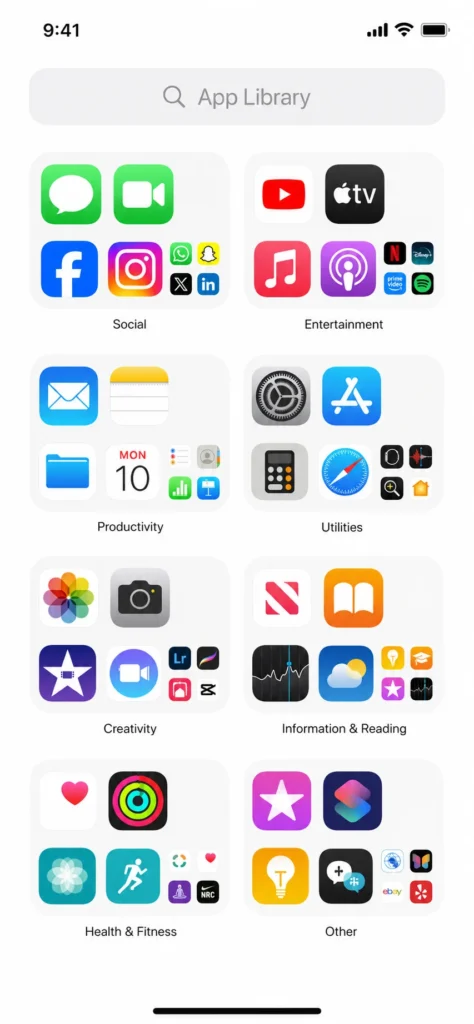
Swipe left across your home screens until you reach the App Library. It’s the last screen on the right, organized into category folders like Social, Entertainment, and Productivity. Your missing app is in here somewhere.
To re-add the app to your home screen:
- Find the app in one of the category folders or use the search bar at the top
- Long-press the app icon until a menu appears
- Tap “Add to Home Screen”
- The app will reappear on your home screen
Once it’s back, press and hold it again to drag it wherever you want.
Can’t See It in the Folders? Use the App Library Search Bar
If you can’t spot the app by browsing the folders, tap the search bar at the very top of the App Library and type the app name. It shows up instantly. I always use this app library search method on my iPhone instead of scrolling through folders because it works every single time for apps that were simply removed from the home screen.
After it appears in search results, long-press the icon and select “Add to Home Screen” to bring it back.
Found It — Now Get It Back on Your Home Screen
After tapping “Add to Home Screen,” the app icon will appear on your home screen, usually on the last page. Long-press it to enter jiggle mode, then drag it to whatever page and spot you prefer. Now your iPhone home screen is back to the way you had it.
The iOS 18 Hidden Folder: How to Unhide Apps Locked with Face ID
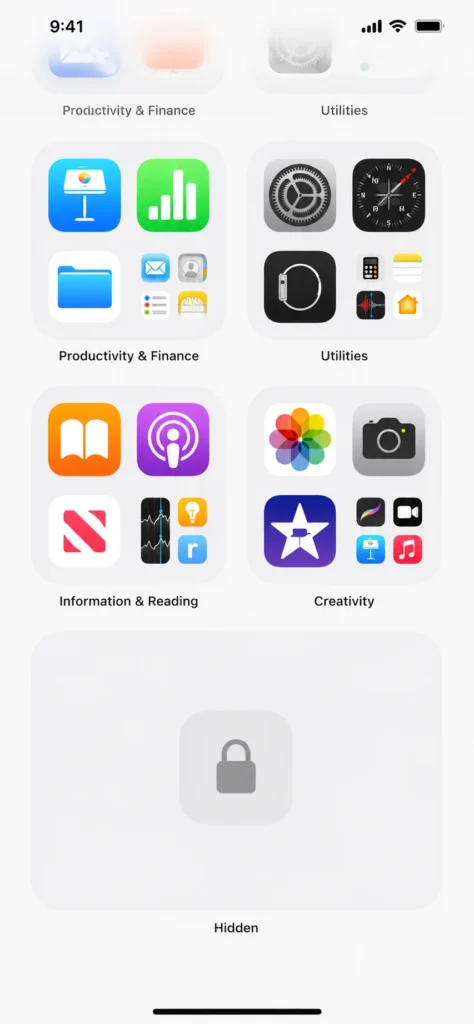
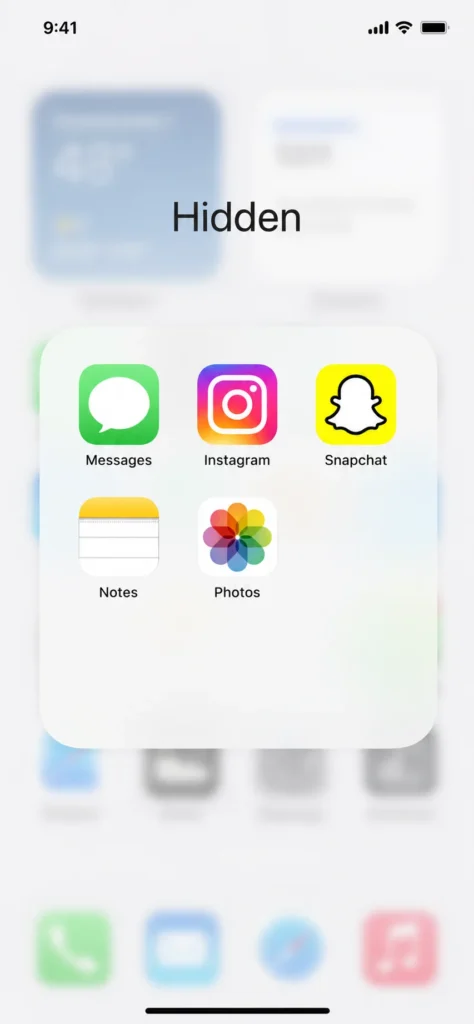
iOS 18 introduced a privacy feature that lets you hide apps completely—not just remove them from the home screen, but make them invisible everywhere, including in Spotlight search. These apps live in a special folder called “Hidden” at the very bottom of your App Library.
If you searched for your app and got zero results, this is almost always why. The iOS 18 app hiding feature intentionally excludes hidden apps from Spotlight search by design. The only way to find hidden apps on your iPhone when they’re locked this way is through the Hidden folder itself.
Here’s something critical I need to mention: when an app is in the Hidden folder, it stops sending you notifications and call alerts. I’ve had people tell me they thought their messaging apps were broken, when really they just had them hidden. Unhiding the app restores all notifications immediately. For Apple’s official guidance on hiding and locking apps, see Apple’s support article on how to hide, lock, or require authentication for apps.
Step-by-Step: Unlocking the Hidden Folder with Face ID
Here’s how to unlock the face ID hidden folder:
- Swipe left through all your home screen pages until you reach the App Library
- Scroll all the way to the bottom of the App Library
- You’ll see a folder labeled “Hidden” in the bottom right area
- Tap the Hidden folder
- Your iPhone will prompt you for Face ID authentication
- Once verified, the folder opens and you can see all your hidden apps
Why Face ID Asks You Twice (And What to Do When It Does)
I get asked about this all the time: why does Face ID pop up twice when you’re trying to unhide an app? People think something went wrong. Nothing went wrong. The first Face ID check opens the hidden app folder so you can see what’s inside. The second Face ID check happens when you select the unhide option, confirming you actually want to remove the app from its hidden state. Both checks are required by design as part of the security feature.
“Don’t Require Face ID” vs “Unhide App” — Which One Should You Tap?
When you long-press an app inside the Hidden folder, you’ll see two options and it matters which one you choose.
“Don’t Require Face ID” removes the Face ID lock from the app, but the app may stay in your App Library rather than jumping back to your home screen automatically.
“Unhide App” is the better choice. Apple recommends this option because it removes the lock AND restores the app to your home screen in one step. If your goal is to get the app fully visible and usable again, I recommend you tap “Unhide App.”
After either option, do a second Face ID verification when prompted and the app will be freed from the Hidden folder.
Important: Your App Won’t Show in Search While It’s Hidden
Here’s what confuses most people. When an app is inside the iOS 18 Hidden folder, it does not appear in Spotlight search at all. Your iPhone deliberately hides it from every standard search path, including Spotlight search. So if you’ve been typing the app name and seeing nothing, that’s not a glitch—it’s the privacy feature working exactly as Apple designed it. Go directly to the Hidden folder in your App Library to find it.
Your Entire Home Screen Page Is Hidden — Here’s How to Bring It Back
iOS lets you hide entire home screen pages, not just individual apps. If you or someone else accidentally hid a page, every app on that page disappears at once, which can look pretty alarming.
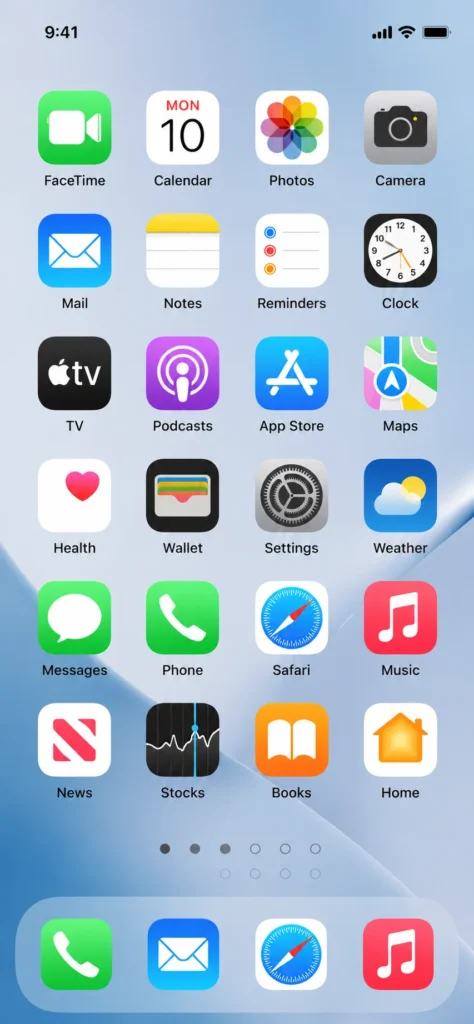
Here’s how to unhide a home screen page on your iPhone:
- Long-press any empty area on your home screen until the icons start jiggling
- Tap the row of dots at the bottom of the screen (the page indicator)
- You’ll see thumbnails of all your home screen pages
- Any page with a dimmed or unchecked circle underneath it is currently hidden
- Tap the circle under the page you want to restore to put a checkmark on it
- Tap “Done” in the top right
All the apps on that page will reappear on your home screen. This is a quick fix that most people miss because the home screen page hiding feature isn’t immediately obvious on iPhone.
Use Spotlight Search to Find Any App in Under 10 Seconds
For any app that wasn’t hidden using the iOS 18 privacy feature, Spotlight search on iPhone is the fastest way to locate it.
Swipe down from the middle of your home screen to open Spotlight. Type the app name and it appears in the results immediately. Tap it to open the app, or long-press the icon in the results and select “Add to Home Screen” to pin it back where you can see it.
Spotlight search will not work if the app is inside the iOS 18 Hidden folder. In that case, Spotlight returns no results because the privacy feature deliberately excludes hidden apps from search. If you tried Spotlight and found nothing, scroll back up to the iOS 18 Hidden Folder method I explained earlier.
Apps Blocked by Screen Time? This Is How You Get Them Back
Screen Time restrictions can silently remove apps without showing you any notification or error message. One moment the app is there, the next it’s gone, and you have no idea why. I see this happen most often on family devices, employer-managed iPhones, or when Screen Time content restrictions are set by age rating. If you’re setting up parental controls and security on family devices, securing your home WiFi is equally important for complete family device protection.
The fix is in your Screen Time settings, and the exact path matters here.
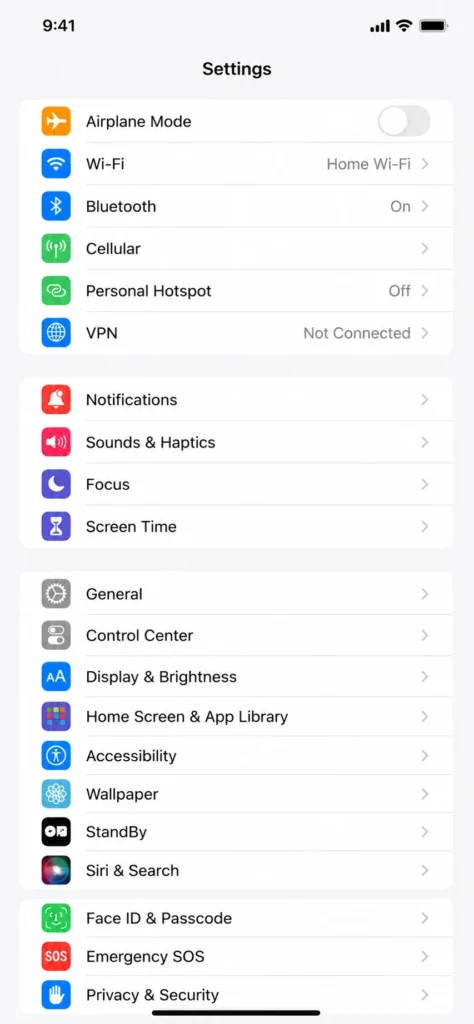
Step-by-Step: Removing App Restrictions in Screen Time Settings
Here’s the exact path to remove app restrictions in iPhone settings:
- Open the Settings app on your iPhone
- Scroll down and tap Screen Time
- Tap Content and Privacy Restrictions
- Make sure the toggle at the top is turned on (if it’s off, restrictions aren’t the issue)
- Tap Content Restrictions
- Tap Apps
- Select Allow All Apps
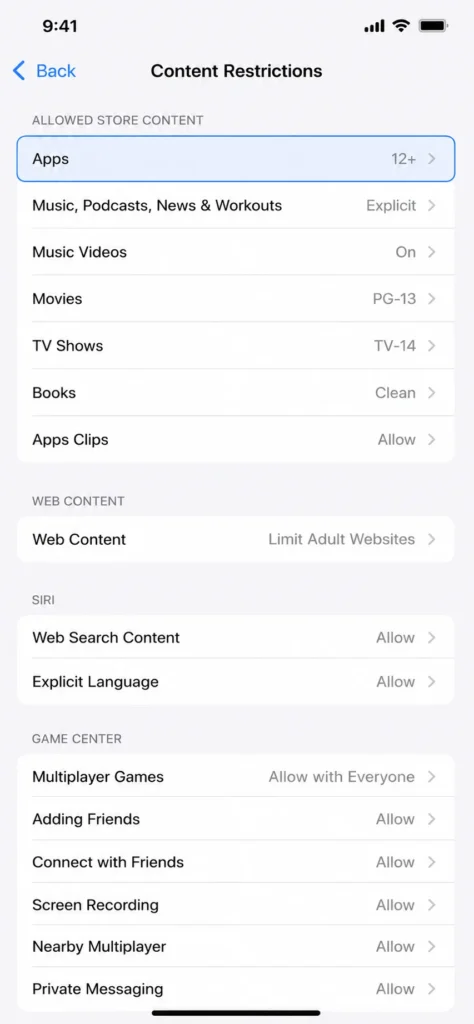
As soon as you select “Allow All Apps,” any apps that were being blocked by age-related or manual restrictions will reappear on your home screen immediately. You don’t need to restart your iPhone.
If Screen Time is managed by a parent or organization, you may need the Screen Time passcode to make this change. This is common with parental controls on iPhone and family-shared devices. In that case, contact whoever set up the restrictions on the device.
App Was a Paid Purchase? Here’s How to Unhide It from the App Store
App Store hidden purchases are a completely different scenario. If you previously hid a purchase in your App Store purchase history, the app gets removed from your “Purchased” list and won’t show up when you search for it to redownload. Here’s how to restore it.
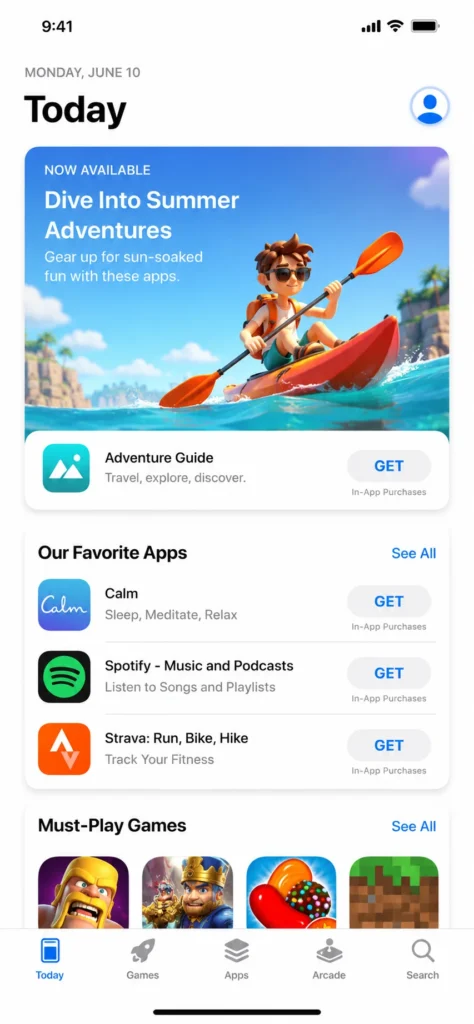
Steps to reinstall hidden purchases on iPhone:
- Open the App Store
- Tap your profile icon in the top right corner
- Tap Purchased
- Tap “Not on This iPhone” to see apps you own but haven’t downloaded
- Scroll through the list to find your app
- Tap the cloud icon next to the app to redownload it
If you specifically remember hiding a purchase, you can unhide it through your Apple ID settings on the Apple website or through iTunes on a Mac. Once unhidden, the app will reappear in your purchase history and you can download it again.
Want to Delete a Hidden App Completely? Here’s the Way Most People Miss
Most guides assume you want to restore a hidden app. But sometimes you want to permanently remove an app that someone else hid, or that you no longer need. The standard delete method from the home screen won’t reach apps inside the iOS 18 Hidden folder. You need to go through iPhone Storage instead.
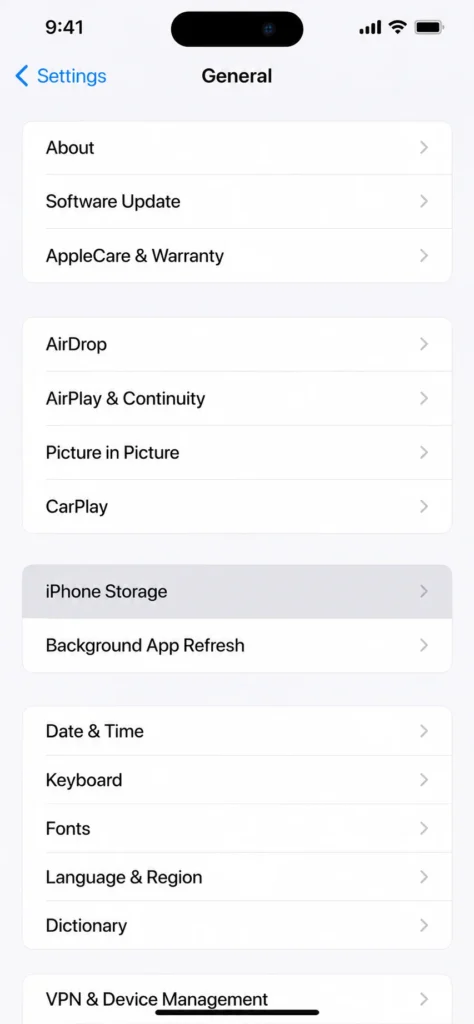
Here’s how to permanently delete a hidden app:
- Open Settings
- Tap General
- Tap iPhone Storage
- Scroll down until you see a section labeled “Hidden Apps”
- Tap it and authenticate with Face ID
- Tap the name of the app you want to remove
- Tap Delete App
- Confirm the deletion in the popup that appears
The app is now permanently removed from your device and from the Hidden folder. To confirm it’s gone, swipe down to open Spotlight search and type the app name. It should return no results.
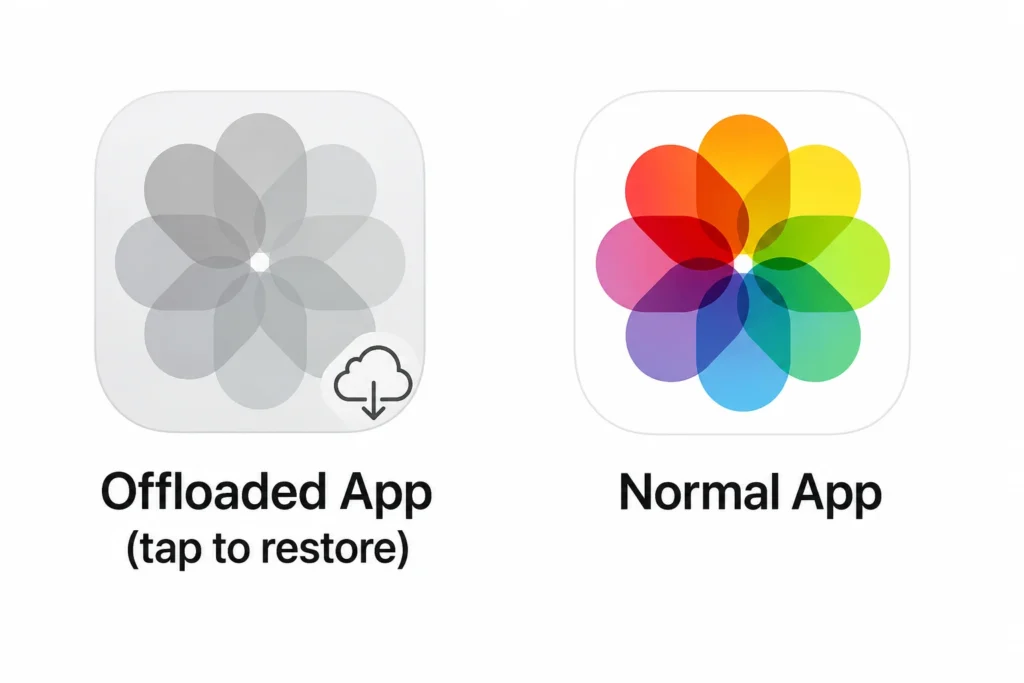
Important distinction I need to clarify: if you see a greyed-out app icon anywhere on your iPhone, that’s an offloaded app, not a hidden one. Offloaded apps on iPhone are apps your iPhone automatically removed to free up storage while keeping your data. Just tap the greyed icon to redownload it. Offloading and hiding are completely different things.
Still Can’t Find It? Run Through This Quick Checklist
If you’ve tried every method above and the app is still not showing up, work through this checklist before giving up:
☐ Check if the app is offloaded. A greyed-out icon with a small cloud symbol means the app was offloaded by your iPhone to save storage space. The app itself is gone but your data is saved. Just tap the icon and your iPhone will redownload it automatically. If you’re looking to free up space on your iPhone, you might also want to learn how to remove unnecessary content like stickers on iPhone that take up storage.
☐ Check your iOS version. The Hidden folder feature only exists on iPhones running iOS 18 or later. If your iPhone is on an older iOS version, the Hidden folder won’t be there. Go to Settings > General > Software Update and install any available updates, then check again.
☐ Check if the app was deleted entirely. Open the App Store, search for the app, and look at the button next to it. If it shows a cloud icon or the word “Get,” the app was fully deleted from your device. Tap to redownload it.
☐ Reset your home screen layout as a last resort. Go to Settings > General > Transfer or Reset iPhone > Reset > Reset Home Screen Layout. This reset home screen layout option on iPhone returns every app to the default Apple layout and makes all installed apps visible again. It reorganizes everything, but I want to emphasize it never deletes any apps.
Quick Recap — Which Method Works for Your Situation?
Here’s a fast reference so you can match your exact situation to the right fix:
| What You’re Seeing | Which Fix to Use |
|---|---|
| App not on home screen but you can find it in App Library | Use App Library method |
| App completely invisible, not even in Spotlight search | Check iOS 18 Hidden Folder |
| Several apps disappeared at once | Unhide home screen page |
| App shows in Spotlight but not on home screen | Use Spotlight + Add to Home Screen |
| App missing on a family or work iPhone | Check Screen Time restrictions |
| App you purchased is not in your library | Unhide App Store purchases |
| Greyed out app icon with cloud symbol | Tap icon to restore offloaded app |
| Want to permanently remove a hidden app | Delete via iPhone Storage |
When you know which category matches your situation, finding your hidden app on iPhone becomes straightforward. Most people find their missing app using the App Library or Hidden Folder method. If you’re on iOS 18 and the app is truly invisible everywhere, the Hidden folder is almost always the answer.
Frequently Asked Questions
Why can’t I find my app even when I search for it on my iPhone?
If the app was hidden using iOS 18’s “Hide and Require Face ID” feature, it won’t appear in Spotlight search. Go directly to the Hidden folder at the bottom of your App Library and authenticate with Face ID to access it.
Why does Face ID ask me twice when I’m trying to unhide an app?
The first Face ID check opens the Hidden folder. The second one confirms your unhide action when you tap “Don’t Require Face ID” or “Unhide App.”
My app is unhidden but it’s still not on my home screen — what do I do?
Unhiding only removes the app from the Hidden folder. Open App Library, search for the app, then long-press and drag it to your home screen.
Will I miss notifications from an app while it’s hidden on iPhone?
Yes. Hidden apps stop sending notifications, message previews, and call alerts while in the Hidden folder. Unhiding restores all notifications immediately.
How do I know if an app is hidden or completely deleted?
Hidden apps appear in App Library or the Hidden folder. Deleted apps don’t appear anywhere and must be redownloaded from the App Store.