How to Lock Apps on Android: 5 Methods That Work on Any Phone
If you have ever handed your phone to someone and immediately worried about them opening the wrong app, you are not alone. I have been there too. Whether you want to protect your app privacy from curious eyes, secure your gallery from a nosy friend, or stop your kid from accessing apps they should not open — the need to control unauthorized access to your phone is completely valid.
The good news is that setting up an app lock on Android does not have to be complicated. In this guide, I will walk you through five real methods that actually work — from built-in settings to free app lockers — so you can pick the one that suits your phone and your situation.
Before You Start — Why the Steps Differ on Every Android Phone
Here is something most guides do not tell you upfront: app locking on Android is not a one-size-fits-all process. The steps are slightly different for each phone because Android runs on dozens of different devices, each with its own version of the operating system and its own custom interface on top.
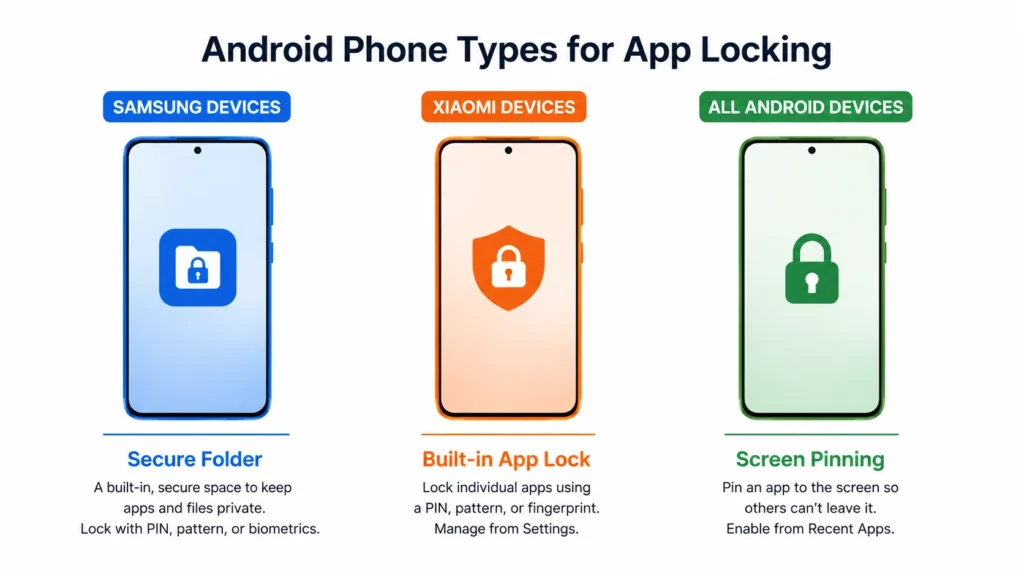
A Xiaomi phone has a built-in App Lock feature right inside Settings. A Samsung phone does not have a standard app lock at all — it uses Secure Folder instead. A Google Pixel relies on Screen Pinning or third-party apps because stock Android does not include the feature natively.
Before you get frustrated trying to follow steps that do not match your screen, know that this is completely normal. If you cannot find an option I mention, search for it directly inside your phone’s Settings search bar — the same Settings menu where you can also find saved WiFi passwords on Android if you ever need them. That single tip saves a lot of time.
People lock apps for three main reasons: personal privacy from others who share their phone, parental control to protect kids from inappropriate content, and security for sensitive apps like banking, email, and photos. On some platforms like iOS this feature is called guided access — on Android the equivalent is built differently per brand, which is exactly what this guide covers.
How to Lock Apps on Android Without Downloading Anything
You do not always need a third-party app to lock your Android apps. Android has two built-in app lock methods that work without installing anything from the Play Store. Most people never discover these options because they are tucked inside Settings rather than advertised on the home screen.
Method 1 — Screen Pinning (Locks Your Phone to One App)
Screen pinning on Android, also called Pin Windows on some devices, is a native feature that locks your phone to one specific app. Once an app is pinned, the person holding your phone cannot leave that app without knowing your PIN or password. This is perfect for handing your phone to a child to watch a video or letting someone make a call without giving them access to everything else.
Here is how to set up Screen Pinning:
1- Open Settings on your Android phone.
2- Search for Pin Windows or Screen Pinning in the search bar.
3- Tap the result and toggle the feature On.
4- Go back to your home screen and tap the Recents button (the square or three-line button at the bottom).
5- Find the app you want to pin and long press on the app icon at the top of the preview card.
6- Tap Pin this app from the menu that appears.
7- To unpin and return to your normal phone, press and hold the Back button and the Recents button at the same time.
Screen Pinning does not lock other apps permanently. Screen Pinning simply keeps the current session locked inside one app until you unpin it — think of it as a temporary single-app mode.
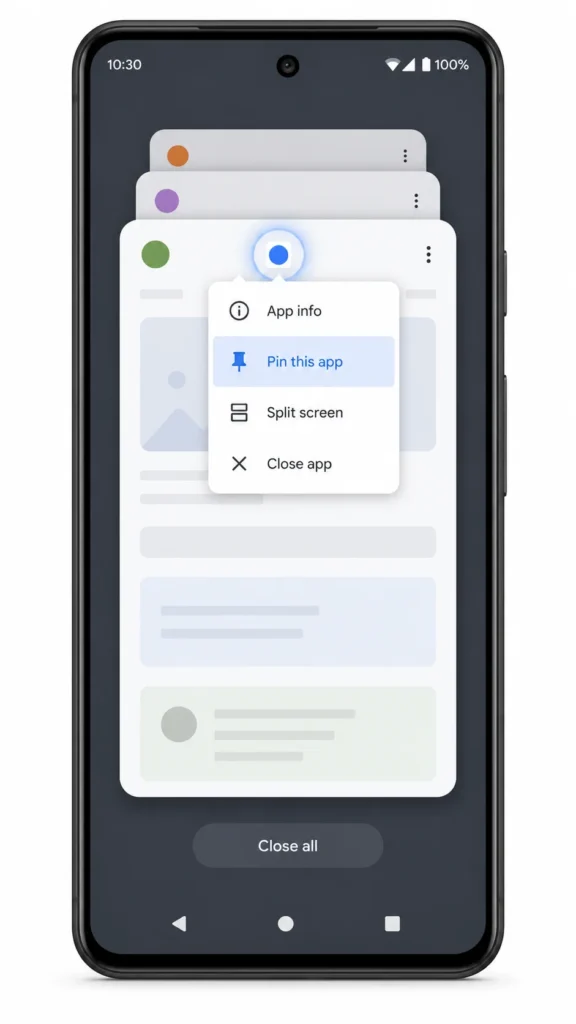
To unpin the app and return to your normal phone, press and hold the Back button and the Recents button at the same time.
Screen Pinning does not lock other apps permanently — it simply traps the current session inside one app until you unpin it. Think of it as a temporary single-app mode.
Method 2 — Privacy Password or App Encryption (Built-in App Lock)
Some Android phones — particularly Huawei, Honor, and certain other brands — have a built-in App Lock feature tucked inside the Security or Privacy settings. This method lets you password protect apps on Android using a fingerprint or custom code, and the entire setup takes less than two minutes without downloading anything.
Here is the general path for each phone type:
Path A — Huawei and similar phones: Settings → Security → Privacy and App Encryption → Enter your passcode → Toggle the switch next to each app you want to lock.
Path B — Some Android phones: Settings → Fingerprint, Face and Password → Privacy Password → Set your password → App Lock → Select apps to protect.
Once enabled, you can lock apps with a password or lock apps with your fingerprint — the choice depends on what feels most convenient for you. You can also turn off the password entirely or change it from the same menu at any time.
Quick tip: After setting up any app lock method, always go back to your home screen and test it by opening one of the locked apps. Confirming the lock works before you need it saves a lot of frustration later.
How to Lock Specific Apps on Android by Phone Brand
If you want to know how to lock specific apps on Android using your phone’s own tools, the best place to start is the built-in settings. Every major Android brand handles this differently, so I have organized the steps by device below.
Samsung — Use Secure Folder (Not the Same as Other Phones)
Samsung does not have a traditional app lock feature. Instead, Samsung provides a tool called Secure Folder — available on Samsung One UI devices — which works quite differently from a standard app lock. Most people do not realize the difference until they try to lock apps on Samsung and find the experience is nothing like other Android phones.
Secure Folder creates a completely separate, password-protected space on your Samsung device. Any app you add to Secure Folder becomes a fresh, isolated installation that runs completely independently from the version on your main screen.
Here is what that means in practice: if you add WhatsApp to Secure Folder, the WhatsApp inside the folder is a completely new installation requiring a separate login. Samsung Secure Folder does not lock your existing app — it creates a second, independent copy of it. That actually means you can run two accounts of the same app on one phone, which is a bonus many Samsung users stumble across by accident.
If you use WhatsApp inside Secure Folder or other privacy tools, it also helps to understand what WhatsApp tick symbols actually mean when messages appear stuck or undelivered.
How to set up Samsung Secure Folder:
- Open Settings and search for Secure Folder.
- Tap the result and read through the intro screen, then tap Continue.
- Grant the requested permissions (calendar, contacts, etc.).
- Choose your security type: Pattern, PIN, or Fingerprint.
- Once the folder is created, open it and tap the Plus (+) button.
- Search for or select the apps you want to add (e.g., WhatsApp, Gallery).
- Tap Add in the bottom right corner.
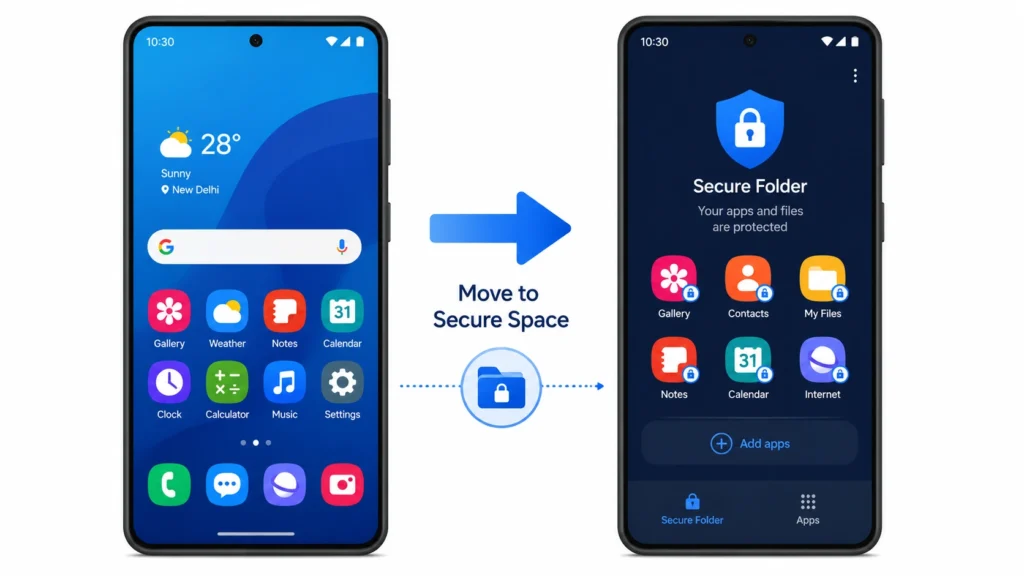
You will find Secure Folder in your app drawer going forward. Opening it will always require the pattern or fingerprint you set during setup.
Important: Because apps inside Secure Folder are separate instances, they will not show your existing chats, photos, or logged-in accounts. Plan for this before you move important apps in.
Google Pixel — Digital Wellbeing and Screen Lock
Google Pixel phones run stock Android and do not include a native app lock feature. If you want to lock apps on a Pixel, your two best built-in options are Screen Pinning and Digital Wellbeing App Timers.
Digital Wellbeing on Pixel lets you set a daily time limit on any app. When the timer runs out, the app locks itself with a grey icon for the rest of the day. Digital Wellbeing works well for managing your own screen time or limiting apps on a shared family device.
To set a timer: Settings → Digital Wellbeing and Parental Controls → Dashboard → Tap any app → Set Timer.
For stronger, persistent locking on a Google Pixel, a free third-party app locker like App Lock Pro is the most reliable solution — more on that in the app lockers section below.
Xiaomi and MIUI — The Easiest Built-In App Lock on Android
If you want to lock apps on Xiaomi, you are in luck — Xiaomi phones running MIUI have the most straightforward built-in App Lock of any Android brand. The Xiaomi MIUI App Lock feature is easy to find and gives you full control over which apps are locked and how frequently they re-lock.
How to set up App Lock on Xiaomi:
- Open Settings and tap Apps.
- Tap App Lock (you can also search for it in the Settings search bar).
- Tap Turn On.
- Tap Change Password to choose between a Pattern, PIN, or Password. A PIN is the most reliable choice for everyday use.
- Enter and confirm your PIN.
- If prompted, you can set up a recovery account or skip it — but remember your password if you skip this step.
- To enable fingerprint unlock, follow the fingerprint prompt inside App Lock settings.
- Scroll through the app list and toggle On for every app you want to lock.
One setting most Xiaomi users miss: After enabling App Lock, tap the Settings icon in the top right corner of the App Lock screen. Go to Lock Settings and select ‘When device is locked or after exiting app.’ This app usage restriction setting ensures each locked app re-locks the moment you close it, not just when your entire phone screen turns off. Without this change, someone could access a locked app immediately after you close it while your screen is still active.”
Motorola, OnePlus, and Realme
These brands use slightly different approaches depending on the Android version installed:
Motorola runs close to stock Android, which means the easiest way to lock apps on Motorola is either Screen Pinning or a third-party app like App Lock Pro from the Play Store.
OnePlus includes a Privacy Lock feature in some versions of OxygenOS. Go to Settings → Security and Lock Screen → App Lock to check if your specific model supports it.
Realme includes App Lock under Settings → Security → App Lock on most devices running Realme UI. The exact path may vary slightly depending on your Realme UI version.
On any of these phones, if you cannot find the App Lock option, searching for it directly in the Settings search bar is always the fastest solution.
PIN, Pattern, or Fingerprint — Which App Lock Method Should You Use?
Once you have found the app lock feature on your phone, you will need to choose how you want to unlock protected apps. Most Android phones offer three options: PIN, Pattern, and biometric authentication through fingerprint. Each one suits a different type of user, and picking the wrong one can create daily friction — so it is worth taking a moment to understand the difference.
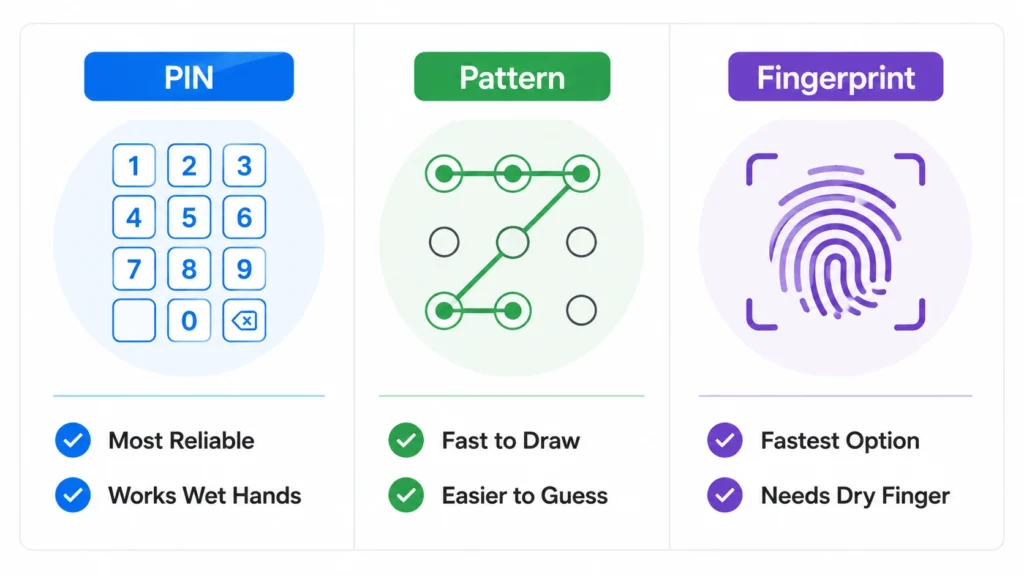
PIN is the most reliable method and the one I recommend for most people. Using a PIN to lock apps on Android means a four to six digit code that is difficult to guess and works even when your fingers are wet or dirty. If you forget your PIN and did not set up a recovery account during setup, you may find yourself locked out of your own apps — so store the PIN somewhere safe.
Using a pattern to lock apps is convenient and fast to draw, but patterns are generally easier for others to guess or observe over your shoulder. If you go with a pattern, make it complex rather than a basic L-shape or Z-shape that others might predict.
Fingerprint is the fastest option by far — tap the sensor and the app opens instantly. Fingerprint authentication requires your registered fingerprint to be read accurately, so if your finger is wet, oily, or pressed at an unusual angle, the scan may fail and fall back to your PIN. Before enabling fingerprint unlock inside any App Lock, make sure at least one fingerprint is already registered in your phone’s main security settings.
For most everyday users, I recommend setting up a PIN as the primary method and adding fingerprint as a faster alternative. This gives you reliability as a backup and convenience as the default.
One Setting Most People Miss After Locking Their Apps
Most people set up app locking, assume it is working, and never check one critical setting that determines whether locked apps stay locked or quietly become accessible again
After you set up app locking on your phone, open the App Lock settings and look for a Lock Frequency or Lock Settings option. On Xiaomi phones, you find this by tapping the small Settings icon in the top right corner of the App Lock screen.
Inside Lock Settings, you will see two choices:
Option A: ‘When device is locked’ — the app only re-locks when your entire phone screen turns off and locks.
Option B: ‘When device is locked or after exiting app’ — the app re-locks every single time you close it, no matter what.
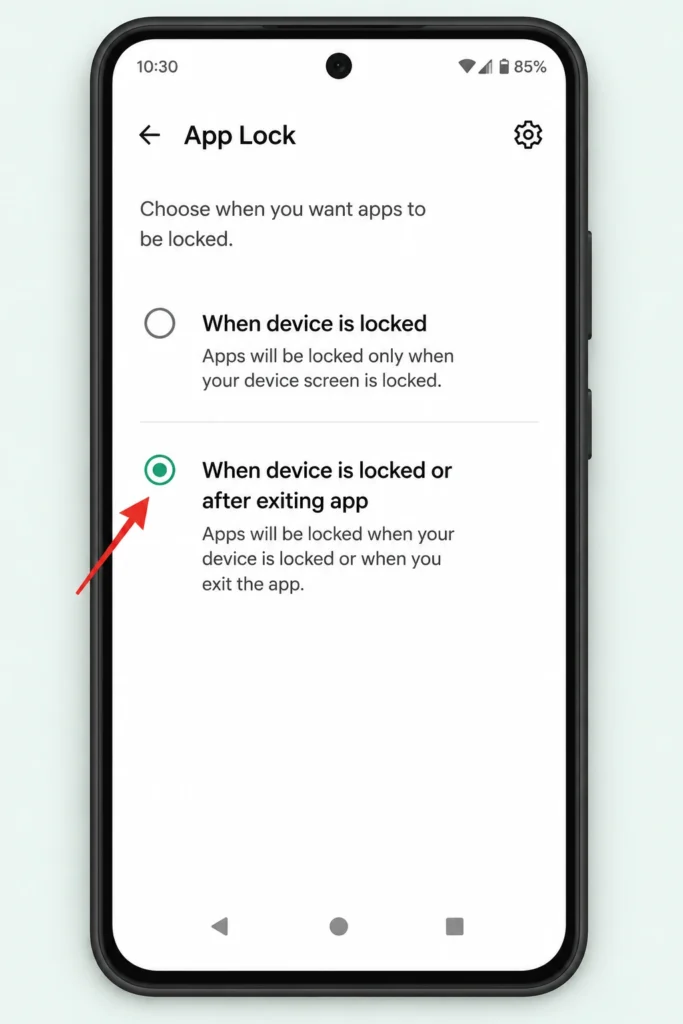
Most phones default to Option A. That means if you open a locked app, enter your PIN, and then close the app — the app stays unlocked as long as your screen is still on. Anyone who picks up your phone in that window can open the app without any password.
Always change this setting to Option B. Making this one change takes five seconds and is the single most effective way to restrict app access on Android. The difference between Option A and Option B is the difference between a lock that looks secure and one that actually is.
Always change this to Option B. It takes five seconds to change and makes your app lock dramatically more effective. This setting is what separates a truly secure app lock from one that only creates the appearance of security.
Best Free App Lockers for Android (If Your Phone Has No Built-In Option)
If your phone does not have a native app lock — particularly Google Pixel and stock Android Motorola devices — a free third-party app locker is the most practical and reliable solution. I have tested the setup process on several Android devices and the three options below are the ones I actually recommend.
App Lock Pro — Best for Beginners
App Lock Pro is the easiest third-party app locker to set up and use. I have gone through the setup process on multiple Android devices and App Lock Pro is genuinely beginner-friendly — you do not need any technical knowledge to get it working in under two minutes. If you have heard of the AppLock app by DoMobile, App Lock Pro offers a similar experience with a slightly cleaner interface
How to set up App Lock Pro:
- Open the Google Play Store and search for App Lock Pro.
- Tap Install and then Open once it downloads.
- Create a PIN when prompted. Enter it twice to confirm.
- Do not skip any of the permission steps. App permissions on Android are what allow a locker to display the lock screen on top of other apps — if you skip even one, the lock will appear active but will not actually trigger when you open a protected app.
- On the main screen, you will see a list of all your installed apps.
- Tap the lock icon next to any app you want to secure. The app moves to the Locked section.
- To remove a lock, go to the Locked section and tap the lock icon again. If you want to uninstall an app completely instead, check our guide on how to remove apps from Android.
Once set up, any locked app will require your PIN every time you try to open it from your home screen.
Norton App Lock — Best for Security-Focused Users
Norton App Lock is made by a trusted name in digital security. The app supports fingerprint authentication alongside PIN and includes an intrusion detection feature that takes a photo whenever someone enters the wrong PIN multiple times. Norton App Lock is a solid choice for anyone who prioritizes security over simplicity — you can download it free from the Google Play Store.
Smart AppLock — Best Free Alternative
Smart AppLock is a well-rated free option that offers theme customization, fingerprint support, and the ability to lock incoming calls and the Settings menu itself. Smart AppLock is a good alternative for users in regions where App Lock Pro is not available, and it works on most Android versions.
One final note on permissions: every third-party app locker needs overlay or accessibility permissions to work — this is standard for all app lockers, not a security concern. Always grant permissions through the app’s own guided setup rather than configuring them manually in Settings.
How to Lock Apps on Android for Your Kids
If your goal is to set up parental controls on Android and stop your child from opening specific apps, Android has two powerful tools built right in that most parents have never discovered. Both options offer genuine child lock protection on Android, neither requires a third-party app, and both come directly from Google
Google Family Link — Full App Blocking for Kids’ Devices
Google Family Link lets you manage your child’s Android phone directly from your own device. You can approve or block specific apps, monitor what your child installs, and set Android screen time limits for any app on their device.
How to set up Google Family Link:
- Download Google Family Link from the Play Store on your phone (the parent device).
- Open the app and follow the prompts to add your child’s Google account.
- Once linked, tap your child’s name in the Family Link app.
- Tap Controls → App activity to see all installed apps.
- Tap any app and toggle Allow or Block based on your preference.
Blocked apps cannot be opened on your child’s device until you unblock them from the Family Link app on your phone. Your child cannot override this setting.
Digital Wellbeing App Timers — Limit How Long Kids Use an App
Digital Wellbeing on Android is available on most phones and lets you set a daily usage limit on any app. When the timer runs out, the app locks itself with a grey icon and stays locked until midnight.
How to set an App Timer:
- Go to Settings → Digital Wellbeing and Parental Controls.
- Tap Dashboard.
- Find the app you want to limit and tap the hourglass icon next to its name.
- Set the daily time limit (e.g., 30 minutes for YouTube).
- Tap OK.
Digital Wellbeing App Timers are great for managing screen time without blocking an app entirely — and if you are thinking about your family’s overall digital safety, learning how to secure your home WiFi is another important step worth taking. Google Family Link is the better choice if you want to fully prevent access to specific apps on your child’s device.
Mistakes to Avoid When Setting Up App Lock on Android
Setting up app locking seems simple, but these four mistakes can make your lock completely ineffective — or lock you out of your own apps.
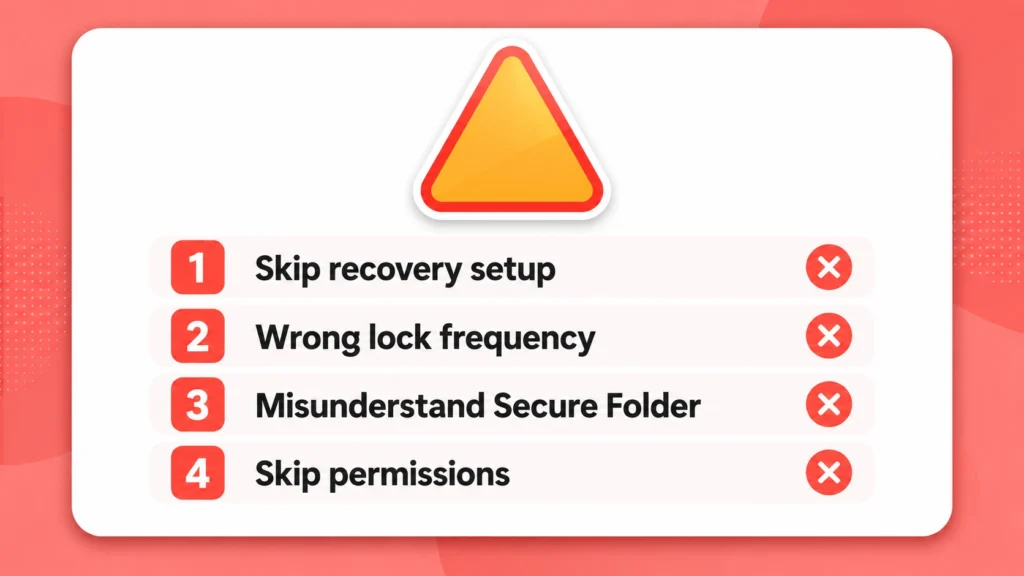
Mistake 1 — Skipping the recovery account setup. When third-party app lockers and some built-in app lock features ask you to add a recovery email or account, do not skip this step. If you forget your PIN or pattern and have no recovery method set up, you may be permanently locked out of your locked apps. Take the extra thirty seconds to add a recovery account.
Mistake 2 — Leaving the lock frequency on the default setting. Most app locks default to re-locking only when your phone locks — not every time you close the app. This creates a window where locked apps remain accessible. Always change the lock frequency to “after exiting app” for real security (see Section 5 for the full steps).
Mistake 3 — Expecting Samsung Secure Folder to work like a normal app lock. Many Samsung users add WhatsApp or Instagram to Secure Folder expecting to see their existing chats inside. What they find instead is a completely fresh, blank installation of the app. Secure Folder creates separate app instances, not locked versions of your existing apps. Know this before you set it up.
Mistake 4 — Skipping permissions during third-party app setup. If you install App Lock Pro or any other third-party locker and rush through the setup, you might skip a permission grant. The app will look like it is set up and apps will appear in the locked list, but when you actually open a locked app, it will open freely without asking for a PIN. Always complete every permission step the setup guide shows you.
Which App Lock Method Is Right for You?
Not sure which of these five methods to use? Here is a simple guide based on your situation.
| Your Situation | Best Method |
|---|---|
| You have a Samsung phone | Use Secure Folder (Section 3) |
| You have a Xiaomi phone | Use built-in App Lock in Settings (Section 3) |
| You have a Google Pixel | Use Screen Pinning or App Lock Pro (Sections 2 and 6) |
| You have a Motorola or stock Android phone | Use App Lock Pro from Play Store (Section 6) |
| You want to lock apps without downloading anything | Use Screen Pinning or built-in Privacy Password (Section 2) |
| You want to lock apps for your child | Use Google Family Link (Section 7) |
| You want to limit how long an app can be used | Use Digital Wellbeing App Timers (Section 7) |
| You want fingerprint-based locking | Use built-in App Lock on Xiaomi or Samsung Secure Folder |
The single most important thing to do after setting up any method is to test it immediately. Go back to your home screen, open one of the locked apps, and confirm that a PIN or fingerprint prompt appears. If it does not, revisit the setup steps — particularly the permissions.
Frequently Asked Questions
Can I hide or disable apps on Android instead of locking them?
Yes — Android lets you hide apps android by moving them to a Secure Folder or using your launcher’s hide apps option, and you can disable apps android entirely through Settings → Apps → select the app → Disable. Disabling removes the app from your home screen and prevents it from running, while hiding simply keeps it out of view. Locking is the better choice if you still want to use the app yourself.
Does Samsung have a built-in app lock?
Samsung does not have a traditional app lock like other Android phones. Instead, Samsung uses Secure Folder, which creates a completely separate, password-protected space where apps run as fresh isolated installations rather than locked versions of your existing apps.
What happens if I forget my App Lock password?
If you skipped the recovery account setup during installation, you may find yourself locked out of your own apps with no easy way back in. Always add a recovery email or account when the App Lock feature first asks you, or store your PIN somewhere safe before you need it.
Why is my App Lock not working after I set it up?
The most common reason is a missing permission from the setup process. Third-party app lockers need special overlay or accessibility permissions to display a lock screen on top of other apps, and skipping even one permission step means the lock will not appear when you open a protected app.
How do I lock apps on Android 15?
Android 15 supports Screen Pinning natively, which you can enable by searching Pin Windows in your Settings. For locking individual apps, use your phone brand’s built-in feature such as Xiaomi App Lock, Samsung Secure Folder, or Huawei App Encryption, or install a trusted third-party app like App Lock Pro from the Google Play Store.