How to Retrieve WiFi Password from Android Phone (Every Method, Every Version)
You need to connect your laptop or give the password to a visiting friend, and suddenly you cannot remember it. The good news is that learning how to retrieve your WiFi password from your Android phone takes less than two minutes. Your Android phone saved that password the moment you first connected, and it is still sitting there in your settings right now.
Recovering a forgotten WiFi password on Android is simpler than most people expect. Your phone stores the network security key in the WiFi settings, and depending on your Android version, you can either see the plain text password directly or decode it through a QR code. The password is always there you just need the right path to find it.
Before jumping into the steps, use this quick reference table to find the right method for your device and jump straight to that section:
| Your Device | Go To |
|---|---|
| Stock Android 10 and above (non-Samsung) | Section 2 |
| Samsung Galaxy Android 10 and above | Section 3 |
| Older Android 6 to 9 without root | Section 4 |
| Any Android using router admin page | Section 4 |
| Rooted Android device | Section 5 |
Find your situation above and skip directly to that section. No need to follow steps designed for a different Android version.
Which Method Works for Your Android? (Start Here)
The most common reason people fail to find their WiFi password is following steps that do not match their Android version. The way Android OS stores and displays saved WiFi passwords differs significantly between versions and between brands like Samsung and stock Android.
I learned this the hard way after spending ten minutes following the wrong steps for my phone. Different Android versions show different options in WiFi settings, and some devices display the password directly while others only show a QR code.
Here is a quick reference to find the right method before you start:
| Your Situation | Jump To |
|---|---|
| Stock Android 10 or newer (non-Samsung) | Section 2 |
| Samsung Galaxy running Android 10 or newer | Section 3 |
| Older Android 6 to 9 without root access | Section 4 |
| Any Android using the router admin page | Section 5 |
| Rooted Android device | Section 6 |
One thing to know before you start: the router admin page method only works if your router still uses its original default login credentials. If the router password was changed by someone else, you will need those updated credentials to log in. Every other method only requires your Android phone and the network your phone is already connected to or has saved in its saved networks list.
Find your situation in the table above and go directly to that section.
How to Retrieve WiFi Password from Android Phone Running Stock Android (10 to 15)
If you are running stock Android 10 or any newer version on a non-Samsung phone, retrieving your WiFi password is genuinely straightforward. Android stores your connected WiFi password in the WiFi settings, and you can view the saved WiFi password either as plain text or through a QR code depending on what your device shows.
I will walk you through both paths so you are covered either way.
Seeing the Text Password Directly (Eye Icon Method)
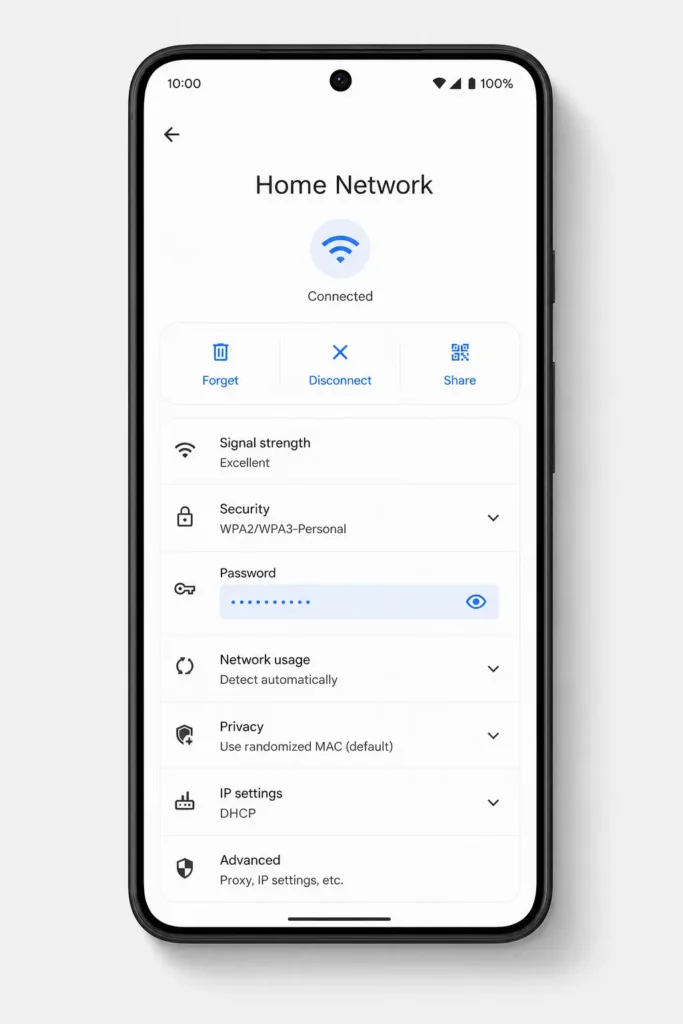
This is the quickest way to find your WiFi password on Android, and it works on most devices running Android 10 through Android 15.
Steps:
- Open the Settings app on your Android phone.
- Tap WiFi or Network and Internet then tap WiFi.
- Make sure you are connected to the network whose password you need.
- Tap the name of your connected WiFi network.
- Look for a password field with an eye icon next to it.
- Tap the eye icon to reveal the plain text password.
- Copy the password or write it down.
Save the password in your phone’s notes app so you never need to retrieve it again.
This path works consistently for the Android 12 WiFi password, Android 13, Android 14, and all other versions from Android 10 onwards on stock Android phones like Google Pixel devices. The password visibility option appears right there in the network details screen without any extra steps.These steps follow the path recommended in Google’s official Android support documentation so you can be confident they reflect the current Android settings structure.
If you see the password on screen, you are done. If the eye icon is not there or only a QR code appears, move to the next method below.
Using the QR Code When the Password Isn’t Visible
Some Android versions show a QR code instead of plain text. If you need to view your WiFi password on Android 11 specifically, you may only see the QR option — use the Google Lens decode method in that case. The good news is the QR code contains your full WiFi password encoded inside it, and you can decode the QR code WiFi password using Google Lens or Google Photos in about 30 seconds.
Steps to decode the QR code:
- Open Settings and go to WiFi.
- Tap your connected network name.
- Tap the QR Code option that appears on the network page.
- Take a screenshot of the QR code shown on your screen.
- Open Google Photos or tap the Google Lens icon in your search bar.
- Select the screenshot from your gallery.
- Google Lens scans the QR code and displays the network name (SSID) and the plain text password directly on your screen.
- Copy the password from the Google Lens result.
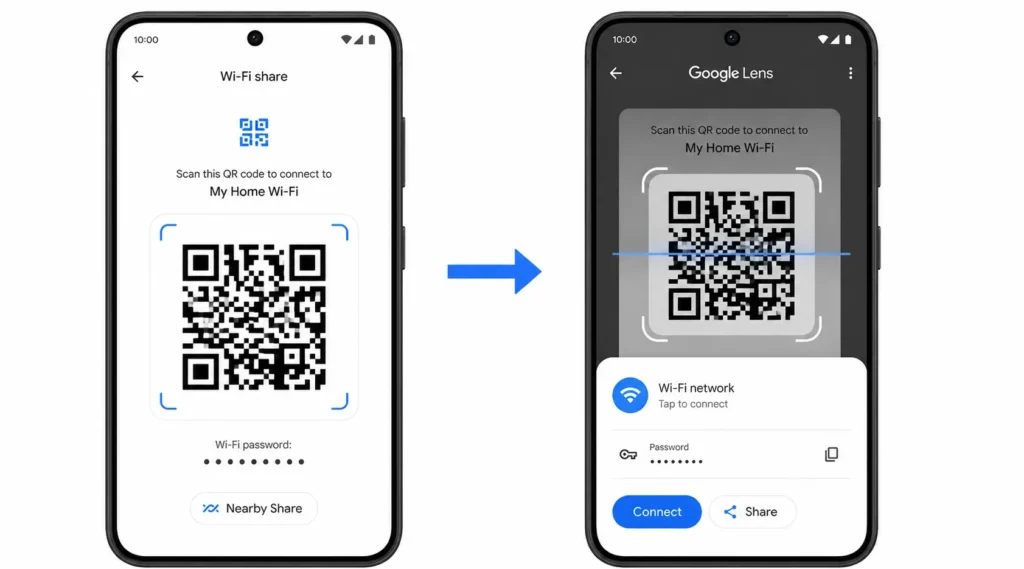
If Google Lens is not available on your device, you can download a free app called WiFi QR Code Password Scanner from the Play Store. Open the app, select your QR code screenshot, and the app decodes it and shows the connected WiFi password clearly within seconds.
The QR code method is also a convenient way to share your WiFi with a visitor — just show them the QR code on your screen and let them scan it directly to connect, no need to read out the password.
Samsung Galaxy WiFi Password: How One UI Does It Differently
If you own a Samsung Galaxy phone and tried following a generic Android WiFi guide, you probably ended up staring at menus that looked nothing like what the guide described. That confusion is completely normal. Samsung One UI has its own navigation structure, and the path to your WiFi password settings is different from what stock Android uses.
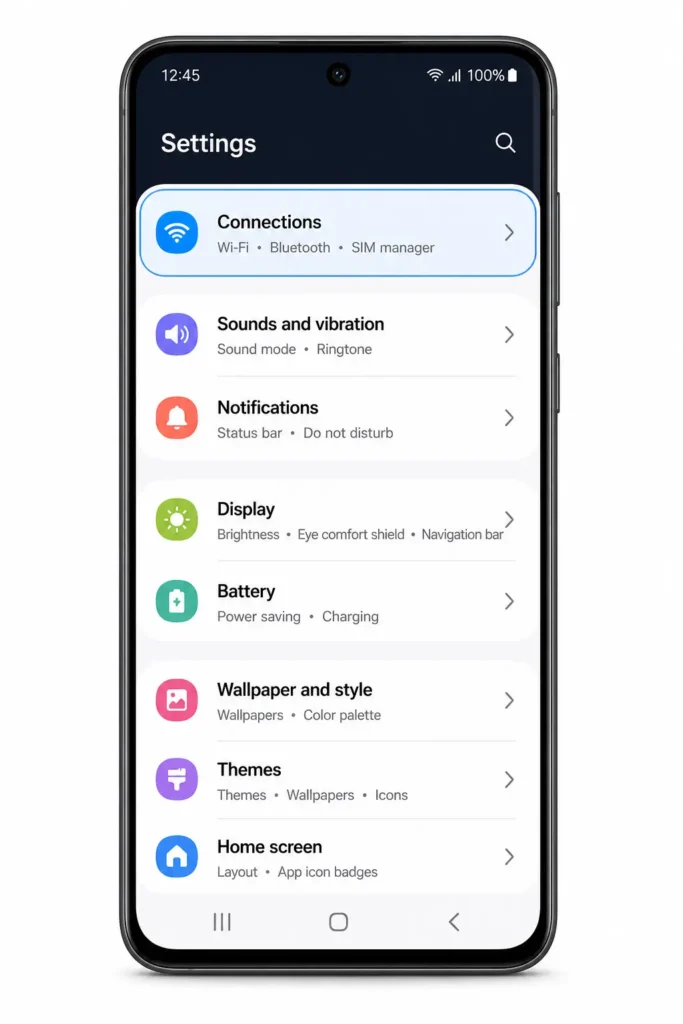
Samsung Galaxy devices running One UI handle WiFi settings through the Connections menu rather than a direct Network and Internet option. Once you know the right path for your specific One UI version, finding the Samsung Galaxy WiFi password takes about four taps.
Samsung Android 14 and 15 (One UI 6 and 7) — Step by Step
This method works on all Samsung Galaxy phones running Android 14 or Android 15 with One UI 6 or One UI 7.
Steps:
- Open Settings on your Samsung Galaxy device.
- Tap Connections.
- Tap WiFi.
- Make sure your phone is connected to the network you need the password for.
- Tap the gear icon or settings icon next to your connected network name.
- Tap View more if the password field is not immediately visible.
- Tap the eye icon next to the password field to reveal the plain text password.
- Alternatively tap QR code to generate a scannable code another device can use to connect.
Samsung One UI 6 and One UI 7 display the password as readable text on most Galaxy devices, which makes this version straightforward to use.
Samsung Android 10 to 13 (One UI 2 to 5) — Step by Step
Older Samsung Galaxy phones running Android 10 through Android 13 use a slightly different path. The password option sits inside a sub-menu rather than appearing directly on the network details screen.
Steps:
- Open Settings and tap Connections.
- Tap WiFi.
- Tap the three dot menu in the top right corner of the screen.
- Select Manage networks or Advanced depending on your One UI version.
- Find and tap the network name whose password you want to retrieve.
- Tap the eye icon to view the saved WiFi password, or use the QR code option.
On One UI 2 and One UI 3 devices the password text may not appear directly. In that case use the QR code option and decode the QR code using Google Lens as described in Section 2.
How to Find Passwords for Networks You’re No Longer Connected To
What if you need to retrieve a saved WiFi password from an Android phone for a network you connected to weeks ago but are not currently on? This happens often with old home networks, guest WiFi at a previous location, or a password you saved on a Samsung Galaxy at a friend’s house.
Your Android phone keeps a record of every WiFi network it has ever connected to in the saved networks list. Here is how to access those saved networks on both Samsung and stock Android:
On Samsung Galaxy:
- Open Settings and go to Connections then WiFi.
- Tap the three dot menu in the top corner.
- Select Manage networks.
- You will see a complete list of every WiFi network your phone has previously connected to.
- Tap the network you want and then tap the eye icon to view the password.
On Stock Android:
- Open Settings and go to Network and Internet then WiFi.
- Tap Saved networks at the bottom of the screen.
- Select the network you need and tap the eye icon or QR code option.
Android stores saved network passwords locally on the device even after you disconnect from the network. This means you can retrieve a WiFi password days or months after your last connection, as long as you have not manually deleted the saved network from your phone.
How to Retrieve WiFi Password from Android Without Root (Older Android 6 to 9)
Older Android phones running Android 6, 7, 8, or 9 do not have a built-in option to display your WiFi password directly in the settings menu. That feature only became available natively from Android 10 onwards. But not having that option does not mean you are stuck. There are two reliable methods to retrieve your WiFi password on a non-rooted Android phone, and both work even on older devices and both work even on older devices.
I have personally tested both approaches and they work consistently. Let me walk you through each one.
The Google Lens Method (Quickest for Android 6 to 9)
The Google Lens method is the fastest way to find your WiFi password on Android without root, and it requires nothing beyond apps you most likely already have on your phone.
Here is how it works: your Android phone generates a QR code for your connected network even on older versions, and that QR code contains your full WiFi password encoded inside it. Google Lens reads the QR code and converts the encoded data into plain readable text, including your network name and password.
Steps:
- Open Settings on your Android phone and go to WiFi or Connections.
- Tap your currently connected WiFi network name.
- Look for a QR Code option or icon on the network details screen.
- Take a screenshot of the QR code displayed on your screen.
- Open Google Photos and select the screenshot from your gallery.
- Tap the Google Lens icon inside Google Photos, or open Google Lens directly from your search bar.
- Google Lens scans the QR code image and displays your network name and WiFi password as plain text on the screen.
- Copy the wireless password from the result and save it somewhere secure.
Google Lens is a free Google tool available on most Android phones, and using Google Lens to find a WiFi password is one of the most reliable non-root methods available for older Android devices.
If Google Lens does not appear as an option in Google Photos on your device, download the Google Lens app separately from the Play Store. It is free and works on Android 6 and above.
The Router Admin Page Method (Works on Any Android Version)
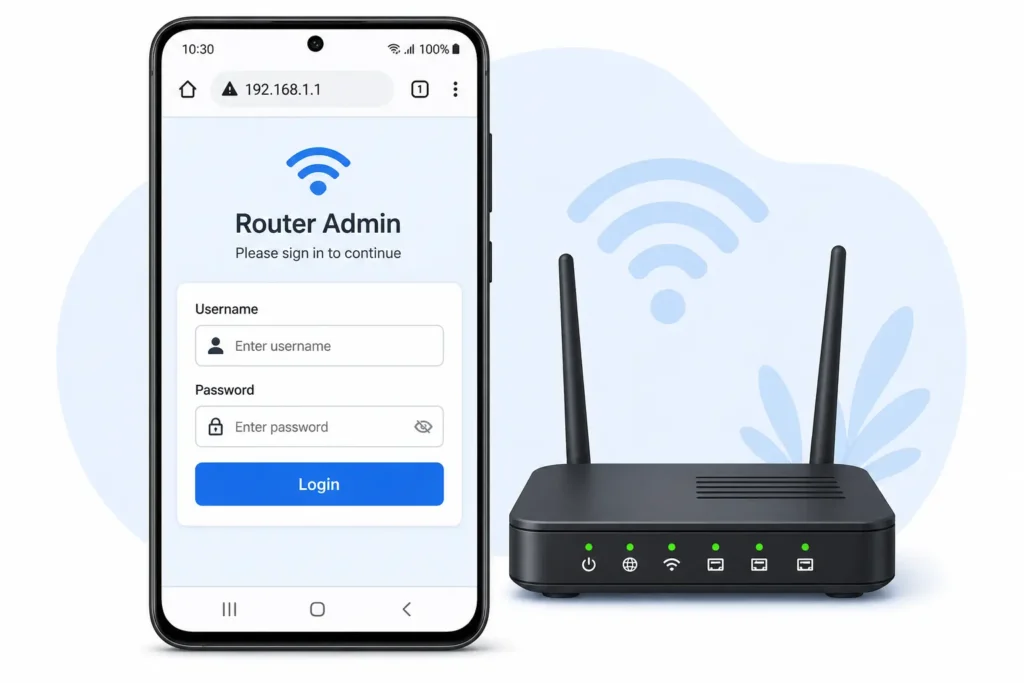
This is the most universal method for retrieving a WiFi password without root access on Android. The router admin page method works on every Android version from Android 6 all the way to Android 15, because it uses your home router rather than the phone’s operating system to display the password.
Every router has a built-in web interface that stores your WiFi settings including the network security key. You access the router admin page directly from your phone’s browser while connected to the WiFi network.
Steps:
- Make sure your Android phone is connected to the WiFi network whose password you need.
- Open any web browser on your phone such as Chrome or Firefox.
- Type 192.168.1.1 in the address bar and press enter. This is the default IP address for most home routers. If that does not load, try 192.168.0.1 instead.
- A login screen appears. Enter the router credentials. The default username and password are usually admin and admin or user and user on most routers.
- If you do not know your router login credentials, check the label printed on the back or bottom of your physical router. The default login details are almost always printed there.
- Once logged in, navigate to the Wireless or Wireless Setup section of the router interface.
- Your WiFi network name (SSID) and the full WiFi password are displayed there in plain text.
Here is something worth knowing: some Android phones show a Go to webpage shortcut directly inside the WiFi network details screen. Tapping that shortcut opens the router login page automatically so you do not need to type the IP address manually. Tap that shortcut and your phone opens the router login page automatically without needing to type the IP address manually.
The router admin page method works regardless of your Android version, your phone brand, or whether your device is rooted. The only requirement is that your router still uses its original default login credentials, or that you know the custom credentials set by whoever configured the
Why You Can’t Find Your WiFi Password on Android (And Exactly What to Do)
If you followed the steps above and still cannot find your WiFi password on Android, you are not doing anything wrong. There are three specific reasons why the password option disappears or never appears at all, and each one has a clear solution.
Reason 1: Your Android Version Is Below 10
Android did not add native WiFi password visibility until Android 10. On Android 6, 7, 8, and 9, the operating system simply does not show the password through the settings menu, no matter which path you follow. This is an Android version restriction built into the OS, not a phone setting you can toggle on.
What to do: Use the Google Lens QR code method or the router admin page method from Section 4. Both work on older Android versions without any workarounds.
Reason 2: Your Phone Manufacturer Hid the Option
Some Android manufacturers customize their version of Android in ways that remove or bury the password visibility feature even on newer Android versions. This happens more often on budget phones and older mid-range devices where manufacturers apply heavy UI overlays.
What to do: Look more carefully in the network details screen. On some devices the password field only appears after tapping an expand button or a small arrow that is easy to miss. Video tests confirm that the password is sometimes visible but hidden one tap deeper than users expect. Try tapping every option on the WiFi network details screen before concluding the option is not there.
Reason 3: Your Phone Never Stored the Password
This happens when someone else connected your phone to the network for you, or when the phone connected through a method that does not save credentials in the standard way, such as a WPS button press on older routers. In these cases your Android phone joined the network but may not have stored the password in a readable format.
What to do: Access the router admin page directly using the steps in Section 4. The router always stores the full WiFi password regardless of how your phone connected.
Last Resort: Router Reset
If none of the above methods work and you genuinely cannot access the router admin page, the final option is to reset your router to factory settings. A factory reset on the router restores the original default WiFi password printed on the label at the back of the router.
Note that resetting the router will disconnect every device in your home from WiFi until you reconnect them all. Treat this as a last resort for WiFi password recovery when every other option has failed.
How to Retrieve Your WiFi Password on a Rooted Android Device
If your Android device is rooted, retrieving your WiFi password becomes a more direct process. Rooted Android devices allow you to access system-level files that are hidden from regular users, and your WiFi passwords are stored in one specific file that you can read with any text viewer.
Root access on Android means you have administrator-level permission to view and modify system files that the standard Android operating system keeps locked away from normal use.
This method works on rooted Android devices running Android 4.4 through Android 9. If your device runs Android 10 or above, use the simpler eye icon method from Section 2 instead since rooting is not necessary on newer versions.
What you need: A rooted Android phone and a file manager that supports root access. ES File Explorer works well for this purpose.
Steps:
- Install ES File Explorer from the Play Store if you do not already have it.
- Open ES File Explorer and go to the settings inside the app.
- Find and enable the Root Explorer toggle. The app will request superuser permission. Grant it.
- Navigate to the Device root folder in the file browser.
- Open the folder path: data then misc then wifi.
- Find the file named wpa_supplicant.conf inside the wifi folder.
- Tap the file and open it using a text viewer or HTML viewer when prompted.
- Scroll through the file and find the name of your WiFi network listed next to ssid=.
- Directly below or beside your network name you will see psk= followed by your WiFi password in plain text.
The wpa_supplicant.conf file stores the credentials for every WiFi network your rooted Android device has ever connected to. Each network entry shows the SSID and the corresponding psk value, which is the actual password your phone uses to authenticate with that network.
If your device has multiple saved networks in the file, scroll carefully and match the ssid name to the network you are looking for before reading the psk value next to it.
These Popular WiFi Tricks Don’t Work : Here’s the Proof
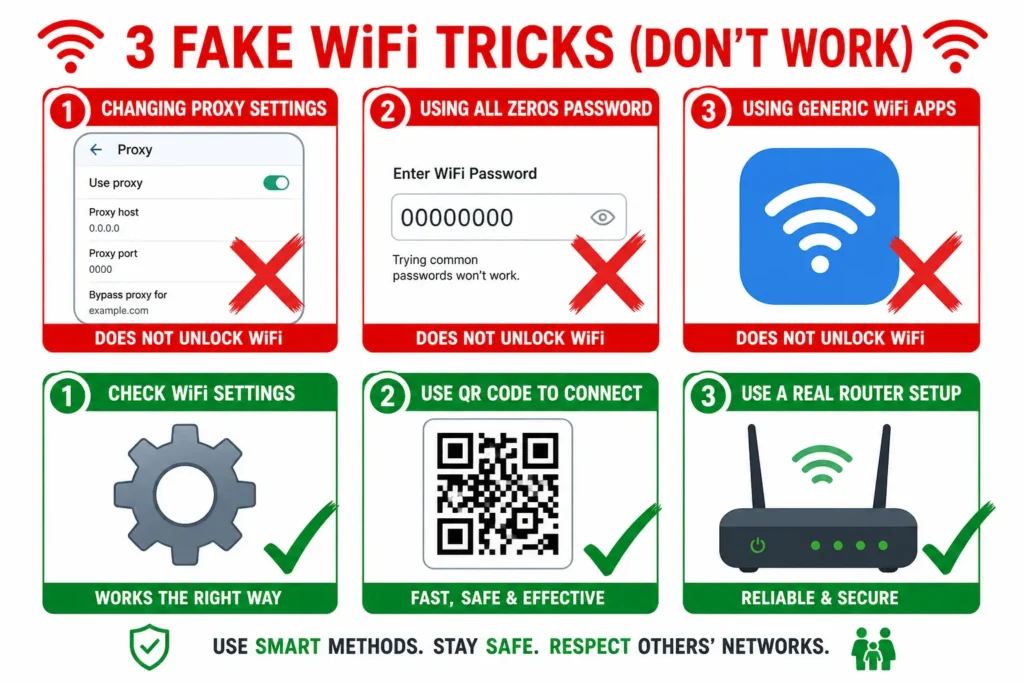
Before you spend another minute searching for shortcuts, I want to save you real time and frustration. There is a whole category of WiFi password tricks that circulate online, and I have watched multiple tech creators test every single one of them live on camera. Every single one failed when tested for real, and a few of them waste your mobile data or push unwanted apps onto your phone.
WiFi network security on modern routers uses WPA2 or WPA3 encryption. This means that if bypassing a WiFi password were as easy as changing a phone setting or entering a default code, no network anywhere would be secure. The encryption itself is proof that these shortcut methods cannot work.
Let me walk you through each one
The Proxy and Static IP Trick (Completely Fake)
You have probably seen videos showing someone go into WiFi settings, tap the connected network, change the Proxy setting to Manual, enter a hostname and port number like 8080, switch IP settings to Static, and then type something like a router IP address as the password. The video then shows a successful connection.
Every single one of these videos is deceptive. The creator already connected to their own WiFi network before filming, or had someone type the real password off camera. The editing makes the proxy settings appear to cause the connection, but changing proxy or static IP settings on Android cannot bypass WPA2 encryption under any circumstances.
Proxy settings on Android control how your phone routes internet traffic after it is already connected. Proxy settings have absolutely no ability to authenticate your device to a locked WiFi network. The connection you see in those videos happened because of the real password, not the proxy trick.
The Eight Zeros Default Password (Always Fails)
Another widely shared trick tells you to enter 00000000 (eight zeros) as the WiFi password for any network. The idea is that some routers ship with a default numeric password.
This was tested live and failed immediately. Modern routers do not use eight zeros as a default WiFi password. Router manufacturers stopped using simple predictable defaults years ago precisely because of network security concerns. Every current router ships with a unique password printed on its label, and that unique password is what you need, not a generic number sequence.
If you want the default WiFi password for your own router, the actual default password is printed on a sticker on the back or bottom of the physical router unit. That is the only place to find it.
WiFi Password Apps (A Waste of Time and Data)
Apps like WiFi Map and similar tools in the Play Store present themselves as databases of WiFi passwords shared by other users. The reality is very different. One tech creator downloaded WiFi Map on camera, watched the required advertisements to unlock a password, and confirmed the password provided was outdated, completely wrong, and useless.
These apps earn money through advertisements and premium subscription fees. Providing accurate, working WiFi passwords is not part of their actual business model. The passwords in their databases are user submitted and rarely verified, which means most entries are months or years out of date.
Keep here, remove from summary or rephrase in summary to avoid duplication. Every method in this guide uses tools your phone or router already has. No extra downloads needed.
The only reliable way to retrieve a WiFi password on Android is to use the methods covered in this guide: your phone settings, Google Lens, or your router admin page. Everything else is either outdated information or content designed to waste your time.
Quick Summary Which WiFi Password Method Should You Use?
Every Android phone can give you the WiFi password you need. The right method just depends on your specific device and Android version. Here is a fast reference to point you to the correct section without any guesswork:
| Your Situation | Best Method |
|---|---|
| Stock Android 10 or newer | Eye icon or QR code in WiFi settings (Section 2) |
| Samsung Galaxy Android 10 or newer | Connections menu in Samsung One UI (Section 3) |
| Any Android with a saved old network | Saved networks list in WiFi settings (Section 3) |
| Older Android 6 to 9 without root | Google Lens QR method or router admin page (Section 4) |
| Any Android using the router page | Browser to 192.168.1.1 with default login (Section 4) |
| Rooted Android device | wpa_supplicant.conf file via ES File Explorer (Section 6) |
| Password option not appearing | Three common reasons and fixes (Section 7) |
Check your Android version in the table above and the right path will be clear.
WiFi password recovery on Android does not require any special app or technical knowledge for most users. The answer is already inside your phone or your router. And going forward, storing your password in a WiFi password manager app on Android means you will never need to retrieve it this way again.
If you found this guide helpful, you might also want to read our step-by-step guide on how to connect Google Home to WiFi it covers exactly what to do once you have your password ready and need to connect a new device to your network.
Now you know exactly how to retrieve your WiFi password from Android, whichever phone or version you are using.
Can I see my WiFi password on Android without installing any app?
Yes on Android 10 and above, go to Settings, tap your WiFi network, and use the eye icon or QR code. For older Android, the router admin page at 192.168.1.1 also works with no app needed.
What do I do if there is no option to see the WiFi password on my phone?
Your Android version is likely below 10, or your manufacturer has hidden the option in the settings menu. Use the Google Lens QR method or visit 192.168.1.1 in your browser instead.
Do WiFi password apps on the Play Store actually work?
No most apps force ads or paid upgrades and then provide passwords that are outdated or completely wrong. Stick to the free built-in methods covered in this guide.
Can I use these methods to find a neighbor’s WiFi password?
No every method here only works for networks your Android device is already connected to or has previously saved. These are personal password recovery tools, nothing more.
What is the default username and password for the router admin page?
Most routers use admin/admin or user/user as default login credentials. If that fails, check the sticker on the back of your physical router for the printed defaults.