How to Hide Your Phone Number When Calling
Why People Hide Their Phone Number When Calling
If you have ever searched for how to hide your phone number when calling someone, you are not alone. Millions of people look this up every month, and the reasons behind it are completely normal.
I have wanted to make a private number call myself in situations where I did not want the other person calling me back repeatedly. Maybe you are calling a business to ask about a listing, reaching out to someone you do not know well, or simply protecting your personal number from being saved and shared without your permission.
Phone number privacy is not about doing anything wrong. It is about controlling who has access to your personal contact information. Digital privacy goes beyond phone calls. You should also learn how to lock apps on Android to keep your personal information secure.
Outgoing call privacy is actually a legally regulated service in many countries. Telecom providers offer official Caller ID Restriction options for exactly this reason. Using these tools for personal safety and privacy protection is perfectly legal. What is not acceptable is using a hidden number to harass or threaten someone. That crosses a line, both legally and ethically.
So if your reason for being here is genuine privacy, you are in the right place.
Protecting your personal information also includes learning how to secure your home WiFi network against unauthorized access.
The Quickest Way to Hide Your Number for One Call
Keep this first instance exactly as written. Delete the second identical instance entirely.
Here is exactly how to do it:
- Open your Phone app and tap the keypad
- Type *67 before the full phone number you want to call
- Press the call button as normal
That is it. The person you are calling will see “No Caller ID” or “Private Number” on their screen instead of your actual number. The *67 prefix code to hide your number works on a per-call basis, so your next outbound call goes out normally without any changes.
Temporary number hiding using *67 is genuinely useful when you only need privacy for one specific call. You do not have to touch your phone settings at all.
One thing worth knowing is that *67 before a phone number only applies to that single call. The moment you end the call, your number goes back to showing normally on your next outbound call.
The Quickest Way to Hide Your Number for One Call
Keep this first instance exactly as written. Delete the second identical instance entirely.
Here is exactly how to do it:
- Open your Phone app and tap the keypad
- Type *67 before the full phone number you want to call
- Press the call button as normal
That is it. The person you are calling will see “No Caller ID” or “Private Number” on their screen instead of your actual number. The *67 prefix code to hide your number works on a per-call basis, so your next outbound call goes out normally without any changes.
Temporary number hiding using *67 is genuinely useful when you only need privacy for one specific call. You do not have to touch your phone settings at all.
One thing worth knowing is that *67 before a phone number only applies to that single call. The moment you end the call, your number goes back to showing normally on your next outbound call.
International Dial Codes — *67 Does Not Work Everywhere
*67 is specific to the United States and Canada. If you are calling from another country, you need a different prefix code to hide your number for that single call.
Here are the codes that work in different regions:
| Country | Dial Code to Hide Number | Dial Code to Restore |
|---|---|---|
| USA and Canada | *67 | *82 |
| Pakistan | #31# | *31# |
| United Kingdom | 141 | 1470 |
| Australia | 1831 | 1832 |
| Germany | *31# | #31# |
| India | Not reliably supported | Carrier dependent |
I came across a hands-on video test where the creator confirmed that dialing #31# before the number successfully blocked caller ID on a Pakistani carrier network. The test was done live with a second phone to verify what appeared on the recipient’s screen. The #31# prefix code for per-call number blocking is widely used across many international networks outside North America.
If you are unsure which code applies to your country, a quick search for your country name plus “caller ID block code” will give you the right prefix for your network.
How to Hide Phone Number When Calling from iPhone
Hiding your phone number when calling from an iPhone is straightforward once you know where to look. Apple gives you two options built right into iOS — one for hiding your number on every call permanently and one for hiding it on a single call only.
Let me walk you through both.
Hide Caller ID on iPhone for All Calls
To block caller ID on iPhone for all outgoing calls, follow these steps:
- Open the Settings app on your iPhone
- Scroll down and tap Phone
- Tap Show My Caller ID
- Toggle the switch off
Once you turn off Show My Caller ID, your outgoing caller ID will no longer appear on the recipient’s screen. They will see “No Caller ID” or “Private Number” instead of your actual number.
To reverse this setting, simply go back to Settings → Phone → Show My Caller ID and toggle the switch back on.
Here is something worth knowing before you rely on this iPhone setting alone. Some mobile carriers override the Show My Caller ID toggle at the network level, which means your number may still appear on the recipient’s screen even after you turn the setting off.. Some mobile carriers override the Show My Caller ID setting at the network level, which means your number may still appear even after you turn the setting off. If that happens, the *67 method below is a more reliable option for individual calls.
Hide Your Number for Just One Call on iPhone
If you only need to hide your number for one specific call without changing any permanent settings, the *67 method works perfectly on iPhone just as it does on Android.
Here is how to do it:
- Open the Phone app and tap the keypad
- Type *67 followed immediately by the full phone number you want to call
- Tap the call button
The *67 prefix for per-call number blocking works on iPhone regardless of your iOS version or carrier settings in most cases. The person you are calling will see “No Caller ID” on their screen, and your regular call settings remain completely unchanged after the call ends.
This is the method I personally find most reliable for temporary number hiding on iPhone because it bypasses carrier-level overrides more consistently than the Settings toggle.
If you’re cleaning up your iPhone for better privacy, you may also want to learn how to delete stickers on iPhone that you no longer use.
How to Hide Phone Number When Calling on Android
Hiding your phone number when calling on Android is possible through your phone’s built-in dialer settings, but the exact path depends on which Android phone you have. Stock Android and Samsung Galaxy devices handle this differently, so I will cover both below.
Stock Android — Most Android Phones
On most Android phones running stock or near-stock Android, here is how to block caller ID through your phone dialer settings:
- Open the Phone app on your Android device
- Tap the three vertical dots in the top right corner
- Select Settings from the menu
- Scroll down and tap Supplementary services
- Tap Show your caller ID
- Select Never from the pop-up options
Once you select Never, your phone will suppress your phone number on all outgoing calls. The person you call will see “Private Number” or “No Caller ID” on their screen.
To reverse this change, follow the same path and select Network default or Always instead of Never.
Something most people discover the hard way some network operators ignore SIM card caller ID settings on Android entirely and continue showing your number regardless of what you select. I cover exactly why this happens in the next section.
While managing your phone settings, it’s also worth learning how to remove apps from Android to free up storage and improve performance.
Samsung Galaxy The Settings Path Is Different
If you have a Samsung Galaxy device, the call blocking settings menu uses different labels compared to stock Android. Samsung has its own version of the dialer with a slightly different layout.
Here is how to hide your number on a Samsung Galaxy phone:
- Open the official Phone app on your Samsung Galaxy device
- Tap the three dots in the top right corner
- Select Settings
- Tap on Caller information
- Find the option labeled Show contact phone number
- Toggle the switch OFF
Turning this toggle off on a Samsung Galaxy prevents your number from appearing on the recipient’s screen during outgoing calls. The logic here feels a little backwards since you are turning something “off” to hide the number, but that is simply how Samsung labels the setting.
If your Samsung Galaxy does not show the Caller information option, your carrier may have removed it from the menu. In that case, using *67 before the number is your most reliable alternative for per-call privacy.
Does Hiding Your Number in Settings Actually Work? The Honest Truth
Here is something most articles about hiding your phone number will never tell you — changing your phone settings may not actually hide your number from the recipient.
I know that sounds frustrating, especially after following all the steps correctly. But this is a reality worth knowing before you rely on phone settings for genuine privacy.
A tech creator who tested the Android caller ID blocking setting did something most tutorial creators skip entirely. After enabling the “Hide Number” option in his phone settings, he called another phone to check what appeared on the screen. His number was still fully visible to the recipient. The phone setting made no difference at all.
So what is actually happening here?
Your mobile carrier controls the final decision, not your phone.
When you suppress your phone number through Android or iPhone settings, your phone sends a request to your network operator asking them to hide the number. But many carriers simply ignore that request and continue sending your caller ID to the recipient regardless of what your SIM card caller ID settings say.
This is why the same “hide number” setting works perfectly for some people and does nothing for others. The outcome depends entirely on your carrier’s policy, not your phone model or software version.
CLIR, which stands for Calling Line Identification Restriction, is the official carrier-level service that genuinely blocks your number at the network level. This is a regulated telecom feature governed by official communication authorities.
The FCC guide on caller ID and spoofing rules FCC publishes clear guidelines on caller ID rules and consumer privacy rights that explain exactly how carriers are required to handle your number during outgoing calls.
Your mobile operator controls and applies this restriction before the call ever reaches the recipient’s phone
To reliably show as a private number on the recipient’s caller ID every single time, contact your service provider and ask them to enable CLIR on your account. Some carriers offer this for free, while others charge a small monthly fee.
Either way, this is the only method that works reliably regardless of which phone or region you are in.
The phone settings approach is still worth trying first since it costs nothing and works on some networks. Just do not assume it is working unless you have actually tested it by calling someone and checking what they see on their screen.
If you experience poor call quality over WiFi calling, you may also want to learn how to change your WiFi channel to reduce wireless interference.
When Settings Fail Apps That Actually Hide Your Number
If your carrier overrides your phone settings and your number keeps showing up, third-party calling apps are the next practical option worth exploring.
These apps work differently from phone settings because they route your call through their own system, replacing your real number with a virtual or unknown number before the call reaches the recipient.
I want to be upfront with you though. No app in this category is perfectly free forever, and some come with real limitations you should know about before downloading anything.
Free Apps for Anonymous Calling (And What the Fine Print Says)
Two apps that genuinely work for making an anonymous call without showing your real number are Global Call and FreeCall.
With Global Call, you select the destination country, enter the number, and place the call. The person you call sees an international unknown number on their screen instead of your personal number.
Global Call offers free credits to new users, and you can earn additional credits by watching short advertisements within the app or by completing a daily check-in.
FreeCall works on a similar coin system. You earn coins by watching in-app ads or by referring friends who join using your referral link.
These coins are then spent each time you make a call through the app. Both apps also give you the option to purchase credits directly if you need more than the free allowance provides.
The honest reality about these private number apps is that free credits run out quickly. Neither app offers truly unlimited free calling.
Think of the free credits as a trial that lets you test whether the service works on your network before committing to anything paid.
One more thing worth knowing. Even when your number is completely hidden through a third-party calling app,
the person you are calling may still recognize your voice. Temporary number hiding through an app only hides the number on their screen. Your voice remains exactly the same.
Virtual Number Apps for Ongoing Privacy
If you need a more permanent solution rather than just temporary number hiding, virtual number apps give you a real second phone number from another country that you can use for all your calls.
Numero eSIM is one example that works as a burner number app and a full second SIM in one. You can purchase a virtual number from countries like Spain, the UK, or the United States for around four euros per month.
The number functions like a real SIM card, meaning you can make calls, send and receive SMS messages, and even use mobile data through the app.
This kind of solution works well for business owners, freelancers, or anyone who regularly contacts clients or lists services online but wants to keep their personal number completely separate.
The recipient sees your virtual number as an unknown number from whichever country you chose, and your real personal number stays completely private throughout every call.
How to Hide Your Number on a Landline
Most guides focus only on smartphones, but landline users need privacy too. The good news is that hiding your number on a landline is just as straightforward once you know the right steps.
The fastest method is the same *67 prefix that works on mobile phones. Before dialing the number you want to call, simply press *67 on your landline keypad and then dial the full number as normal. The person you call will see “Private Number” or “Blocked” on their caller ID instead of your landline number.
For a permanent caller ID blocking solution on your landline, the process goes through your service provider rather than any device setting. If you use Verizon, you can contact Verizon customer support and request permanent outgoing caller ID blocking on your account.
T-Mobile home internet and landline customers can do the same by calling T-Mobile support directly.
Carrier caller ID settings for landlines vary slightly between providers, but most major telecom companies offer a no-cost permanent block option for residential landline accounts. Requesting this takes just one phone call to your provider, and the caller ID blocking applies automatically to every outgoing call from that point forward.
If you ever want to unblock your number for a specific call after setting up permanent blocking, simply dial *82 before the number and your landline number will show normally for that one call only.
3 Mistakes People Make When Trying to Hide Their Number
Most guides tell you what to do but skip the part where things go wrong. Based on real testing and hands-on experience, here are the three mistakes I see people make most often when trying to hide their phone number.
Mistake 1: Trusting Phone Settings Without Testing Them
Changing the caller ID setting in your phone is the obvious first step, and most people stop there assuming the job is done. The problem is that network operators frequently override that setting at the carrier level, meaning your number may still appear on the recipient’s screen even after you turned off the display in your phone menu.
Phone number privacy through settings alone is unreliable unless you actually call someone and confirm what they see. If your number still shows, move to *67 or contact your carrier about CLIR.
Mistake 2: Downloading Random Apps That Promise Free Private Calls
When phone settings fail, many people search for an app and download the first result that promises free anonymous calling. This is where things can go wrong quickly.
Some apps in this category request access to your contacts, call logs, and other sensitive data as part of their permissions. Granting those permissions to an unverified app is the opposite of privacy protection.
You set out to hide your number and end up handing your personal data to a company you know nothing about.
Stick to well-reviewed apps with transparent privacy policies and avoid anything that asks for permissions unrelated to making calls. True caller ID blocking should not require access to your photo gallery or location.
Mistake 3: Thinking a Hidden Number Makes You Completely Anonymous
This is the most common misconception I want to clear up. Hiding your caller ID removes your number from the recipient’s screen, but it does not make you unidentifiable in every sense.
Your voice is still your voice. If the person on the other end of the call knows you, hiding your number will not conceal your identity. Additionally, mobile carriers retain call records on their end, and your number can be disclosed through official channels if legally required.
Hide your caller ID for privacy, not for invisibility. Understanding this distinction keeps your expectations realistic and your approach honest.
Permanent vs Per-Call Number Hiding Which One Do You Need?
Not everyone needs to hide their number the same way, and choosing the wrong method for your situation can leave you either frustrated or over-complicating something simple. Here is a straightforward way to think about it.
| Method | Best For | Reliability | Cost |
|---|---|---|---|
| *67 before number | Single one-off call | High for most carriers | Free |
| Phone settings toggle | Hiding number regularly | Low — carrier may override | Free |
| Carrier CLIR service | Permanent reliable hiding | Very high | Free or small fee |
| Virtual number app | Ongoing business privacy | High | Paid monthly |
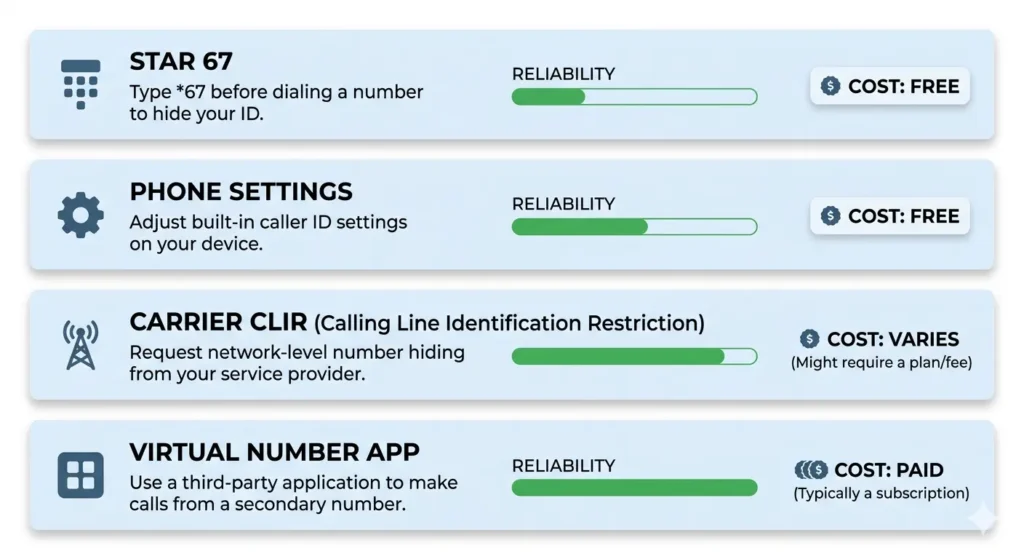
If you only need temporary number hiding for one specific call, *67 is your quickest and most reliable option. Dial it before the number and your outgoing caller ID stays hidden for just that call.
If you make private calls regularly and do not want to type *67 every time, the phone settings toggle is worth trying first. Just remember to test whether your carrier actually respects the setting by having someone check what appears on their screen when you call.
If you need genuine permanent caller ID blocking that works every single time regardless of your carrier, CLIR through your network provider is the right solution. CLIR is a carrier-level service that hides your number at the network before the call even connects, which makes per-call number blocking through phone settings unnecessary once it is active.
For anyone running a small business or regularly contacting clients through a number they want to keep private, a virtual number app gives you a dedicated second number with consistent outgoing caller ID control built in from the start.
Quick Summary How to Hide Your Phone Number When Calling
If you scrolled straight to the bottom looking for a fast answer, here is everything covered in this guide in one place.
Use 67″ appears to be a formatting error. The * symbol is missing from *67, making it read as “Use 67” instead of “Use *67”.
Change your phone settings go to your dialer settings and set caller ID to Never or toggle off Show My Caller ID on iPhone. Works on many networks but not all.
Contact your carrier for CLIR the most reliable permanent solution. Ask your provider to enable Calling Line Identification Restriction on your account.
Use a virtual number app best for ongoing privacy or business use when you need a dedicated second number every time you call.
Use international dial codes if *67 does not work in your country, check the code for your region such as #31# for Pakistan or 141 for the UK.
Phone number privacy does not have to be complicated. Pick the method that fits your situation, test it once to confirm it works on your network, and you are done.
Does 67 work on all phones and carriers?
67 works on most US and Canadian carriers for both Android and iPhone. International users need a different code — #31# works in Pakistan and many other countries, while 141 works in the UK. Some VoIP services do not support caller ID blocking codes at all.
Why does my number still show after I turned off caller ID in settings?
Your mobile network operator can override phone-level caller ID settings at the carrier level, meaning your phone setting gets ignored. This is especially common in India, parts of Asia, and many other regions. To fix this reliably, contact your carrier and request CLIR activation on your account.
Can emergency services see my number even when it is hidden?
Yes, always. Emergency services such as 911 in the US and 999 in the UK can see your number regardless of any caller ID setting or app you use. This is a legal requirement in most countries and cannot be bypassed.
Is hiding your phone number when calling legal?
Yes, hiding your phone number for personal privacy is legal in most countries. The action becomes illegal when used for harassment, fraud, or threatening someone. Always use caller ID blocking responsibly and within the law.
How do I unhide my phone number after hiding it?
For *67 simply make your next call without typing the code. For Android go back to Supplementary Services and select Network default. For iPhone go to Settings then Phone then Show My Caller ID and toggle it back on. For international dial codes type *31# to restore your number.