How to Delete Apps on Roku: The Method That Works on Every TV
The Quick Answer (For Anyone in a Hurry)
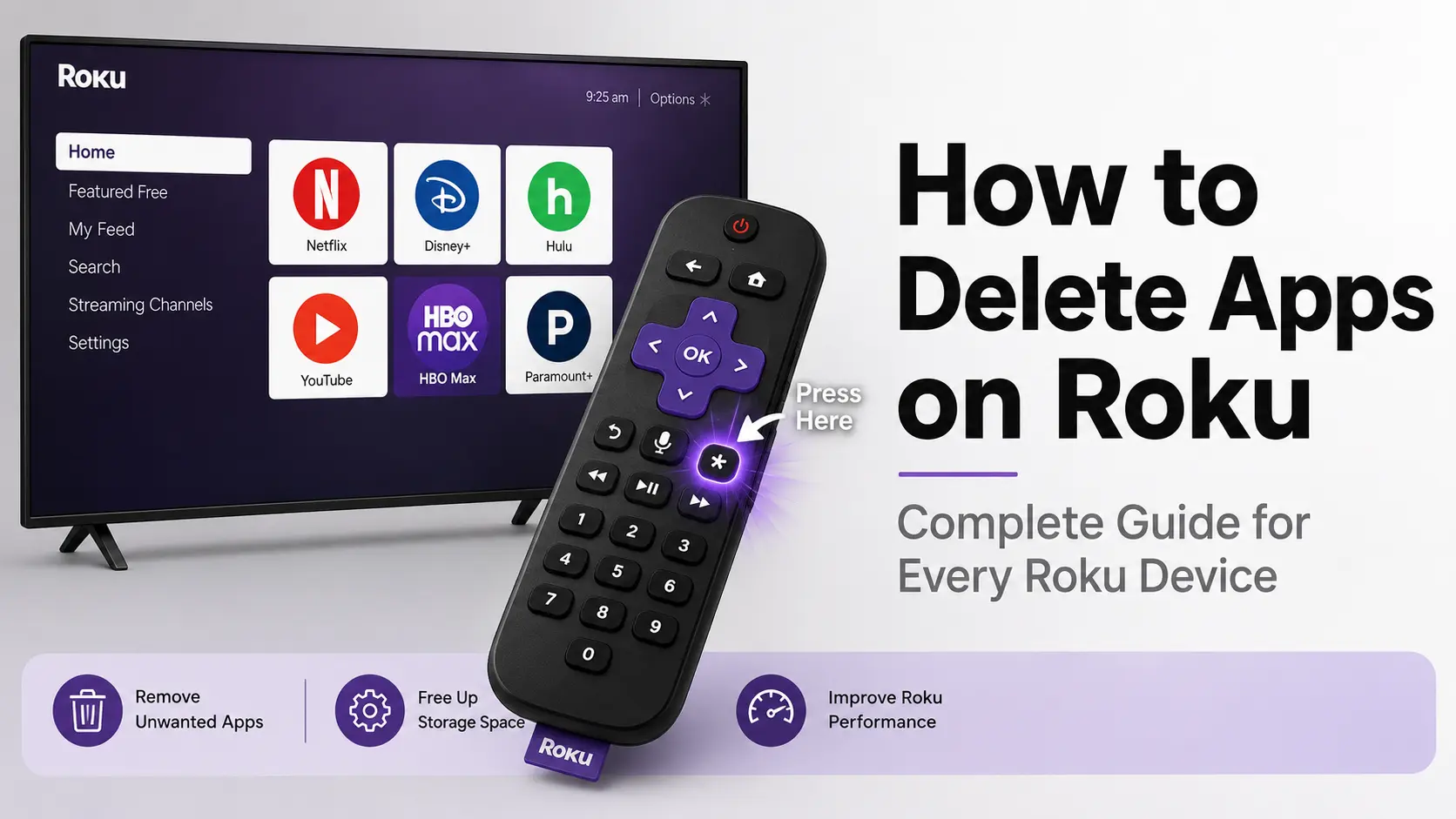
If you just want your Roku screen looking clean again, here’s the fast version. Highlight the app you want to remove on your Roku home screen, press the Star button (also called the Asterisk button) on your Roku remote, then select Remove. Confirm it one more time and the app disappears from your screen instantly.
I’ve tested this exact process on more Roku devices than I can count, and it works the same way whether you’re clearing out an old streaming channel or just tidying up your home screen. Learning how to delete apps on Roku doesn’t erase anything permanent either. You can always grab it back from the Roku Channel Store later if you change your mind. This is genuinely the fastest way to free up storage space on your home screen and clear Roku clutter you don’t use anymore.
How to Delete Apps on Roku From the Home Screen
Deleting an app on Roku takes less than 30 seconds once you know where to look. Here’s exactly how I do it every time I want to clear something off my Roku home screen.
Step 1: Get to your home screen. Press the Home button on your Roku remote. This makes sure you’re starting from the main dashboard where all your installed apps live in a grid.
Step 2: Find and highlight the app. Use the arrow buttons on your remote to scroll over to the app you want gone. You’ll know it’s selected when a white box or border shows up around the app tile.
Step 3: Press the Star button. This is the small asterisk icon on your Roku remote (the Roku remote star button), usually sitting toward the middle. Pressing it while an app is highlighted brings up the Roku options menu right there on your screen.
Step 4: Select Remove. Scroll down through the menu that pops up and choose the remove option to uninstall channel, then press OK.
Step 5: Confirm it. Roku will ask if you’re sure. Select Remove one more time and that’s it. The app vanishes from your home screen in just a few seconds.
Wait, Does It Say “Remove App” or “Remove Channel” on Your Screen?
Here’s something that trips a lot of people up, and honestly it confused me the first time too. Depending on your Roku software version, that menu option might say Remove App on one device and Remove Channel on another. I’ve seen both wordings show up across different Roku TVs and streaming sticks, and they do the exact same thing. So if you’re following along and your screen doesn’t match word for word with what you expected, don’t panic. You’re still on the right menu, and whether you’re choosing to remove channel from Roku or remove app, selecting either option will delete the app the same way.
Bonus: You Can Rearrange Apps From This Same Menu
While you’re in there, it’s worth knowing that the same little
options menu that lets you delete an app also lets you move it. If
you press the Star button on an app tile and see an option called
Move Channel sitting right above or below Remove, that’s how you
handle Roku app management by repositioning apps on your home
screen instead of deleting them.
I’ve noticed this come up a lot, especially right after downloading
something new, since Roku tends to dump fresh apps at the very
bottom of your grid. So if your goal is really just to bring an app
closer to the top instead of getting rid of it completely, you don’t
need a different process. Just choose Move Channel instead of Remove,
then use your arrow keys to slide it into whatever spot you want.
This kind of app organization is also useful on Android phones if you
want to <a href=”https://smarttechfixes.com/how-to-lock-apps-on-android/” target=”_blank” rel=”noopener noreferrer”>lock apps on your Android
device</a> to prevent accidental deletion or unauthorized access.
Yes, This Works the Same on Every Roku TV Brand
While you’re in there, it’s worth knowing that the same little options menu that lets you delete an app also lets you move it. If you press the Star button on an app tile and see an option called Move Channel sitting right above or below Remove, that’s how you handle Roku app management by repositioning apps on your home screen instead of deleting them.
I’ve noticed this come up a lot, especially right after downloading something new, since Roku tends to dump fresh apps at the very bottom of your grid. So if your goal is really just to bring an app closer to the top instead of getting rid of it completely, you don’t need a different process. Just choose Move Channel instead of Remove, then use your arrow keys to slide it into whatever spot you want. This kind of app organization is also useful on Android phones if you want to lock apps on your Android device to prevent accidental deletion or unauthorized access.
TCL and Onn Roku TVs
Both of these run the standard Roku interface, which means the steps are identical to what I walked through earlier. Highlight the app on your home screen, press the Star button, and choose Remove App or Remove Channel depending on your software version. There’s no separate settings menu or hidden trick specific to either brand.
Roku Ultra and Streaming Stick+
These are standalone streaming players rather than built-in TVs, but that doesn’t change anything about how deletion works. I’ve confirmed this myself on both devices separately, and the remote, the menu, and the confirmation screen all behave exactly the same way as they do on a Roku TV. If you can find the app on your home screen, you can delete it using the same Star button method every time.
Two More Ways to Delete Apps (No Remote Needed)
If your remote is missing or the batteries just died on you, you’re not stuck. There are two other reliable ways to delete apps on Roku that don’t need a working remote at all. I’ve used both when my remote went missing under the couch cushions for a week, and they work just as well as the standard method.
The first option is the Roku Channel Store. You can actually manage your installed streaming channels from inside the channel store itself, browsing to the app you want gone and removing it from there instead of going through your home screen grid.
Using the Roku Mobile App
The second option, and the one I actually reach for most often, is the Roku mobile app. Once you download it on your phone and connect it to the same WiFi network as your Roku device, it turns your phone into a remote control—making this the perfect solution for using Roku without remote.
From there, you can navigate your home screen exactly like you would with a physical remote, highlight the app you want to remove, and pull up the same removal menu. It’s a genuinely useful backup option if you ever misplace your remote or the batteries die at the worst possible time. I keep the app installed permanently now just for this reason. If you’re managing apps on your Android phone itself, you’ll want to explore other options like customizing your Android keyboard and app settings for better control over your device.
Deleting Specific Apps: Netflix, Hulu, YouTube, and More
Here’s something worth knowing upfront. It doesn’t matter which specific app you’re trying to get rid of. The exact same removal steps apply whether you’re trying to delete Netflix app Roku users commonly ask about, delete Hulu app Roku, delete YouTube app Roku, delete DirecTV app Roku, or any other streaming channel sitting on your home screen.
I’ve personally deleted Paramount+, Discovery Plus, HBO Max, and even the NFL app this exact same way, and every single one followed the identical process. Highlight the app, press the Star button, select Remove, then confirm. Roku doesn’t treat any app differently based on how popular it is or which company made it.
So if you came here specifically wondering how to remove any of these apps from your Roku, the good news is you don’t need a separate set of instructions. The steps I walked through earlier apply exactly the same way, no matter what app name is on that tile. The same principle applies if you’re removing apps from your Android device — the process may differ, but the goal is the same.
What to Do If You Can’t Remove an App
If an app on your Roku won’t delete, the most common fix is restarting your Roku device or checking your internet connection first. I’ve run into this myself a handful of times, and it’s almost never as complicated as it feels in the moment. For additional troubleshooting help, Roku’s official support documentation on managing channels can provide extra guidance if you’re still stuck.
Start with these checks in order:
Check your internet connection. Roku sometimes needs an active connection to process removals properly, so make sure you’re still connected to WiFi.
Restart your Roku. A simple restart clears up more stuck app issues than you’d expect. Head into your settings and restart the system, then try removing the app again.
Install a Roku OS update. An outdated system can occasionally cause menu options to behave oddly. Checking for a Roku OS update and installing it often resolves removal issues that seem to come from nowhere.
Cancel subscription Roku is managing. If an app is tied to an active subscription through your Roku account, you’ll want to cancel subscription Roku holds before removing the app, as this can prevent it from getting stuck.
Factory reset as a last resort. If none of the above steps work, you can factory reset Roku as an extreme option, though this will erase all your settings and installed apps. I only recommend this if the app absolutely won’t budge and you’ve exhausted every other option.
Don’t Forget Games Use the Same Menu
One thing that surprised me the first time I noticed it is that games work exactly the same way as streaming apps do. If you’ve got a game cluttering up your home screen instead of a streaming channel, you don’t need to hunt for a different removal process. Highlight it, press Star, select Remove, and it’s gone just like any other app.
Deleting Several Apps at Once
Roku doesn’t have a true bulk delete feature, so there’s no way to select multiple apps and remove them all in one action. I wish it worked that way too, especially after a big cleanup session, but the reality is you have to repeat the same single app process for each one.
The good news is that once you get into a rhythm, it moves fast. Highlight an app, press Star, select Remove, confirm, then move to the next one. I’ve cleared out six or seven unused apps in under two minutes doing it this way, so while it’s not technically bulk deletion, it’s quick enough that it barely matters.
FAQs About Deleting Apps on Roku
Why does my screen say “Remove app” instead of “Remove channel”?
This comes down to which version of the Roku software you’re running, nothing more. Some Roku devices show “Remove app” while others show “Remove channel,” but both options do the exact same thing. I’ve seen this wording difference show up across different Roku TVs and streaming devices, so don’t worry if your screen doesn’t match word for word with what you expected. Whichever one shows up on your screen, selecting it will delete the app the same way.
Will deleting an app cancel my subscription?
No, deleting an app only removes it from your Roku device and doesn’t touch your subscription. If you’re paying for a service through that app, you’ll need to cancel it separately, either directly through the provider or through the subscriptions section of your Roku account. I learned this one the hard way after assuming removing an app would automatically stop a subscription, and it definitely doesn’t work that way.
Can I get a deleted app back later?
Yes, getting a deleted app back is simple and something I’ve done plenty of times myself. Just head to the Roku Channel Store, search for the app by name, and reinstall it like you’re downloading it for the first time. Your login details for that app usually still work once it’s back on your home screen, so you won’t lose much by deleting something you end up wanting again.
Can I delete games the same way as streaming apps?
Yes, games get deleted using the exact same process as any streaming app on Roku. Whether it’s a simple game or a full streaming channel sitting on your home screen, the steps don’t change at all. Highlight it, press the Star button, select Remove, and confirm, and the game disappears just like any other app would.
Is hiding an app different from deleting it?
Roku doesn’t actually have a separate hide feature, so deleting is really your only option if you want an app off your home screen. What you can do instead is move it to a less visible spot on your grid if you’d rather keep it installed but out of the way. Beyond that, though, removing the app completely is the only real way to get it out of sight.